V16 Training · Assets and Budgets · Lesson 4 of 4
Recurring documents
This lesson shows how to make the system copy a document on a schedule with an Auto Repeat, and how a Subscription differs.
Written guide
The idea
A recurring document is a copy the system makes on a schedule: an invoice, an order or a journal entry. You choose how often, the first day, and an optional last day.
The screens use example data from a demo company that sells flooring.
Step by step
Step 1. Open the repeat
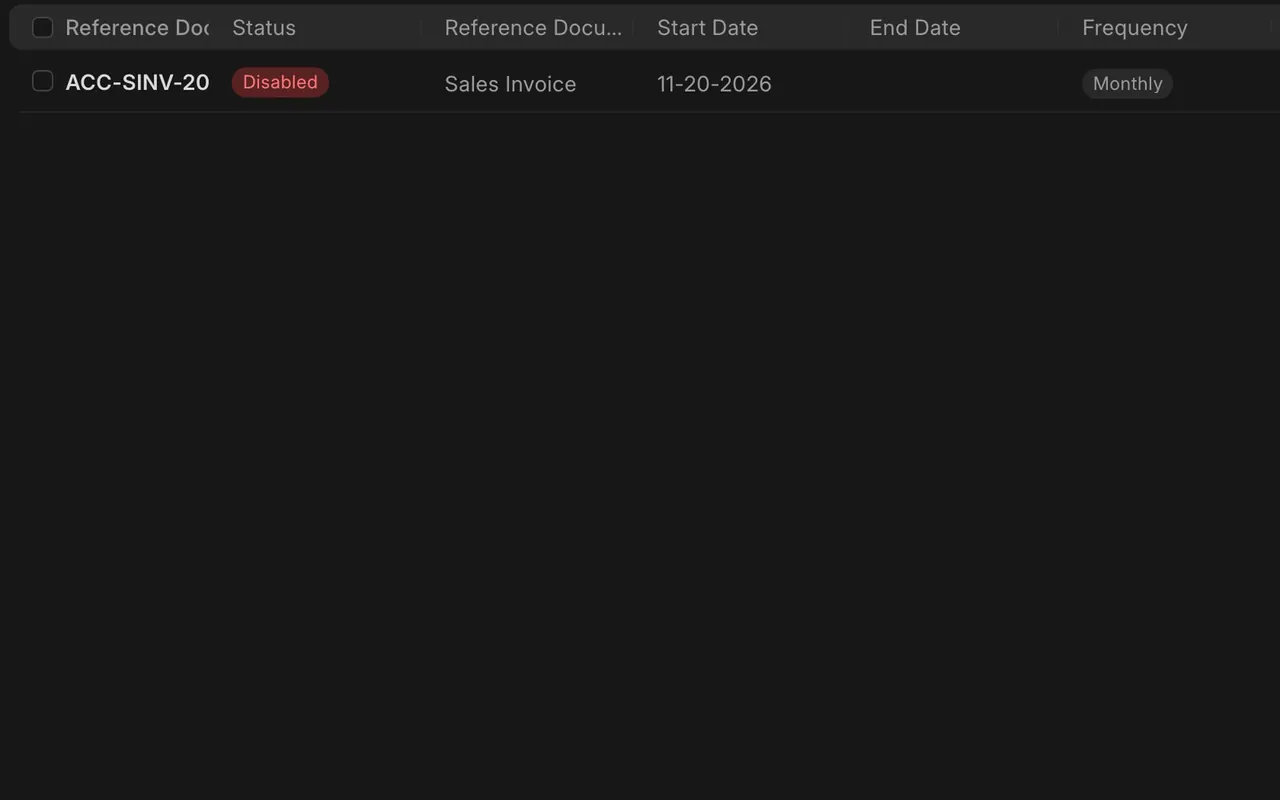
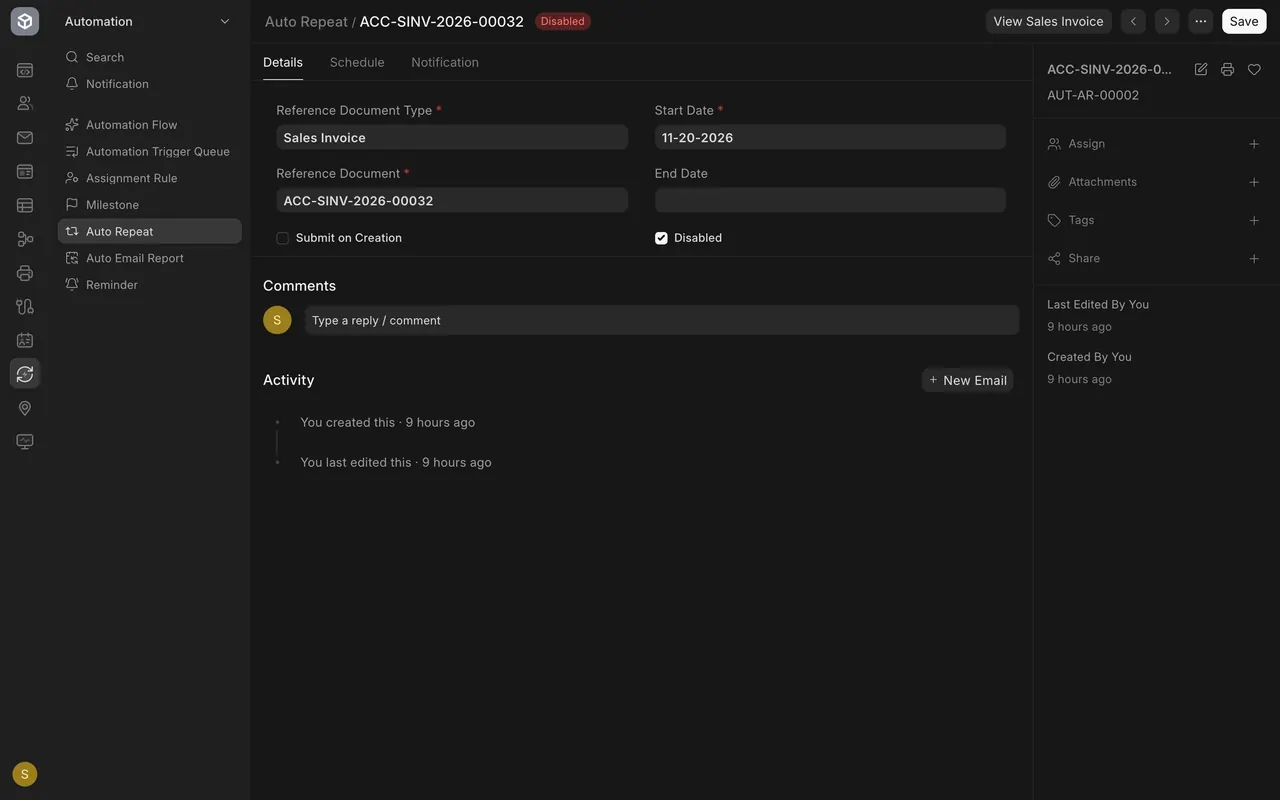
- Open the Auto Repeat list. Each row shows the status, document type, start date and frequency. Open the repeat. It names the Reference Document Type and Reference Document to copy, a Start Date, an optional End Date, and Submit on Creation.
Step 2. Set the schedule
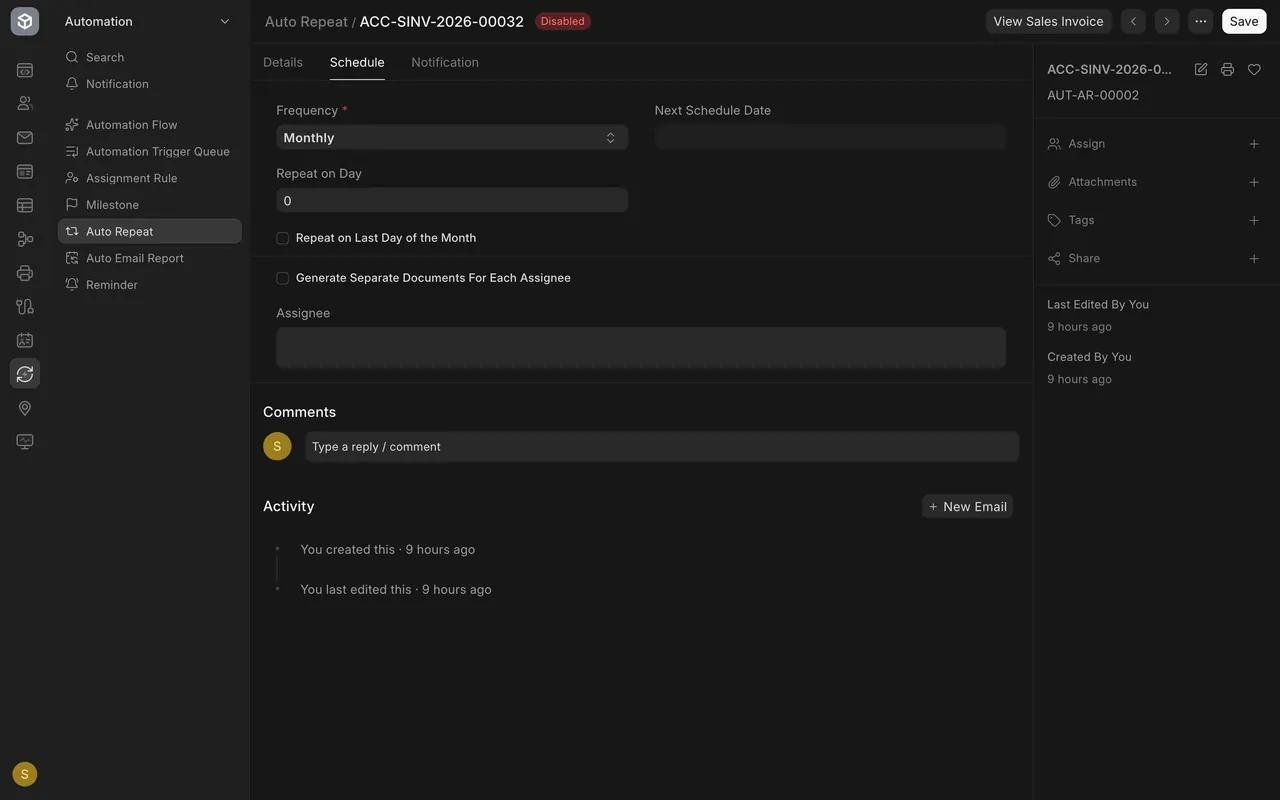
- On the Schedule tab, pick the Frequency. Here it is Monthly. On the Details tab, Disabled stops the repeat from making anything.
Step 3. Choose the notification
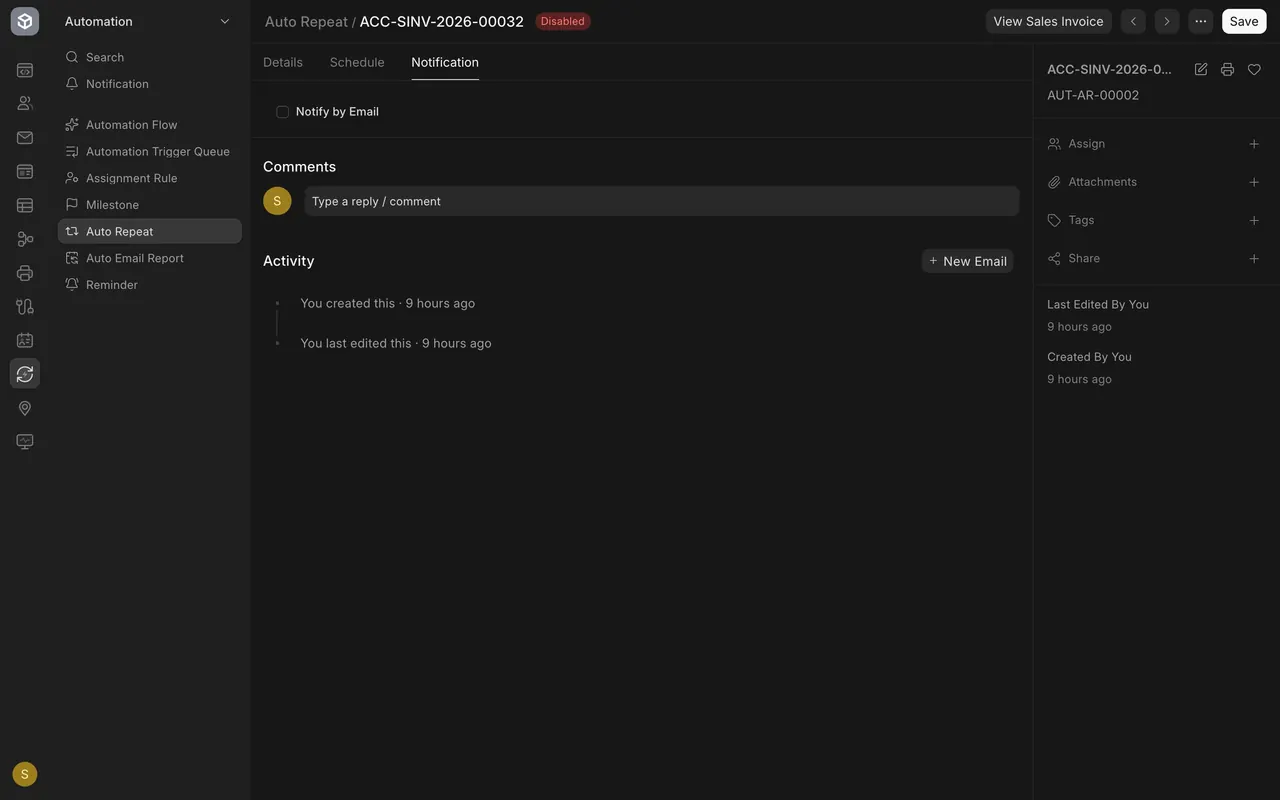
- The Notification tab has Notify by Email. If your site is set up to send email, it tells people when a copy is made. It is off in this example.
Step 4. Find it on the invoice
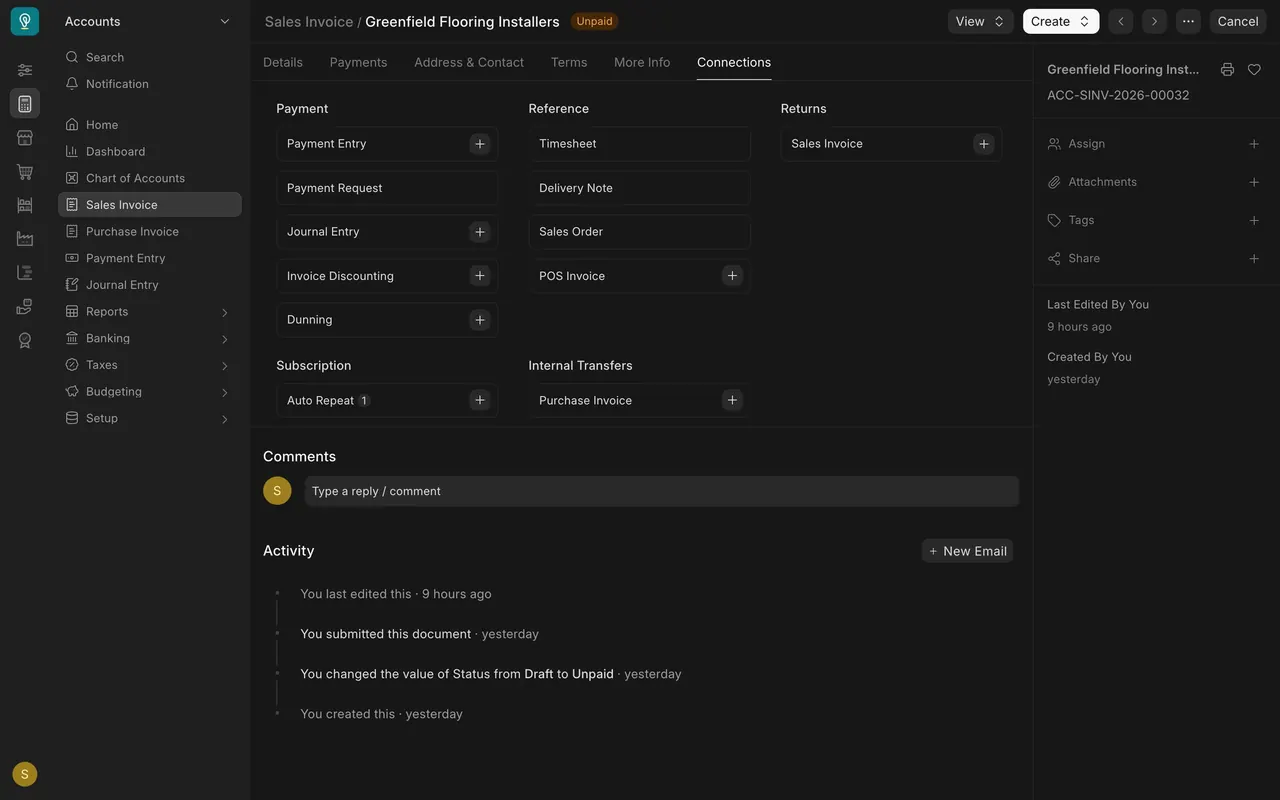
- Open the original invoice and click the Connections tab. Under Subscription, Auto Repeat shows how many repeats point at it.
Subscriptions
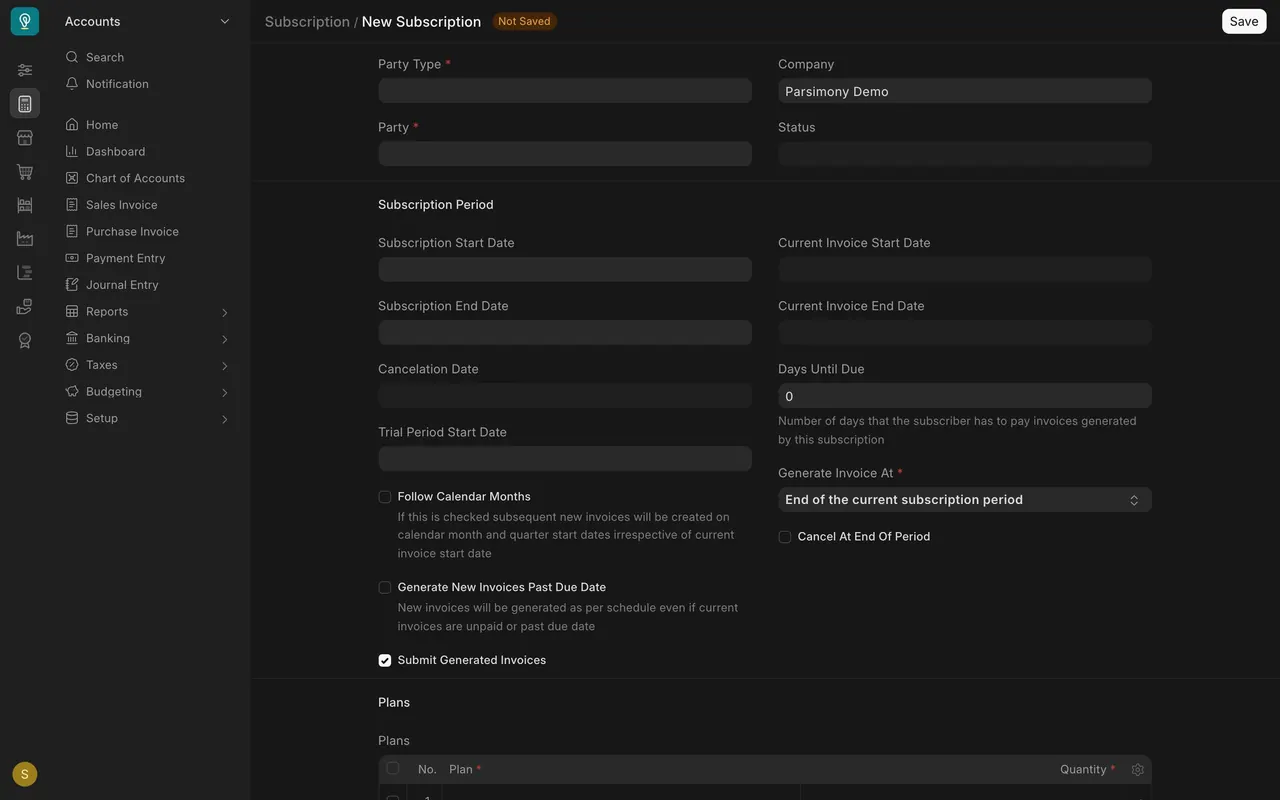
A Subscription bills a customer for plans over a period. Use a repeat to copy one document; use a subscription to bill for a plan.
What you may see on your own site
- Your own repeats, their dates and their status. Before you close the month, check which repeats are disabled.
Common mistakes
- Leaving a repeat enabled by accident. It will keep making copies on its schedule.
- Turning on email notification without checking your email setup. Check first.
Check yourself
3 quick questions.
1. What does an Auto Repeat do?
2. Which box stops a repeat from making copies?
3. Where on the invoice do you see its repeat?