V16 Training · Assets and Budgets · Lesson 1 of 4
Cost centers and budgets
This lesson shows what a cost center is, how a budget watches one, what Stop, Warn and Ignore do, and how to check the variance report.
Written guide
The idea
A cost center is a label for one part of the business. A budget sets how much a cost center (or project) may spend on one account in a fiscal year, and what happens when it goes over. Screens use example data from a demo company.
Step by step
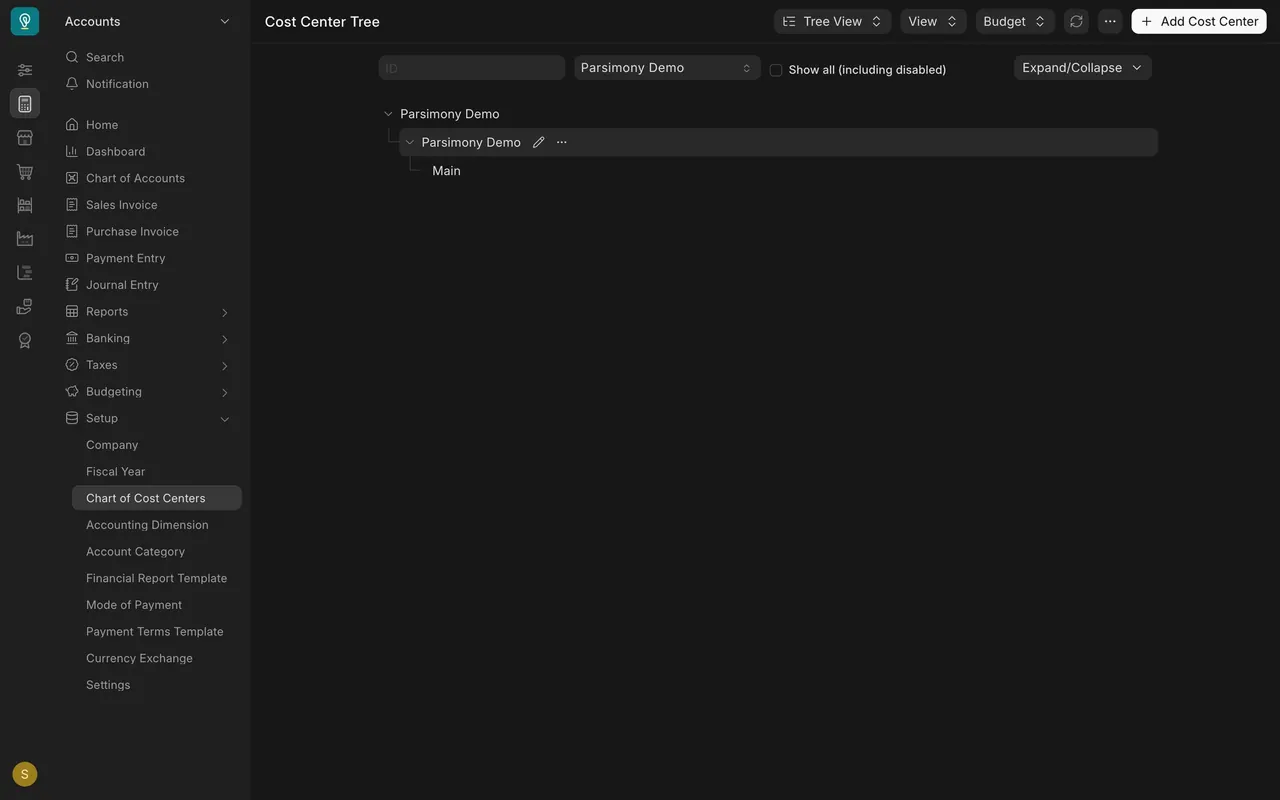
Step 1. See the cost centers
- Open the Cost Center tree. The company is at the top, then a group, then the cost center Main.
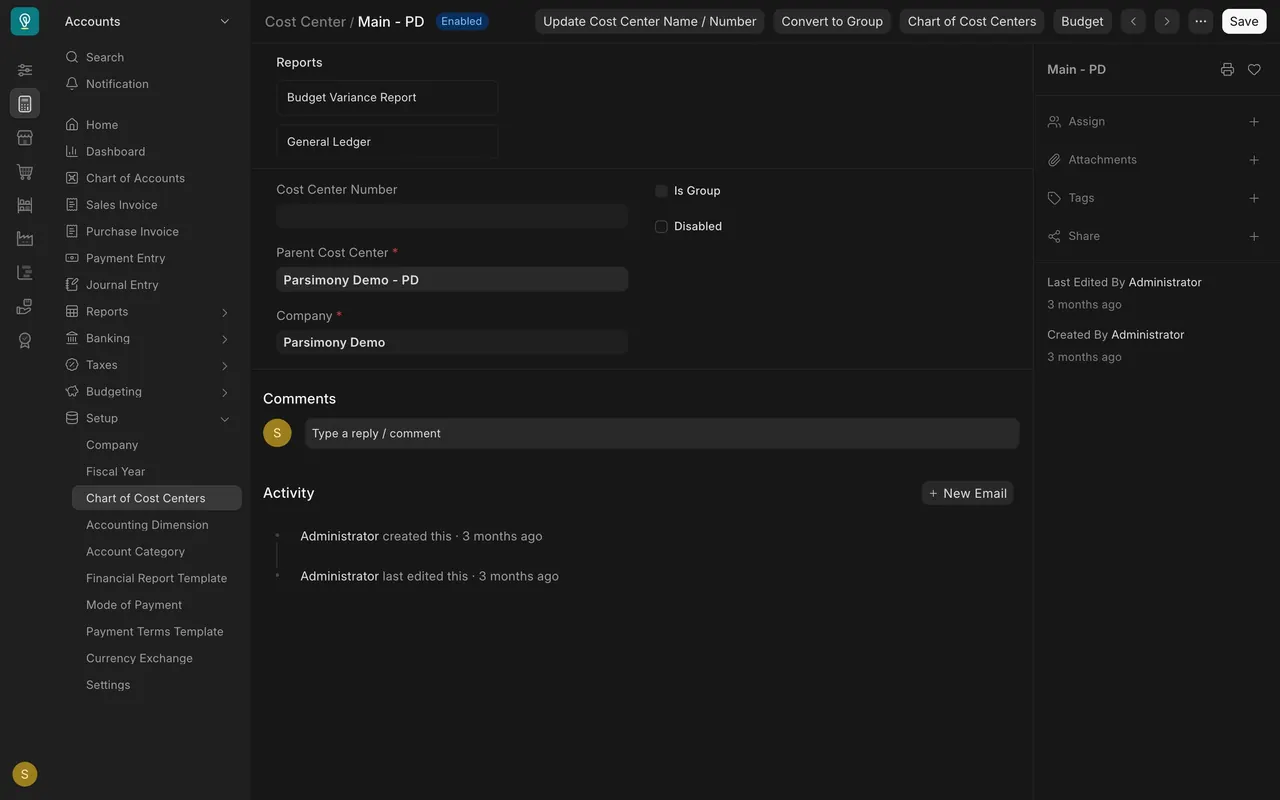
- Open Main: it has a parent and Is Group is not ticked, so costs can post to it.
Step 2. Open a budget
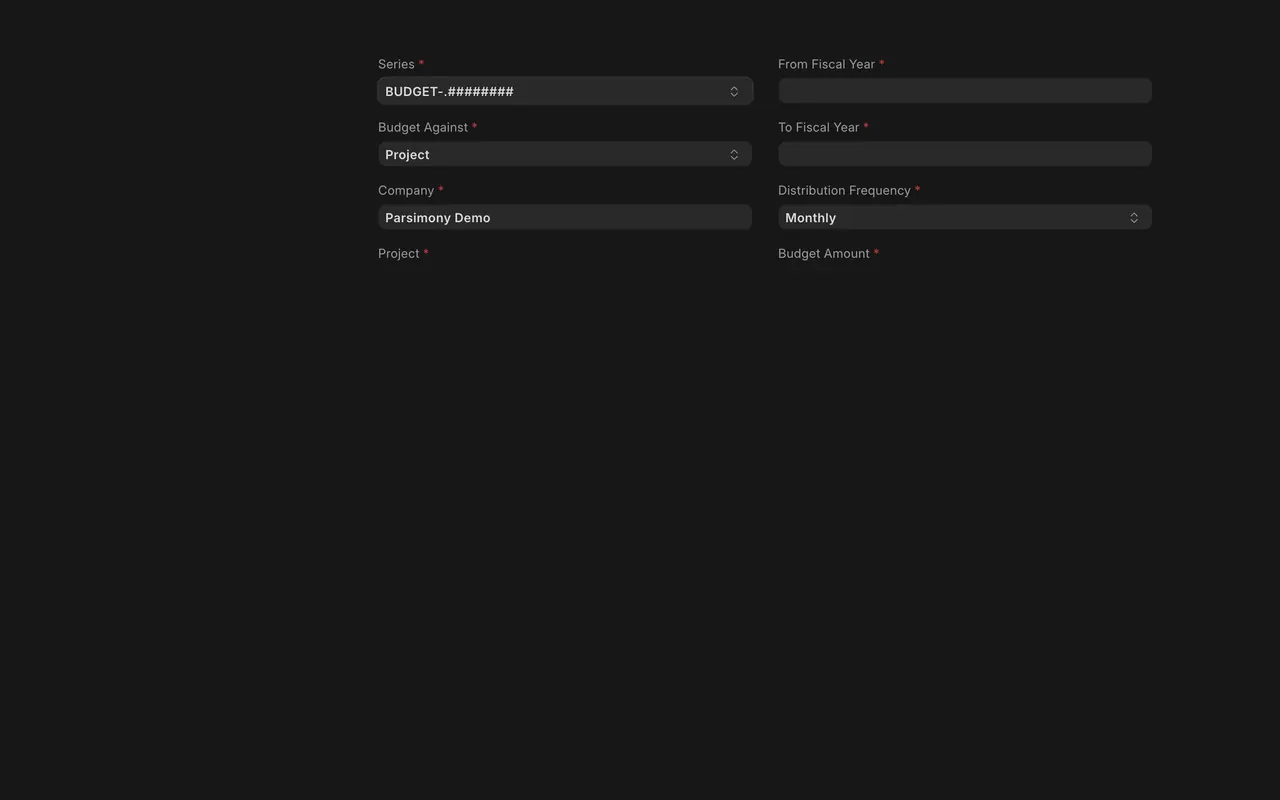
- Budget Against offers a cost center or a project.
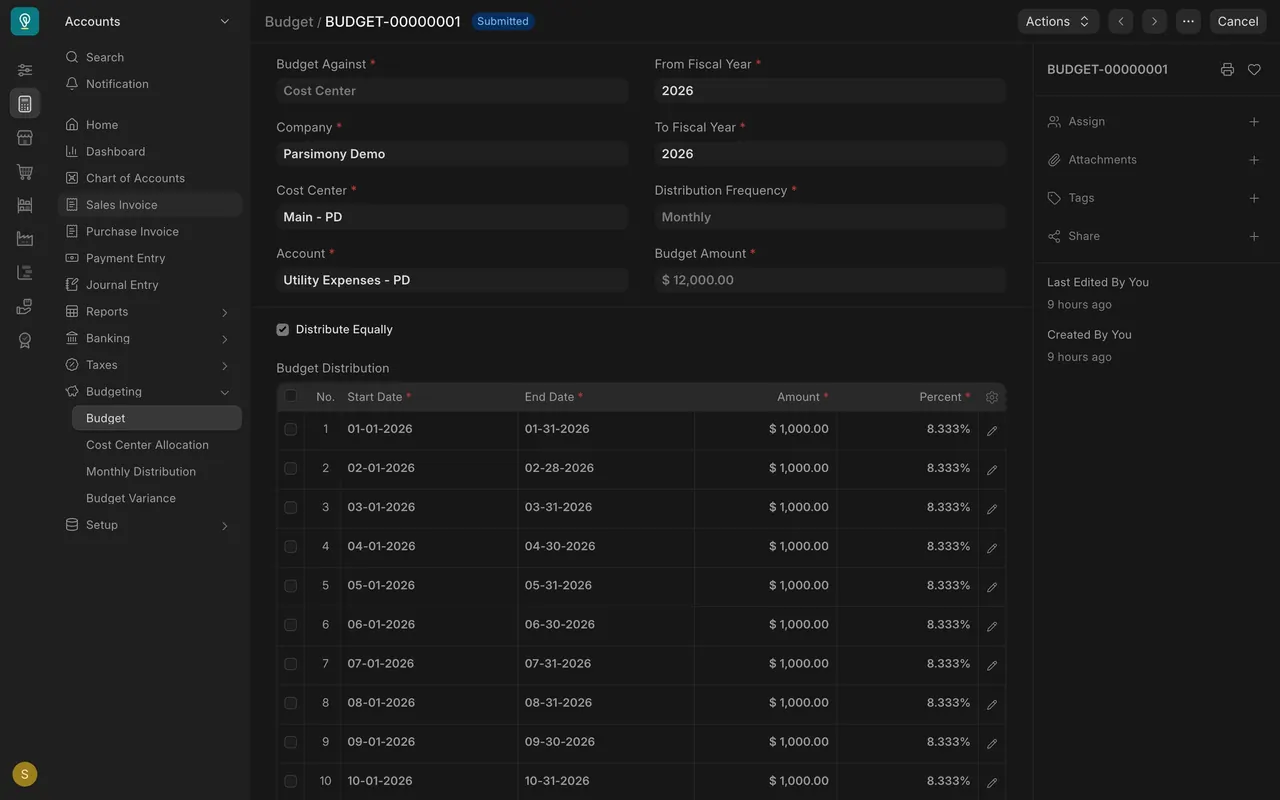
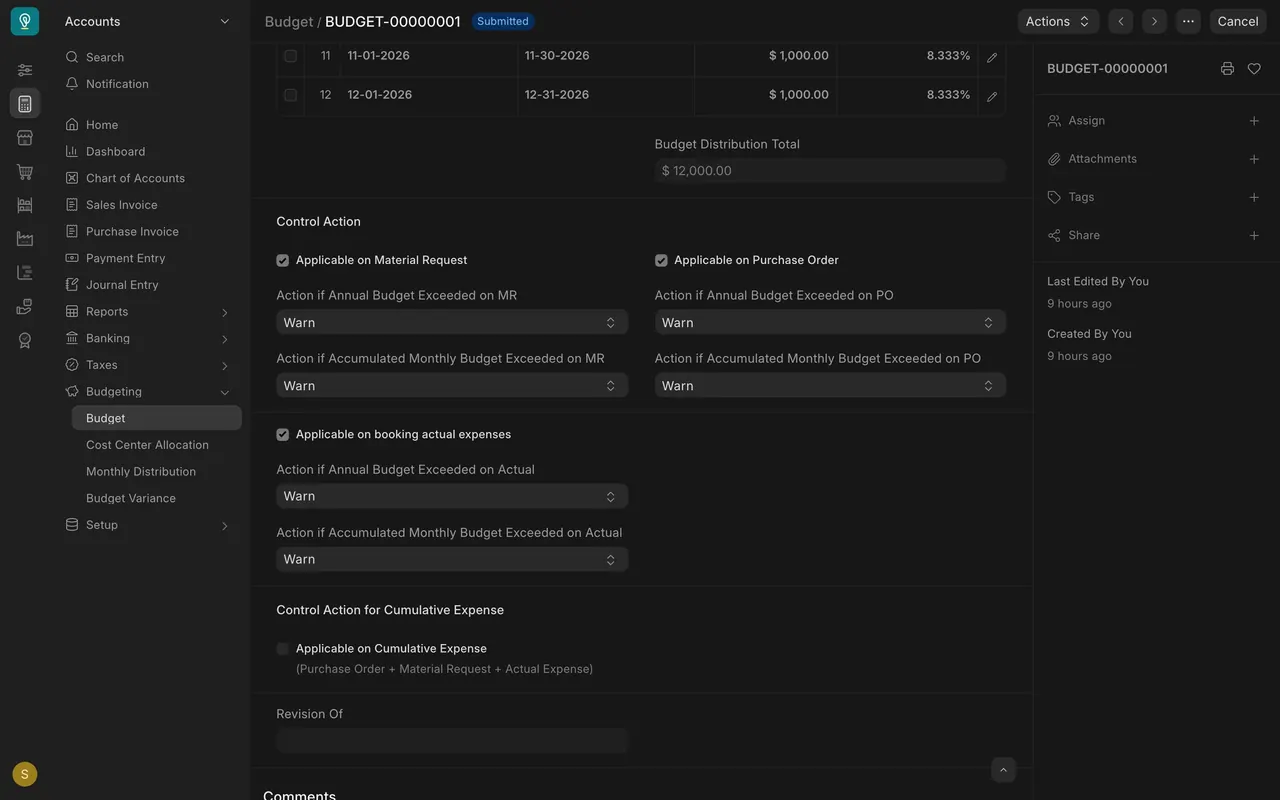
- Here the account is Utility Expenses, the amount $12,000 for 2026, split equally into 12 months of $1,000.
Step 3. Look at the actions
- In Control Action, choose Stop, Warn or Ignore for material requests, purchase orders and actual expenses.
- Here every action is Warn: people are told but not blocked. The message itself is not shown (never triggered).
Step 4. Check the variance
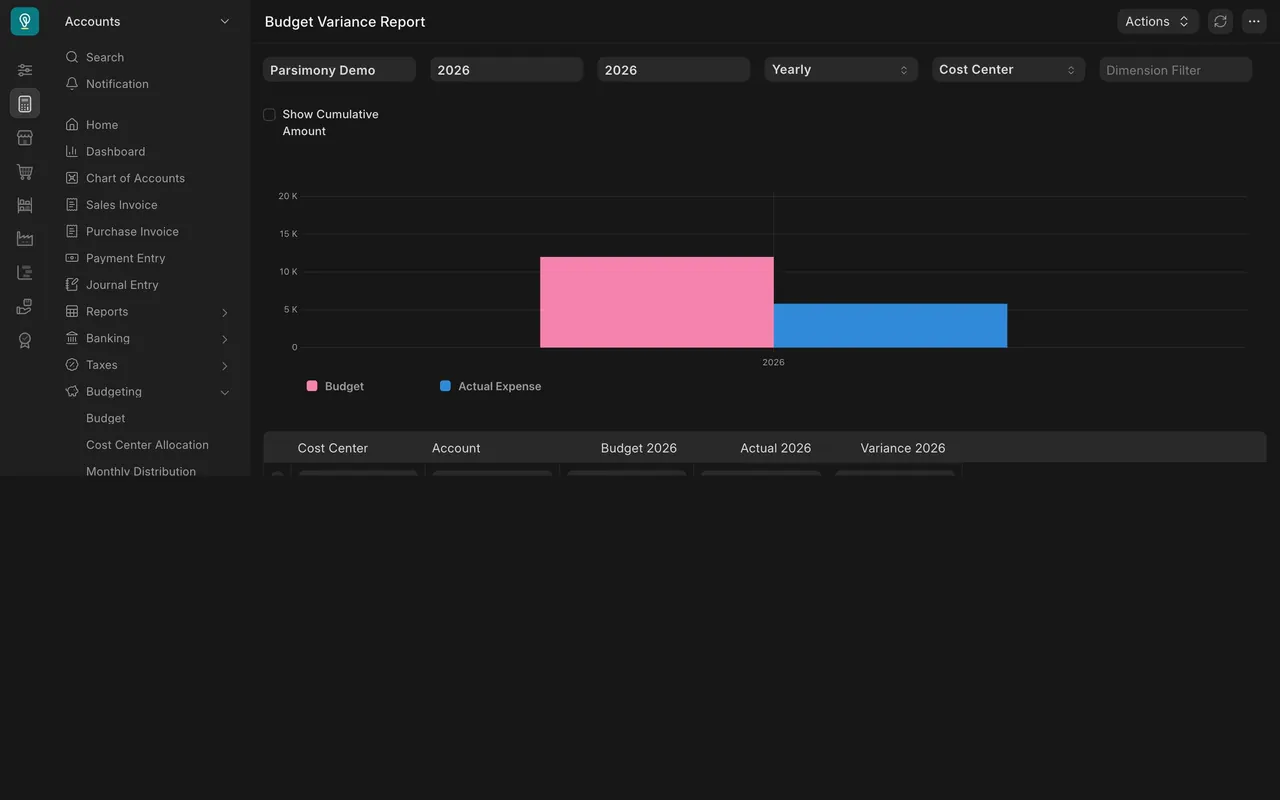
- Open Budget Variance Report. Budget $12,000, actual $5,800, variance $6,200.

What you may see on your own site
- Your own cost centers, accounts and amounts.
- Stop blocks, Warn shows a message, Ignore does nothing.
Common mistakes
- Budgeting a group and a leaf twice.
- Choosing Stop before people know the budget. Start with Warn.
- Never opening the variance report.
Check yourself
3 quick questions.
1. What does the Warn action do when a budget is passed?
2. What can a budget be set against?
3. What does a green variance in the report mean here?