V16 Training · Admin and Setup · Lesson 2 of 6
Roles and permissions
This lesson shows you what a role is, how to read the rights a role has on a document, how to restrict one person to one warehouse or customer, and how to check what a person can see.
Written guide
The idea
A role is a named set of rights. People get one or more roles, and the roles decide what they can open, change and submit. User permissions narrow one person further, for example to a single warehouse. You can check the result without changing anything.
The screens use example data from a demo company. Your own Parsimony site has your own roles and users. For the overview of roles, see Getting Started, lesson six.
Step by step
What a role is
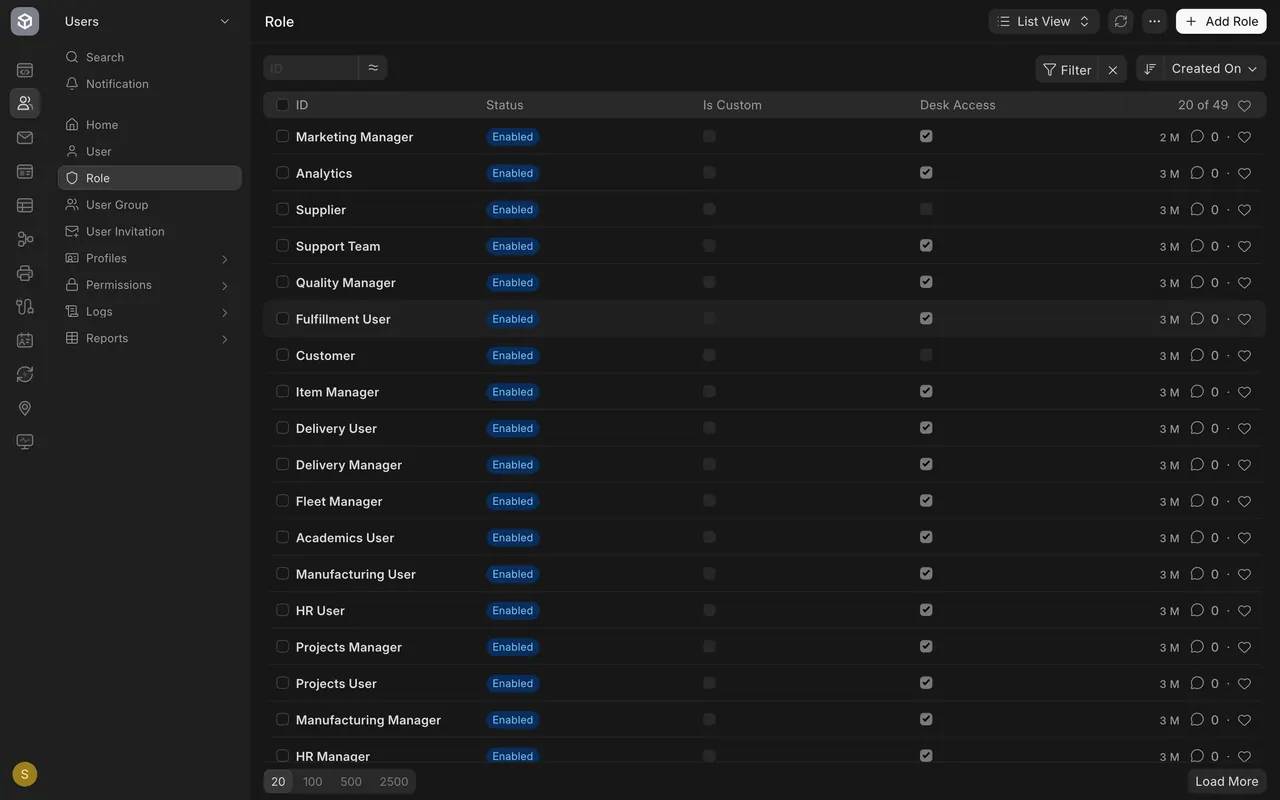
- Open the Role list in the Users area. In this example it shows 49 roles.
Step 1. Read a role's rights
- In the Users area, open Permissions and choose Role Permissions Manager.
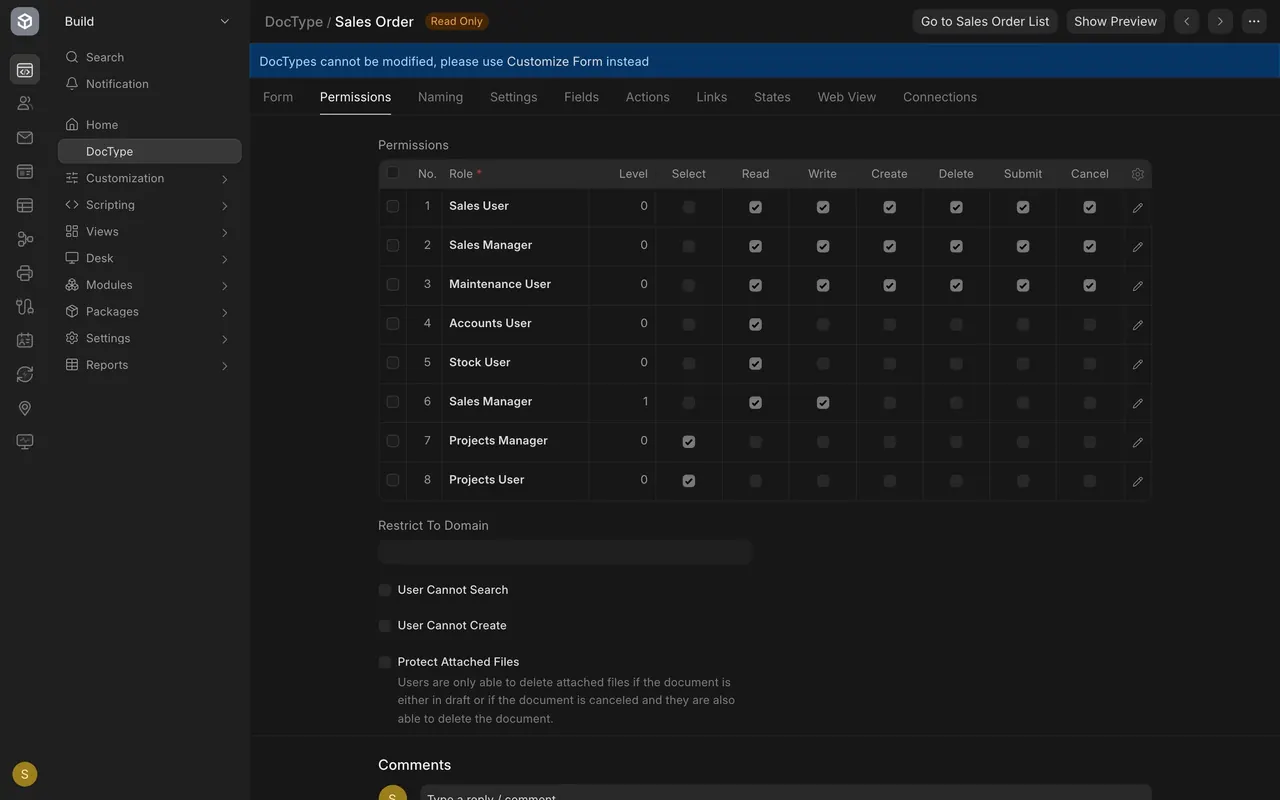
- Pick a document type, such as Sales Order. Each row is one role.
- The columns are the rights: Select, Read, Write, Create, Delete, Submit and Cancel. The Level column is the permission level: level zero covers the whole document, and a level-one row covers only the fields marked for level one.
- Only look. A change here applies to everyone with that role.
Step 2. Restrict one person with a user permission
- Open User Permission in the same menu. A list shows each restriction; in this example it is empty.
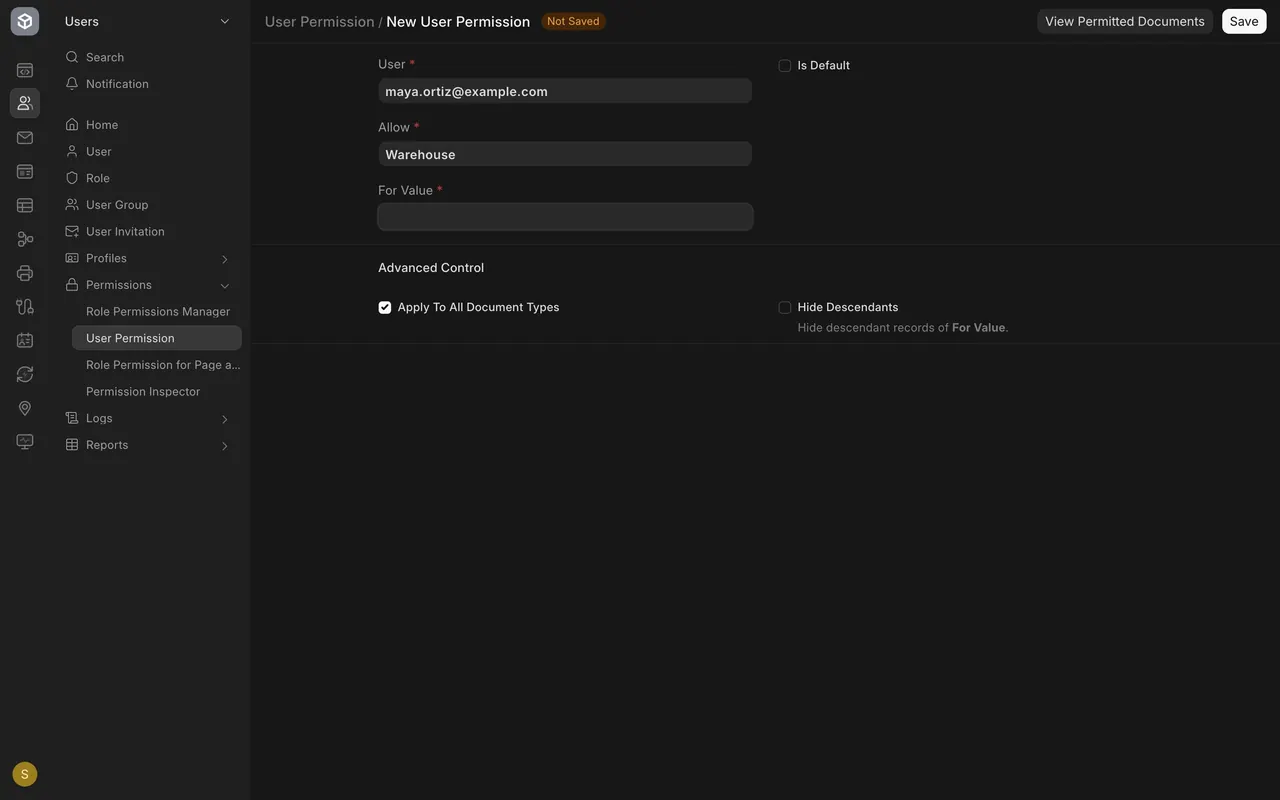
- Choose Add User Permission. Pick the User, pick Warehouse (or Customer) in Allow, then pick the value in For Value.
- Apply To All Document Types is ticked by default, so the limit follows the person everywhere.
- Choose Save only when you mean it.
Step 3. Check what a person can see
- Open the report Permitted Documents For User.
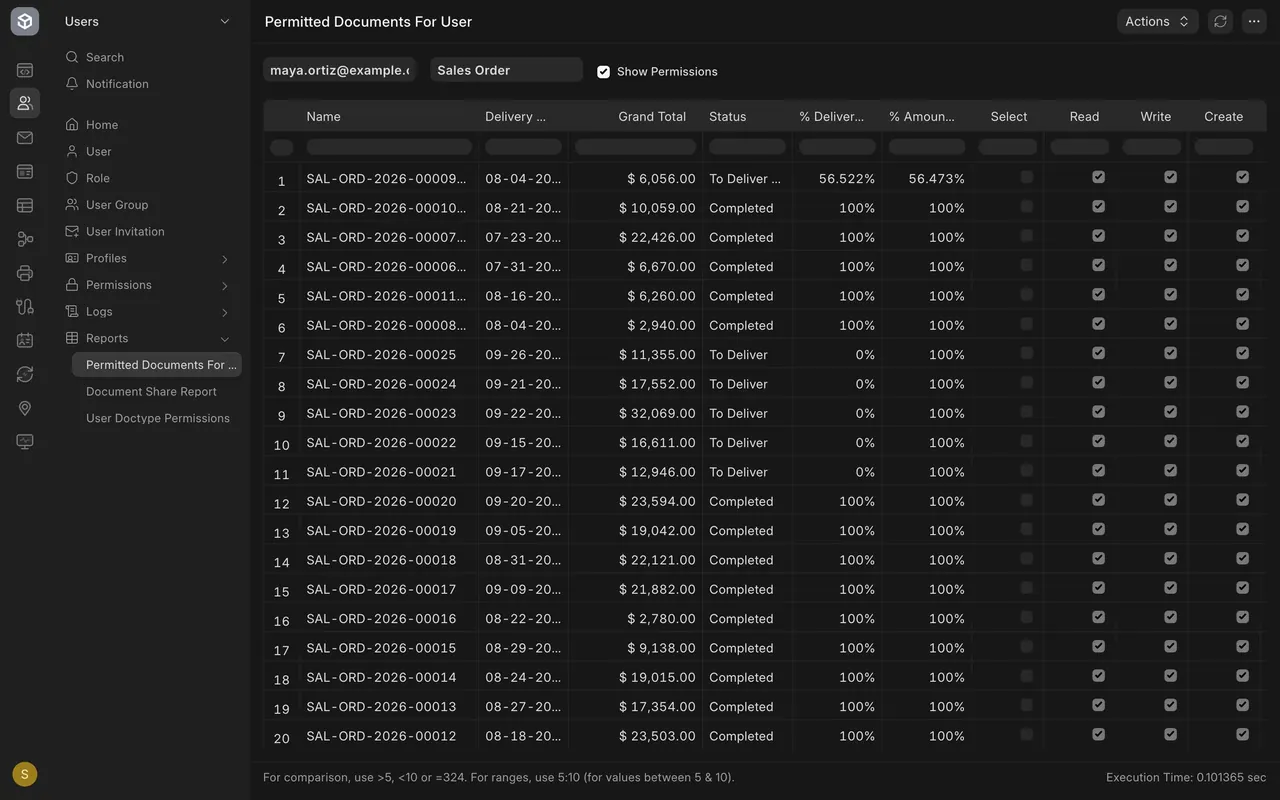
- Pick the User and a DocType, and tick Show Permissions.
- The report lists the documents the person can open, with ticks for Read, Write and Create.
What you may see on your own site
- Your administrator may have added roles of their own, and your rights table may have more or fewer rows.
- Menu names can differ slightly if your site has been customised.
Common mistakes
- Ticking a right to fix one person. The change applies to everyone with that role. Use a user permission or another role.
- Forgetting that a user permission follows the person everywhere. Apply To All Document Types is ticked by default.
- Changing a role before checking. Run Permitted Documents For User first.
Check yourself
3 quick questions.
1. What is a role?
2. You want one person to work only with one warehouse. What do you use?
3. Someone says a Sales Order is missing. What do you do first?