V16 Training · Admin and Setup · Lesson 1 of 6
Users and role profiles
This lesson shows you how to add a person to Parsimony, give them the right access, and turn them off when they leave. It is for system managers.
Written guide
The idea
Every person has their own user: a sign-in with a name, an email address and a role profile. A role profile is a named bundle of roles, and roles decide what a person may open. When someone joins, you add a user. When someone leaves, you switch the user off. You do not delete it.
The screens use example data from a demo company. Your own Parsimony site shows your own people and your own role profiles.
Step by step
Look at your users
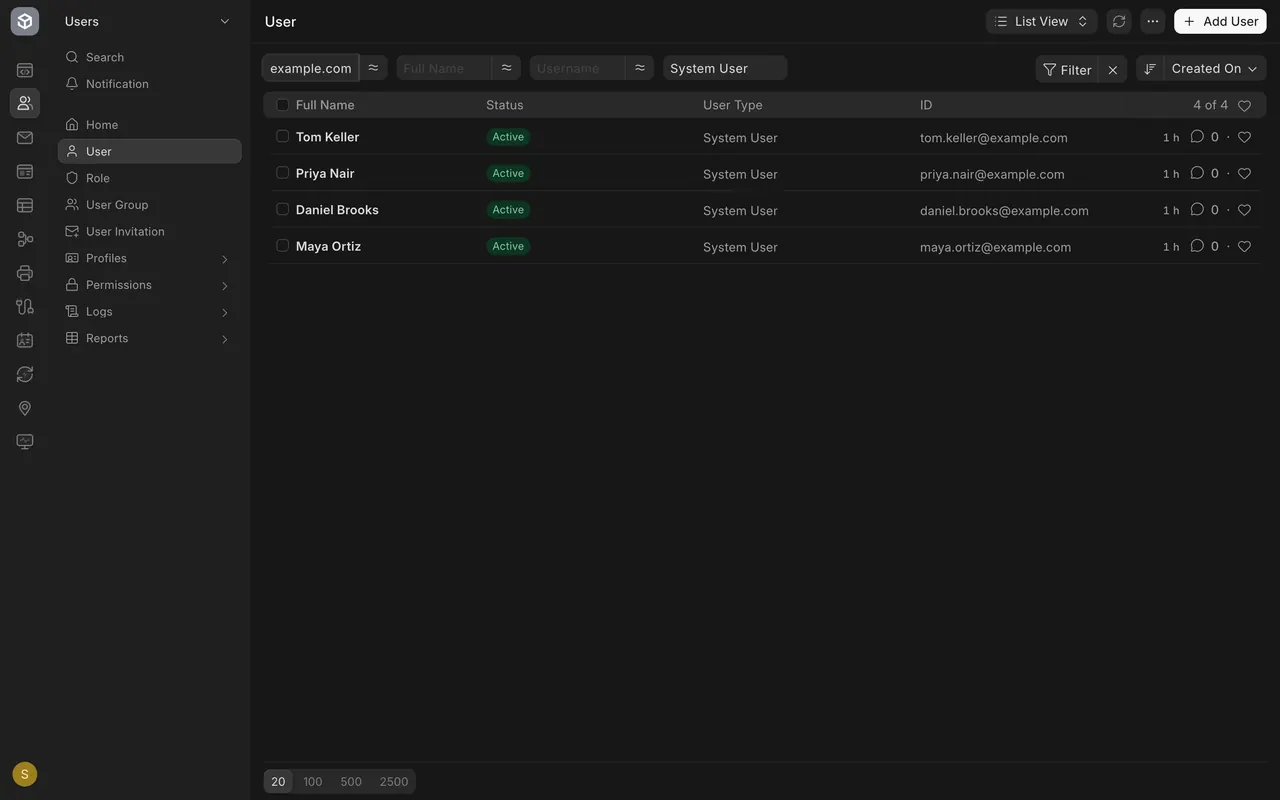
- Open the Users area in the sidebar and pick User. Each row is one person, with a Status, a User Type and an email address.
- In this example the four demo users are Tom Keller (accounts), Priya Nair (inventory), Daniel Brooks (purchasing) and Maya Ortiz (sales). All four are System User, which means they sign in to the desk.
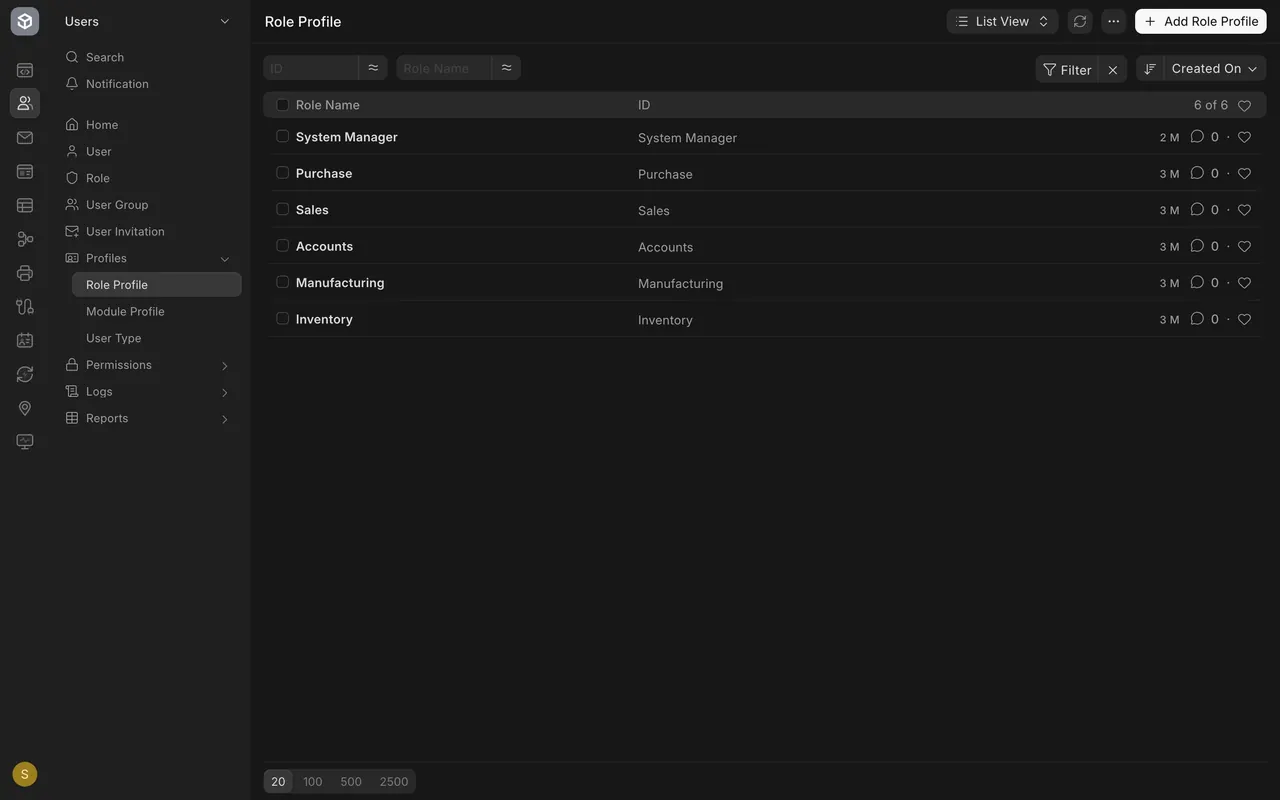
- Under Profiles, pick Role Profile. This example has six: Accounts, Inventory, Manufacturing, Purchase, Sales and System Manager. Roles are explained in Getting Started, lesson six.
Step 1: add the person
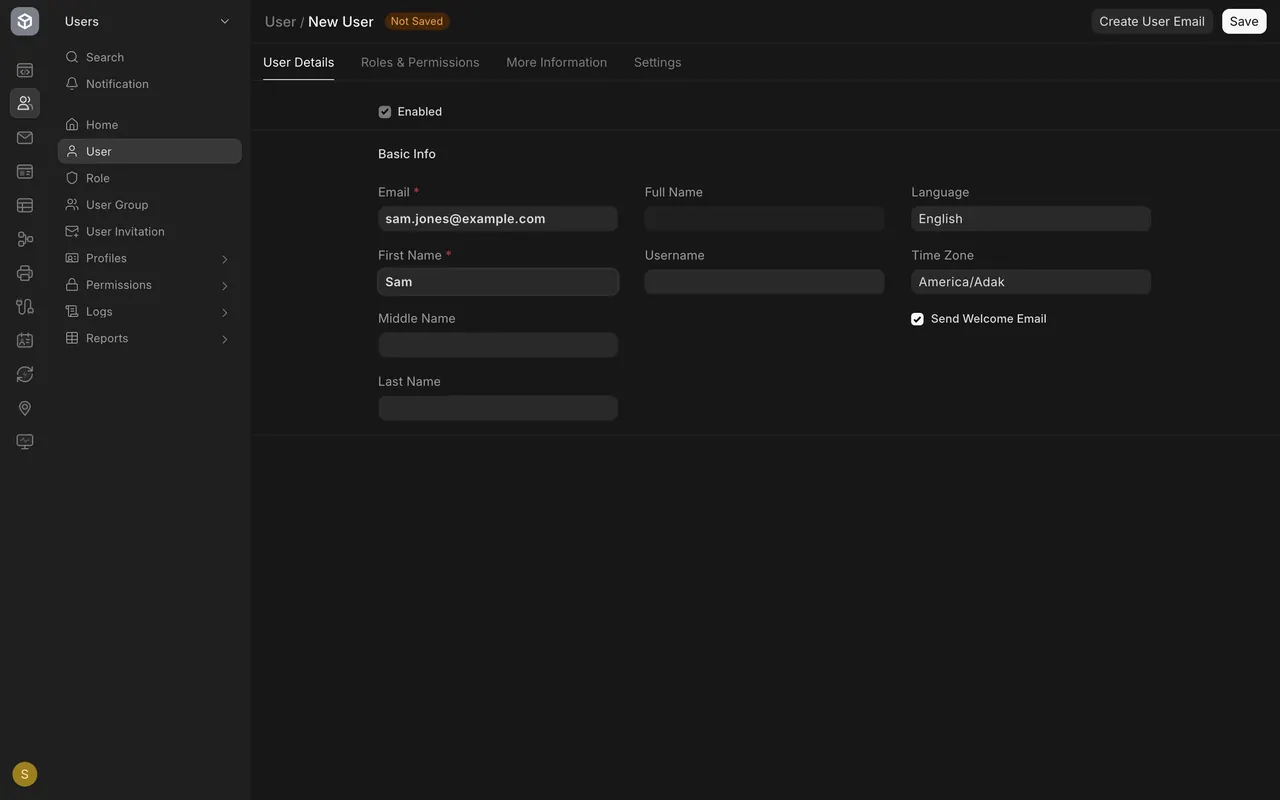
- Click Add User at the top right.
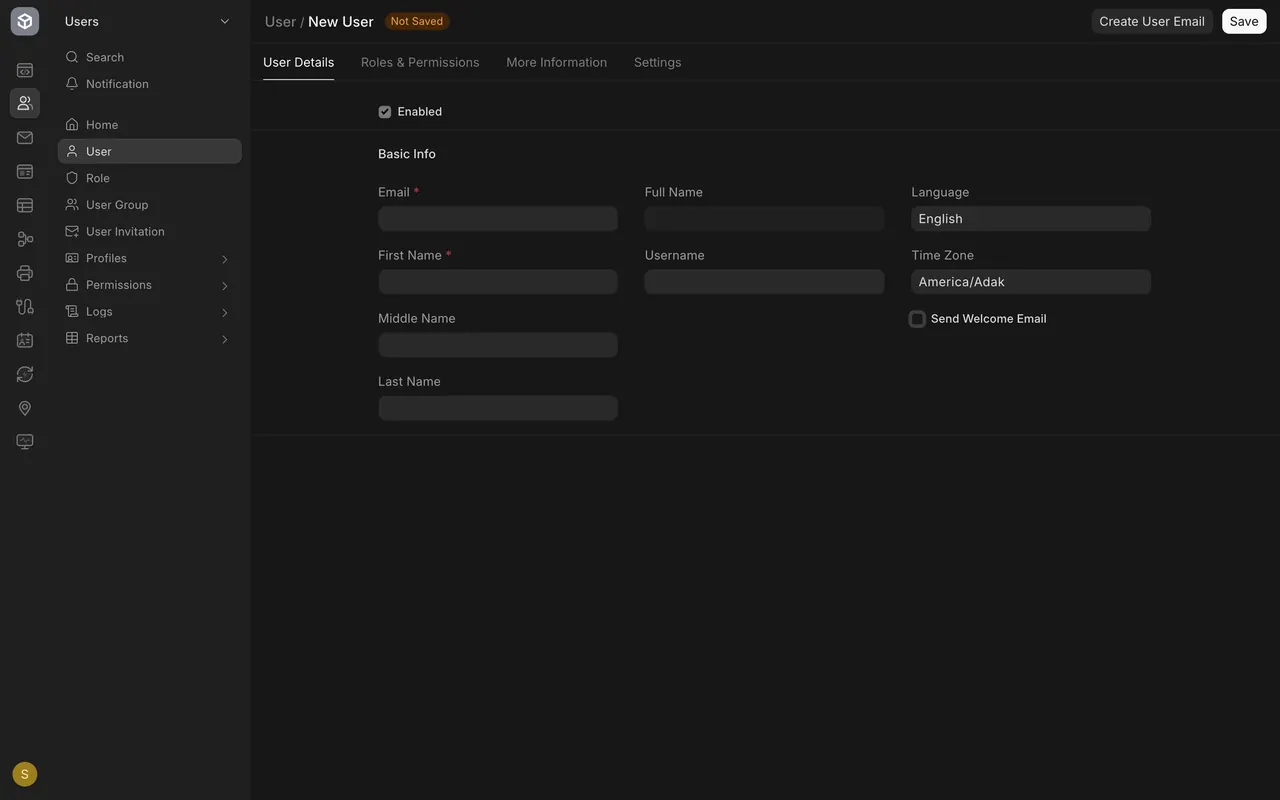
- Type the Email and the First Name. Both are required (red star). The email is their sign-in name, so type it carefully.
Step 2: give them a role profile
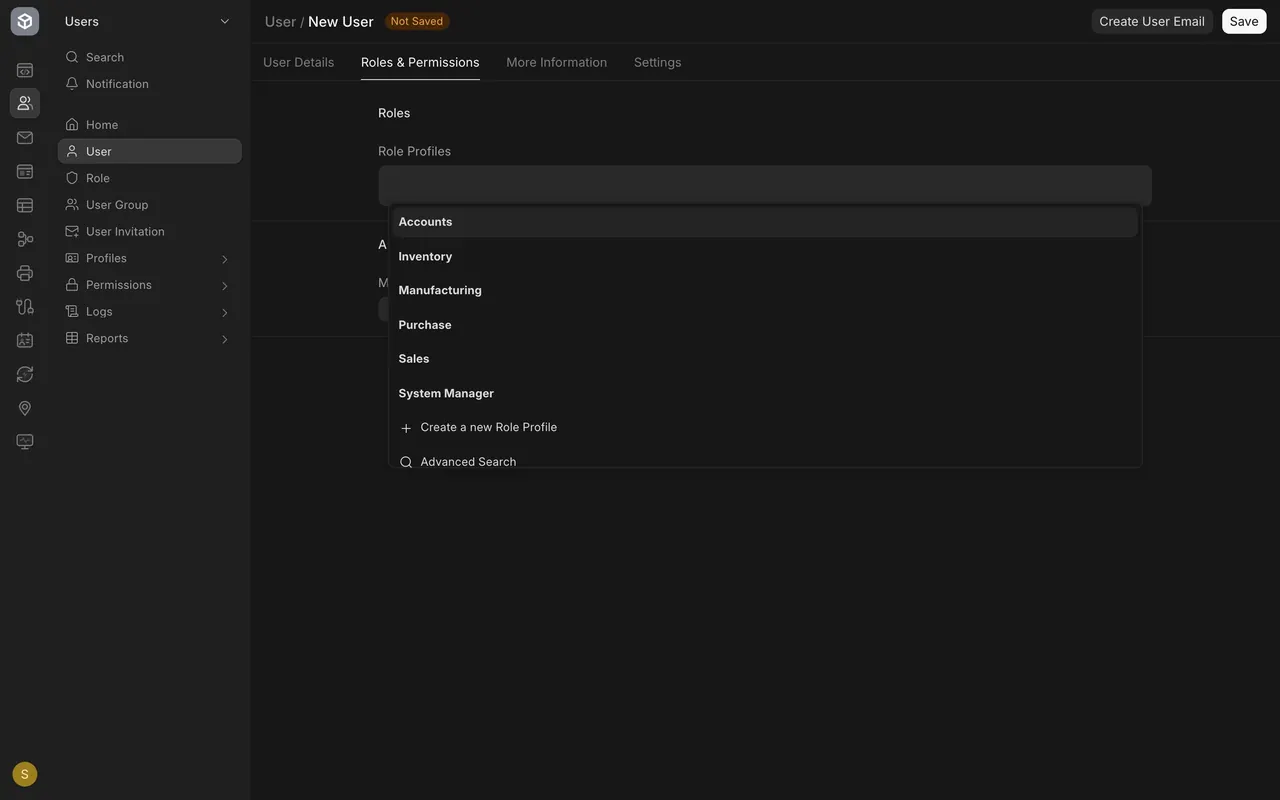
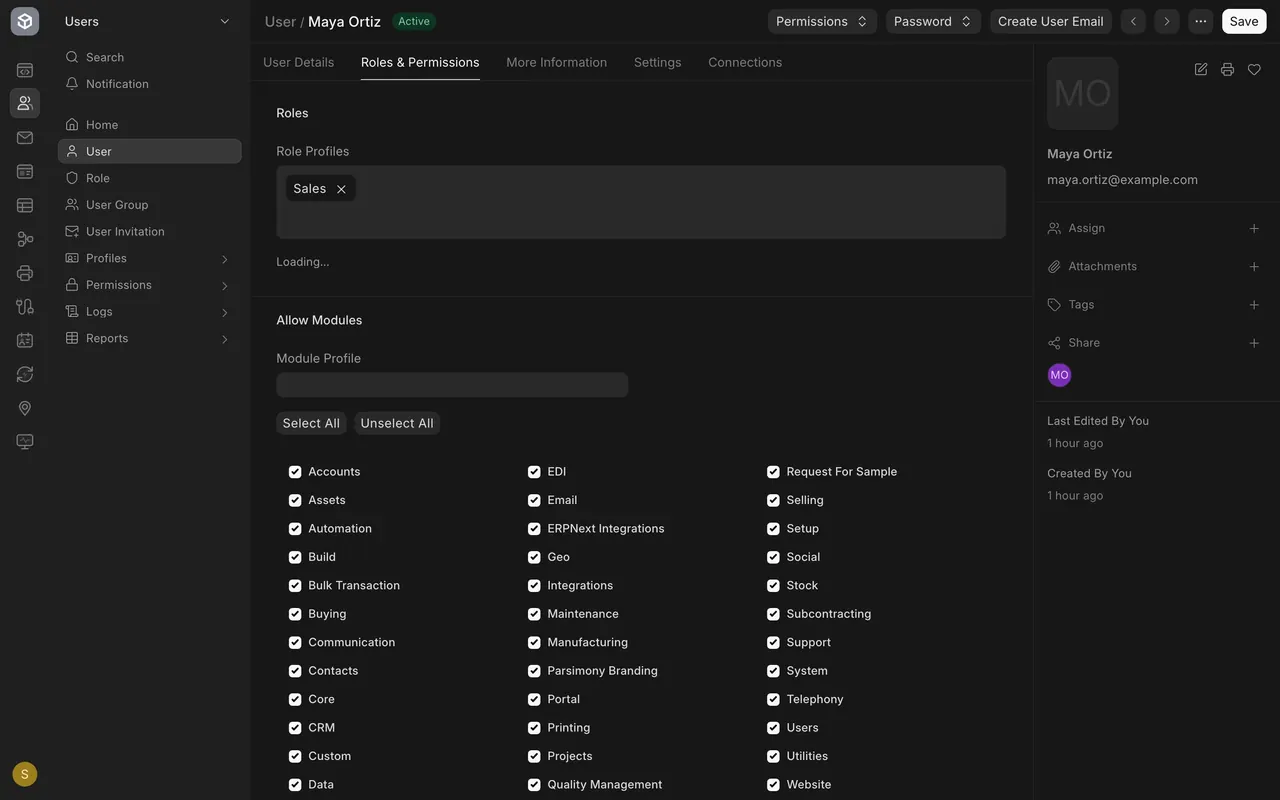
- Open the Roles & Permissions tab and click in Role Profiles.
- Pick a profile from the list, for example Sales for a new salesperson. You can add more than one profile.
Step 3: decide about the welcome email
- On the first tab, Send Welcome Email is ticked.
- If your site is set up to send email, Parsimony sends the person a link to choose their own password. You never type it for them.
- Untick it if your site doesn't send email, or if you want to finish the setup first.
- Click Save.
Step 4: switch the user off when they leave
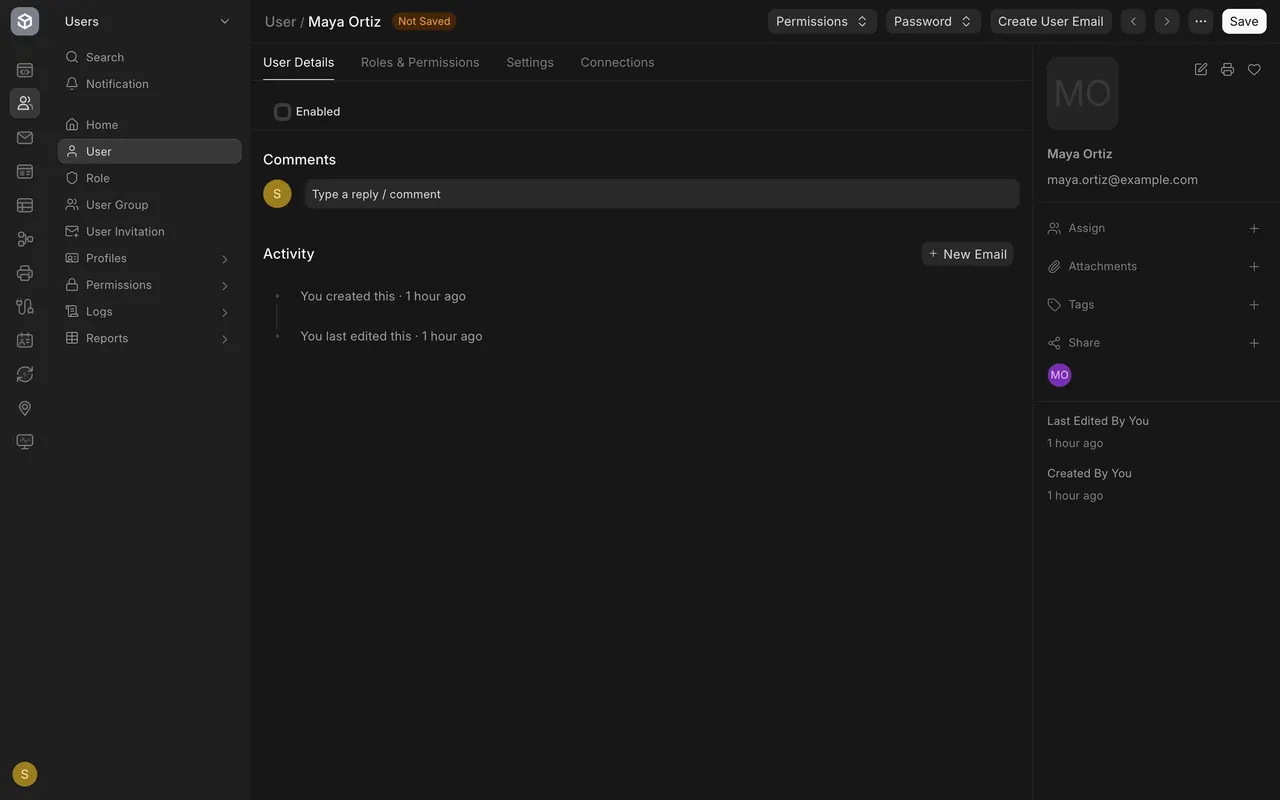
- Open the person's record and untick Enabled.
- Click Save. They can no longer sign in. To bring them back, tick Enabled again.
- Don't delete the user. Switching off keeps their name on the documents they worked on.
What you may see on your own site
- Your role profiles, users and the User Type values are your own. Some sites also have website users or integration users.
- If your site doesn't send email, the welcome email is skipped and your administrator hands over the sign-in another way.
- Only people with the System Manager role see these screens.
Common mistakes
- Typing the email wrongly. It is the sign-in name.
- Giving everyone the System Manager profile. Keep that group small.
- Deleting a leaver. Untick Enabled instead.
- Leaving the welcome email on when your site can't send it. Untick it first.
Check yourself
3 quick questions.
1. What does a role profile do?
2. Someone leaves your company. What do you do with their user?
3. When might you untick Send Welcome Email?