V16 Training · Admin and Setup · Lesson 5 of 6
Print formats and letterheads
This lesson shows you where the look of your printed documents is decided: the print format, the letterhead and Print Settings. It is for system managers, and nothing here saves anything.
Written guide
The idea
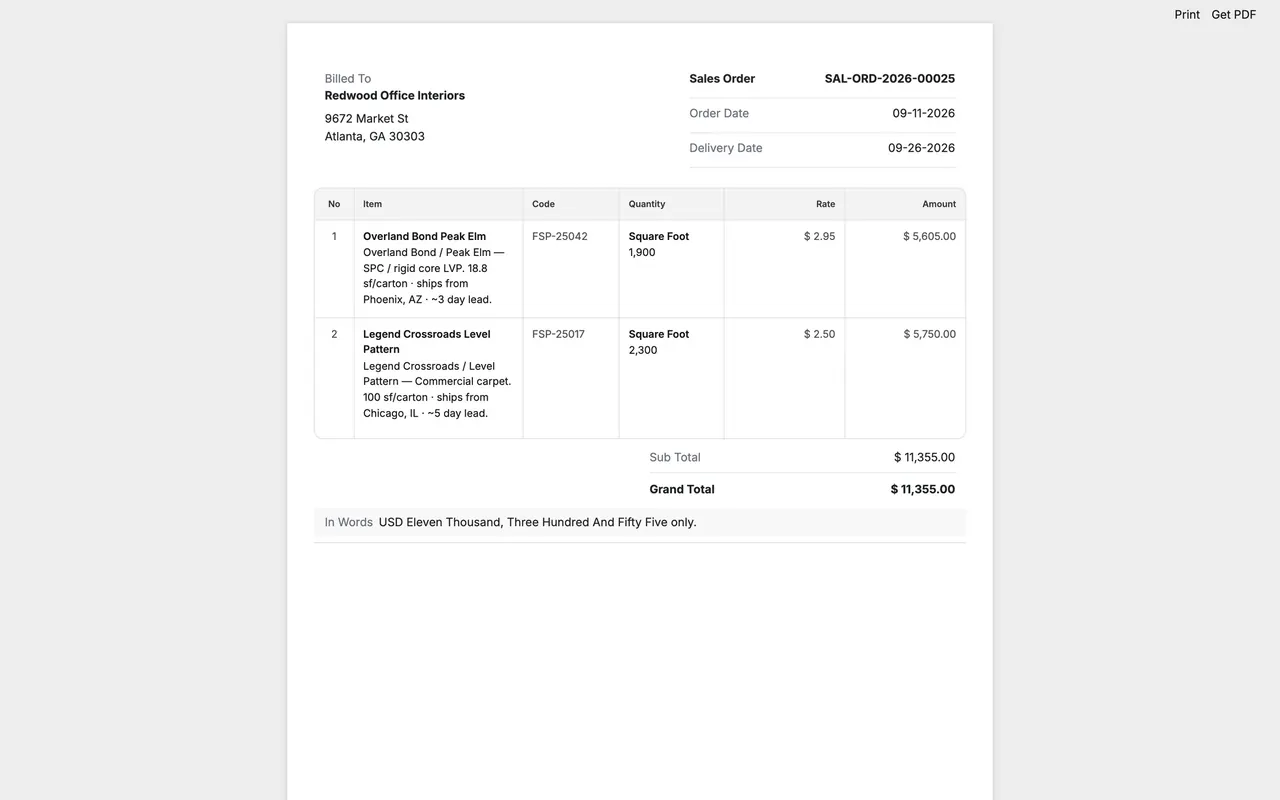
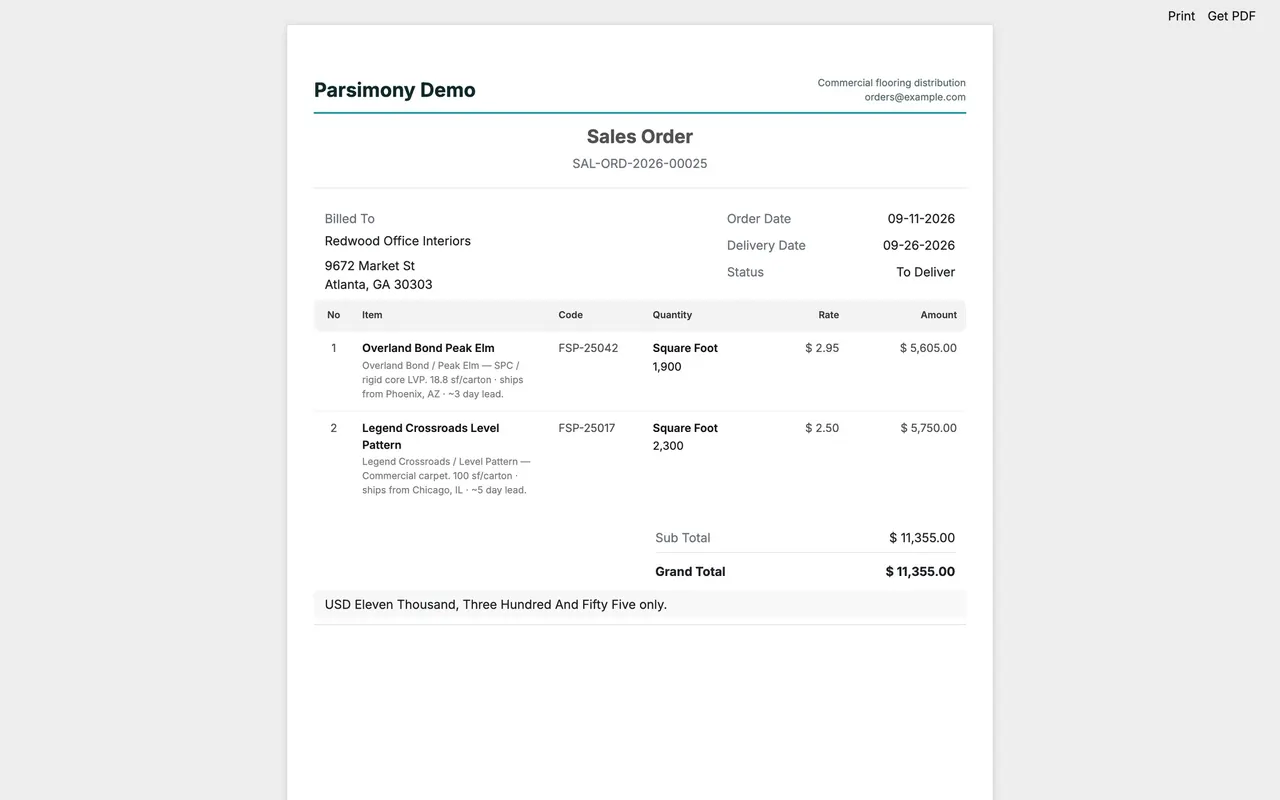
A print format is the layout of a document, such as a sales order. A letterhead is the block at the top, such as your company name and contact line. Print Settings are rules that apply to every document. Printing one document is covered in Getting Started, lesson five.
The screens use example data from a demo company. Your own Parsimony site has its own formats and letterheads.
Step by step
Look at the print formats
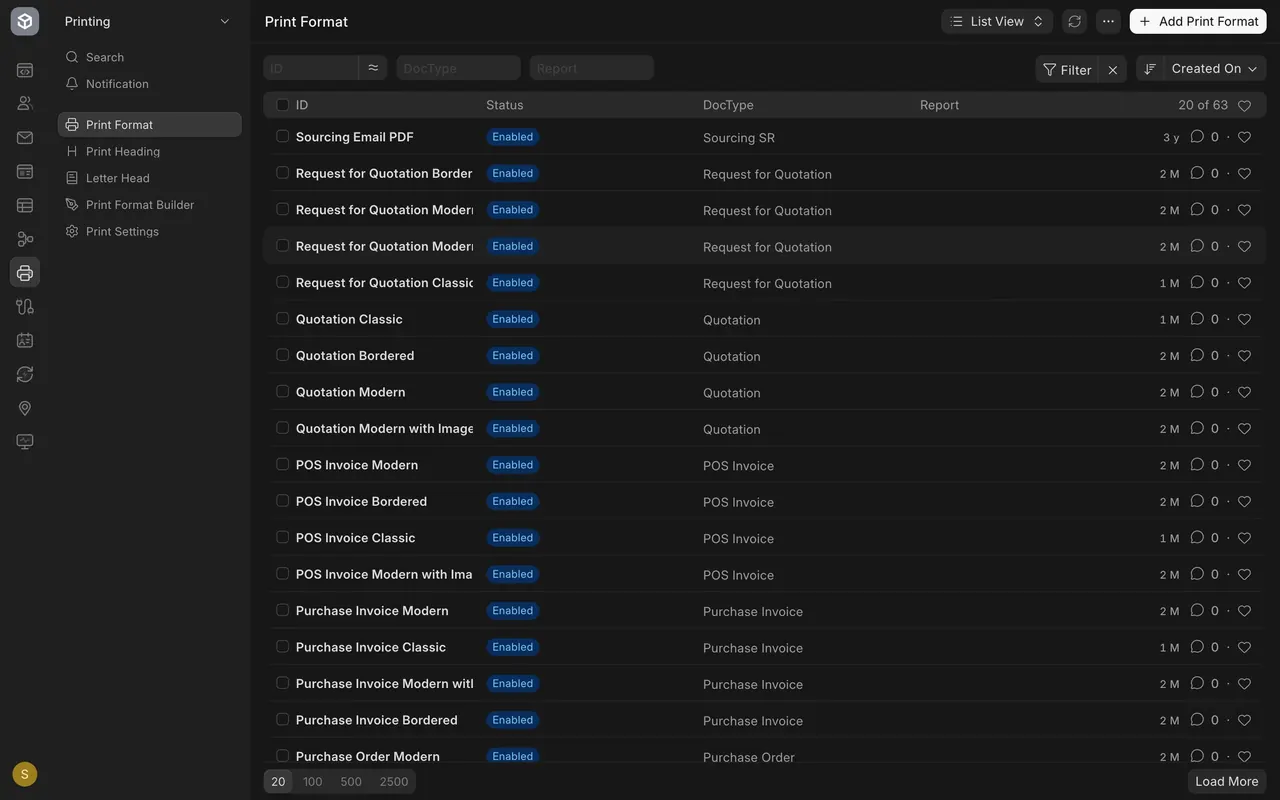
- Open the Printing area of the sidebar and pick Print Format. This example has 63, one set for each kind of document.
- Filter to a document type, such as Sales Order. It has four: Classic, Modern, Bordered and Modern with Images.
- Most formats are standard, which means they come with Parsimony. A custom format is one your own team made. This example has one, a form for suppliers.
Step 1. Choose the default format
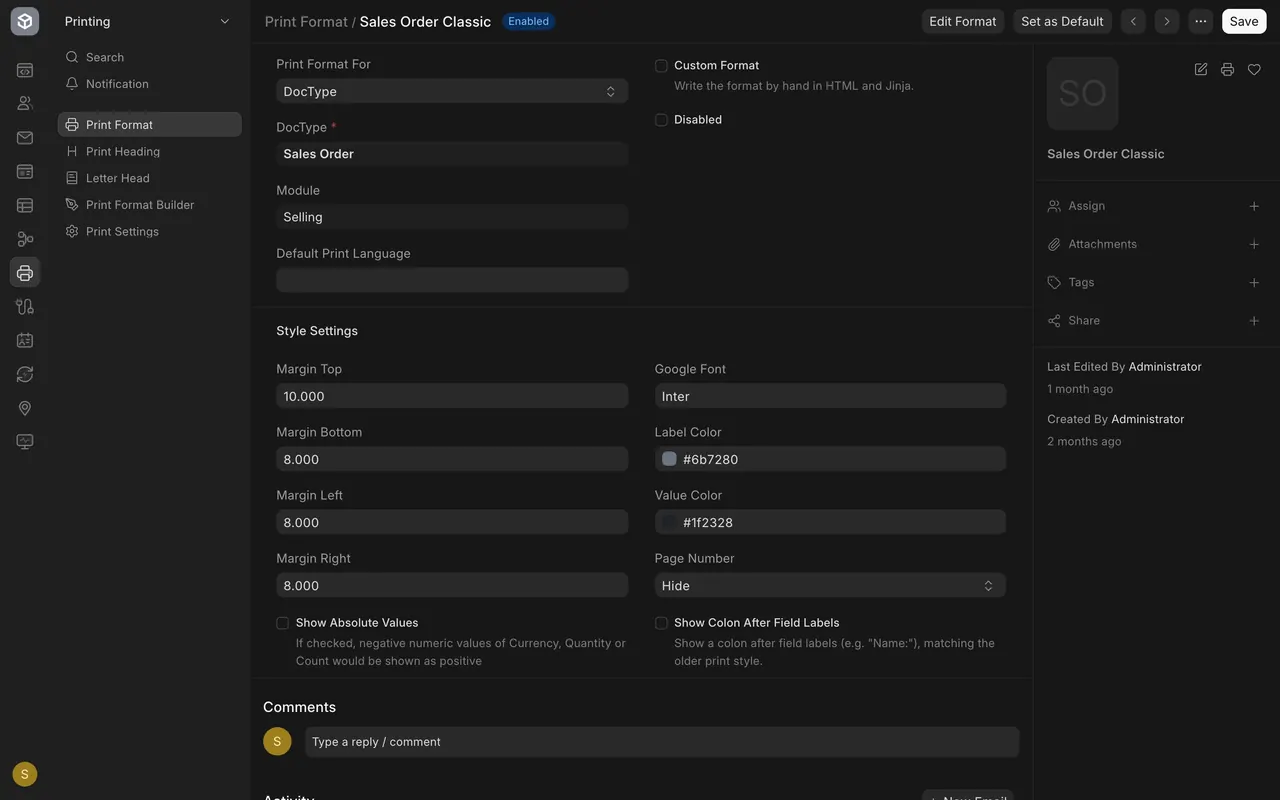
- Open a format, for example Sales Order Classic.
- At the top right, next to Edit Format, is Set as Default. It makes this format the one that kind of document prints with. Do not click it unless you mean it.
- In this example, only Request For Sample has a default. The other document types print with the built-in layout.
Step 2. Check the letterhead
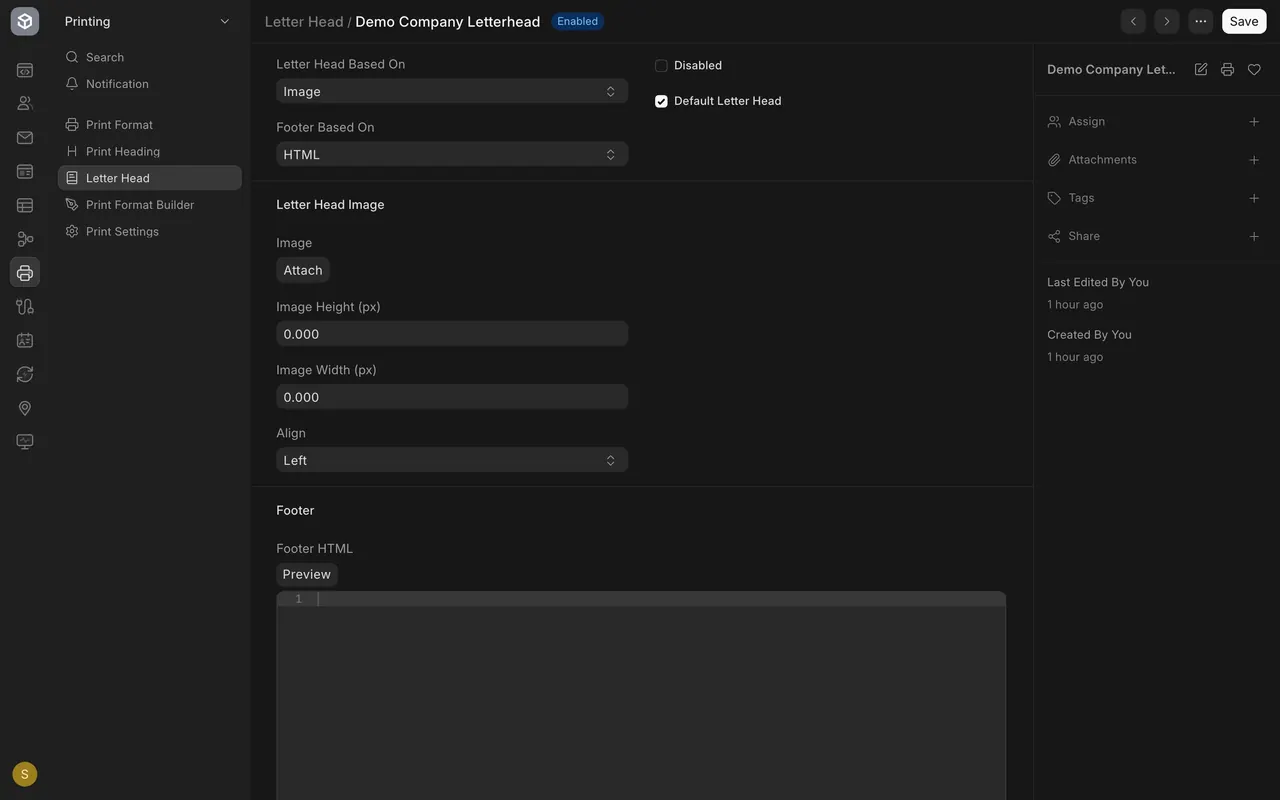
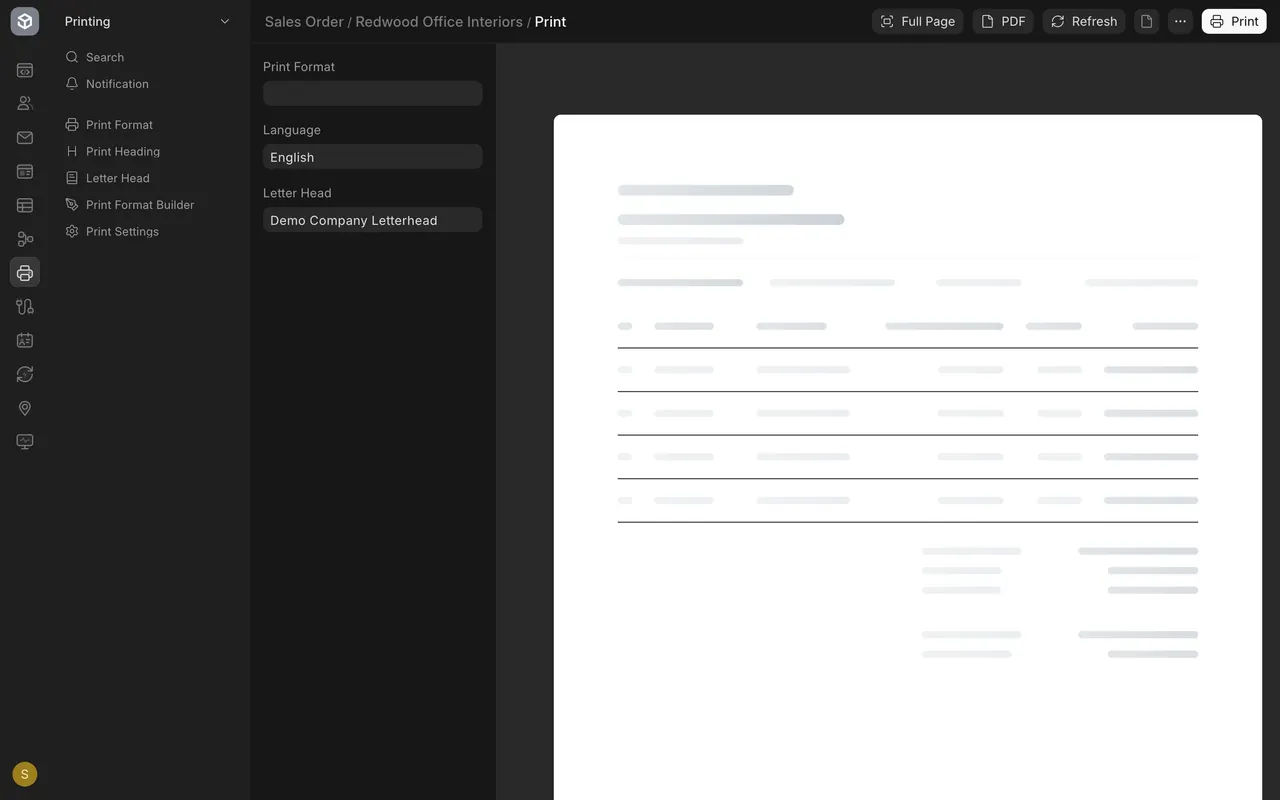
- In the Printing area, open Letter Head. This example has one, Demo Company Letterhead.
- Letter Head Based On says whether the top of the page is a picture or a block of code. Attach your logo for a picture.
- If Default Letter Head is ticked, Parsimony picks that letterhead for you when you print.
- When you print a document, the Letter Head box on the left lets you change it for that one print.
Step 3. Open Print Settings
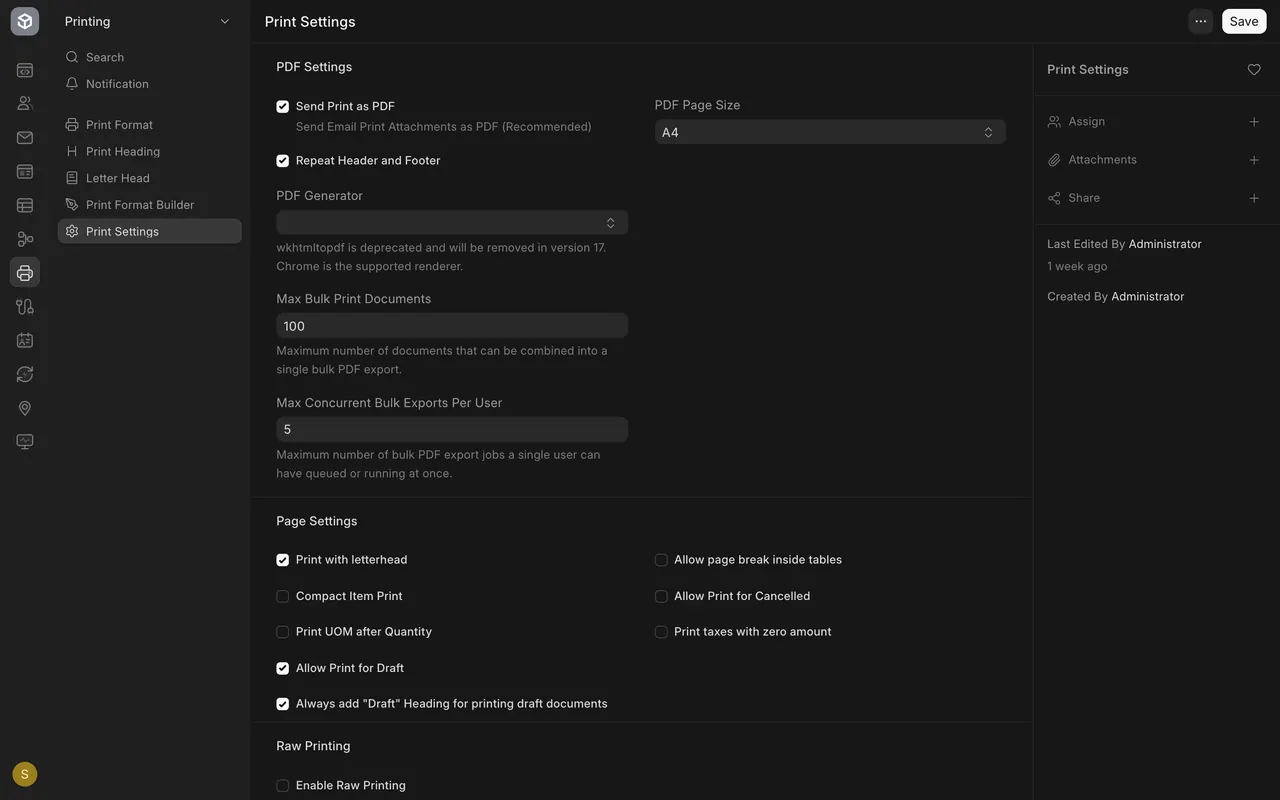
- In the Printing area, open Print Settings. These apply to every document, whatever its format.
- Print with letterhead decides whether the letterhead shows at all.
- Allow Print for Draft lets people print before a document is submitted.
- Compact Item Print tightens the item lines.
What you may see on your own site
- Your site may have more letterheads, or none. You may have no default letterhead, in which case printing starts without one.
- Your own custom formats appear in the Print Format list next to the standard ones.
- Your administrator may restrict who can open Print Settings.
Common mistakes
- Setting a default format and forgetting it. Every person who prints that kind of document gets it.
- Printing without checking the letterhead box. A default letterhead is applied for you, so look at what is selected.
- Changing Print Settings to fix one document. They apply to every document.
- Never printing a sample after a change. Print a real order and read it as your customer will.
Check yourself
3 quick questions.
1. You want sales orders to print in the Bordered layout every time. What do you do?
2. What does ticking Default Letter Head do?
3. Where do you change a rule that applies to every printed document, such as Allow Print for Draft?