V16 Training · Admin and Setup · Lesson 4 of 6
Document numbering
This lesson shows you how Parsimony builds document numbers, and how to check and shape them safely.
Written guide
The idea
Every sales order, invoice and purchase order gets its own number. The number comes from a naming series: a prefix, the year, and a counter that goes up by one with each new document. You can see and shape the series in Document Naming Settings, and you can add Document Naming Rules when a number should depend on the document itself.
The screens use example data from a demo company, in the Sales Order documents. Your own Parsimony site shows your company's documents. Only system managers see these setup pages.
Step by step
Read a document number
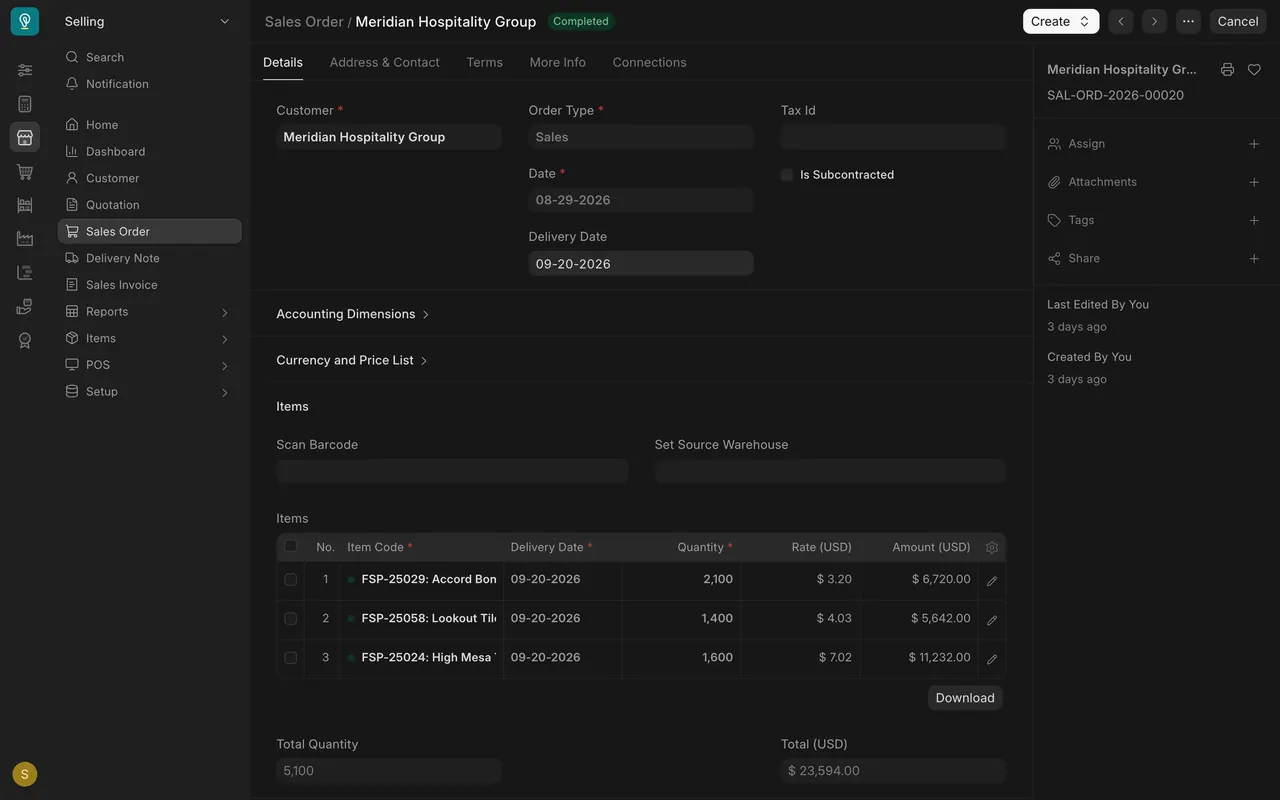
- Open any sales order. In this example the number in the side panel is SAL-ORD-2026-00020.
- Read it in three parts: the prefix (SAL-ORD) says what kind of document it is, the year (2026) comes from the date, and the counter (00020) goes up by one for each new order.
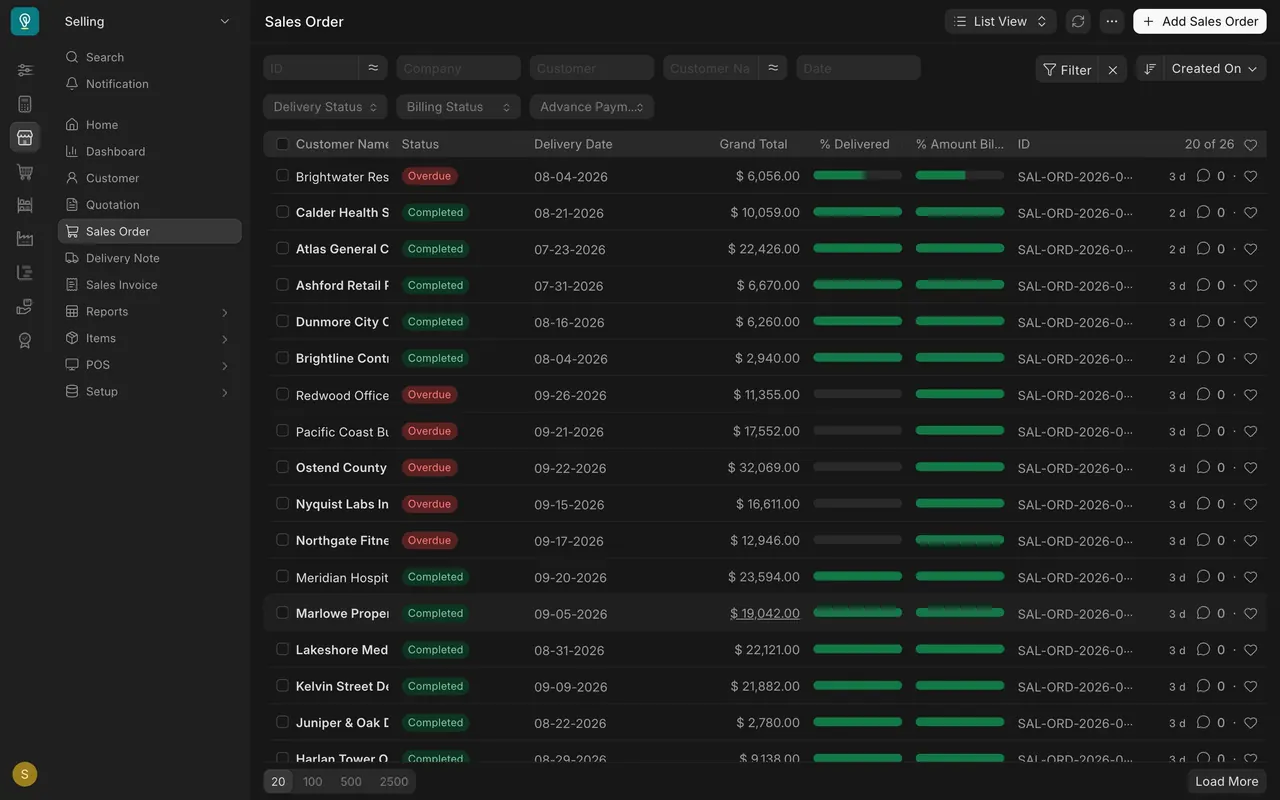
- The same numbers fill the ID column of the list. ID is short for identifier.
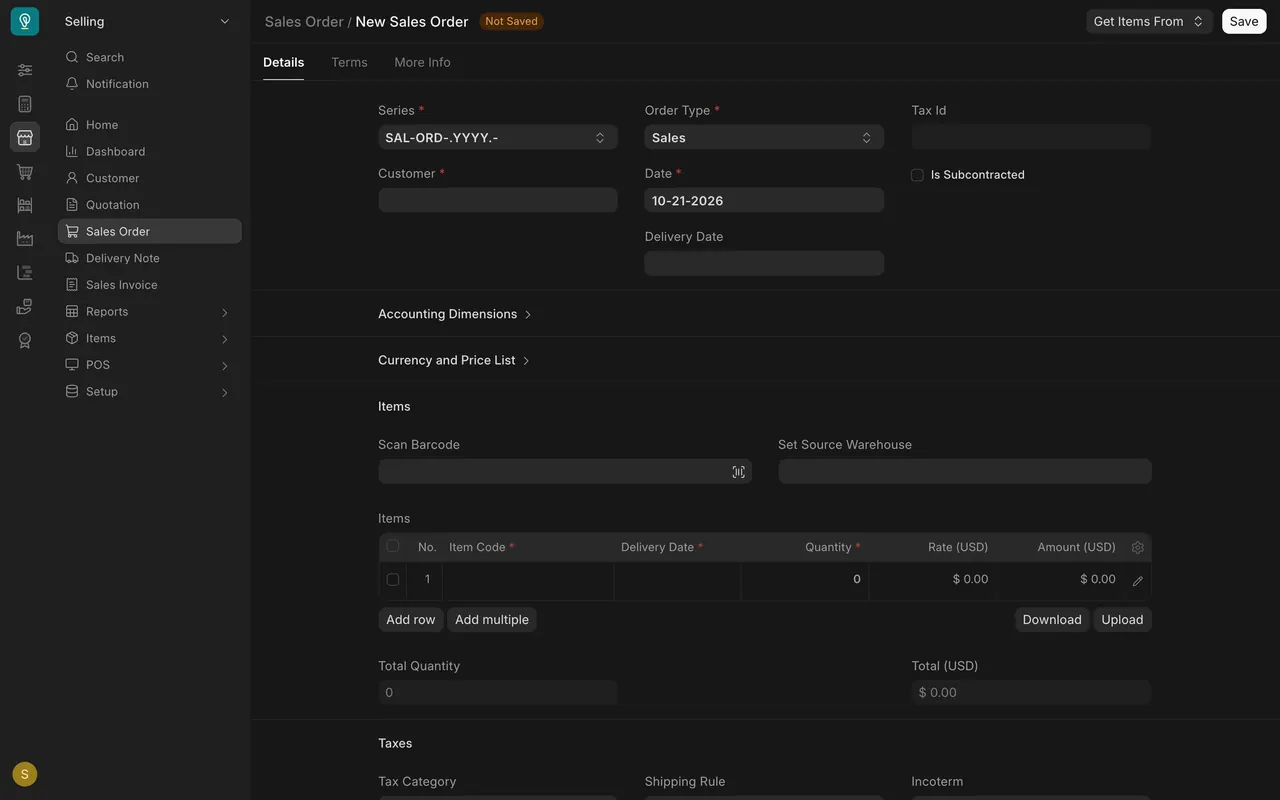
- A new sales order starts with a Series box. It offers the series the document may use, here SAL-ORD-.YYYY.-, where .YYYY. stands for the four-digit year.
Step 1: open Document Naming Settings
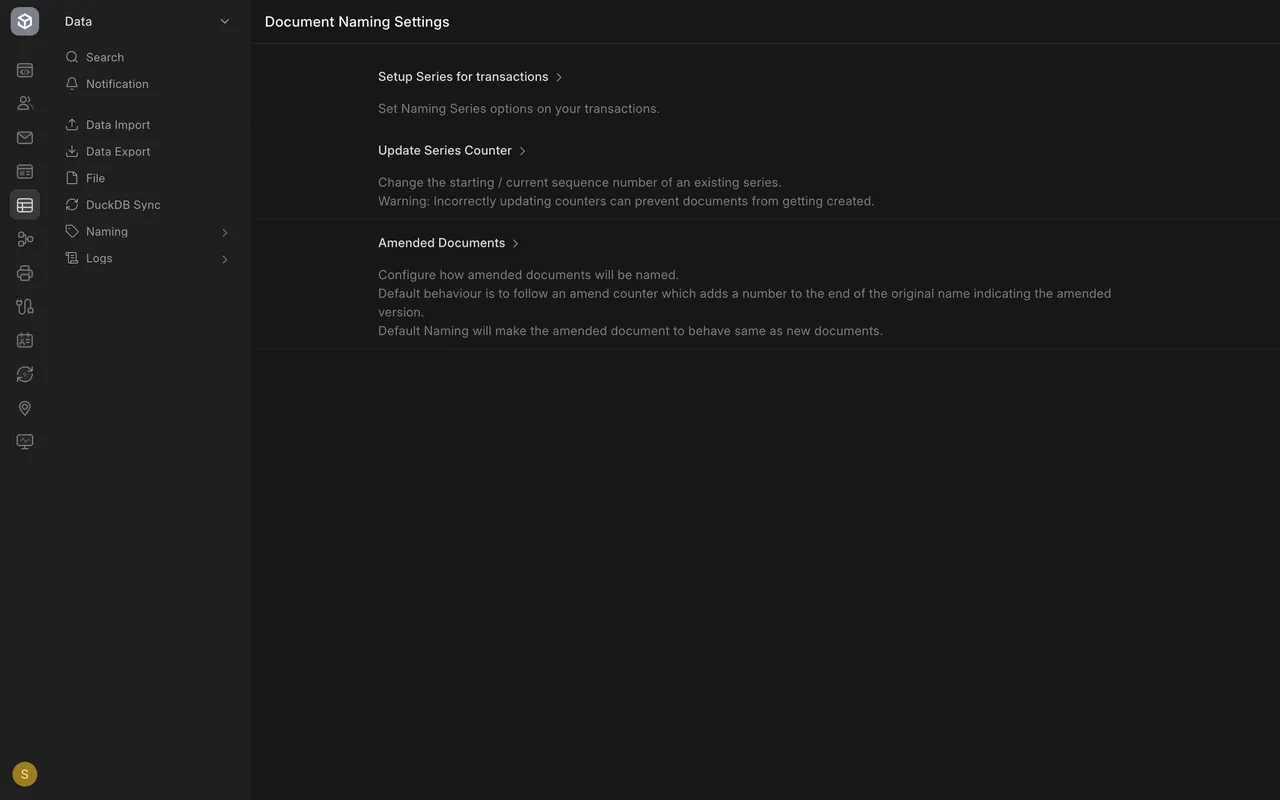
- Look under Naming in your sidebar and choose Document Naming Settings.
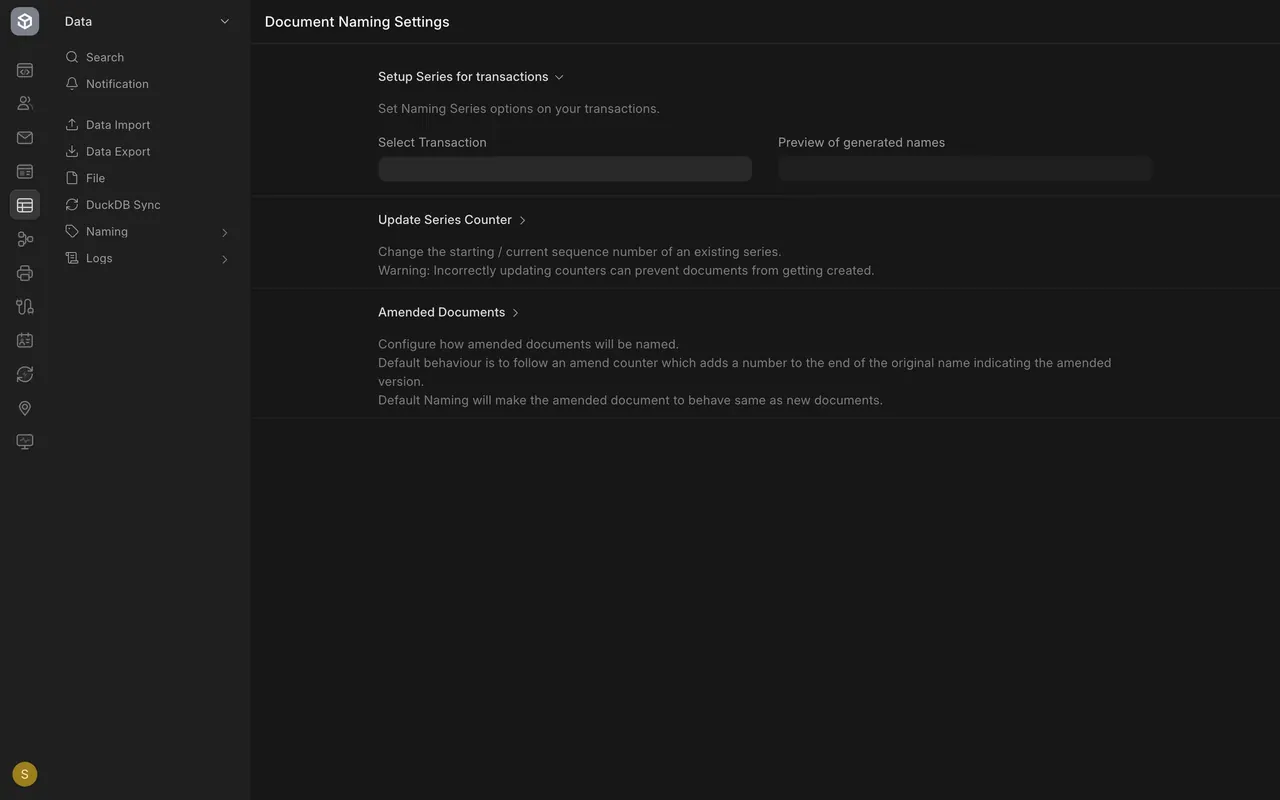
- It has three sections: Setup Series for transactions, Update Series Counter and Amended Documents.
Step 2: look at a series
- Open Setup Series for transactions and pick a transaction in Select Transaction, such as Sales Order.
- Series List for this Transaction shows its series, one per line. A dot followed by hash marks sets the number of digits: four hash marks mean four digits, and the default is five.
- Preview of generated names shows the first numbers a series would make. Type a series into Try a Naming Series to see it.
- User must always select forces people to choose a series, with no default.
Step 3: check the counter, safely
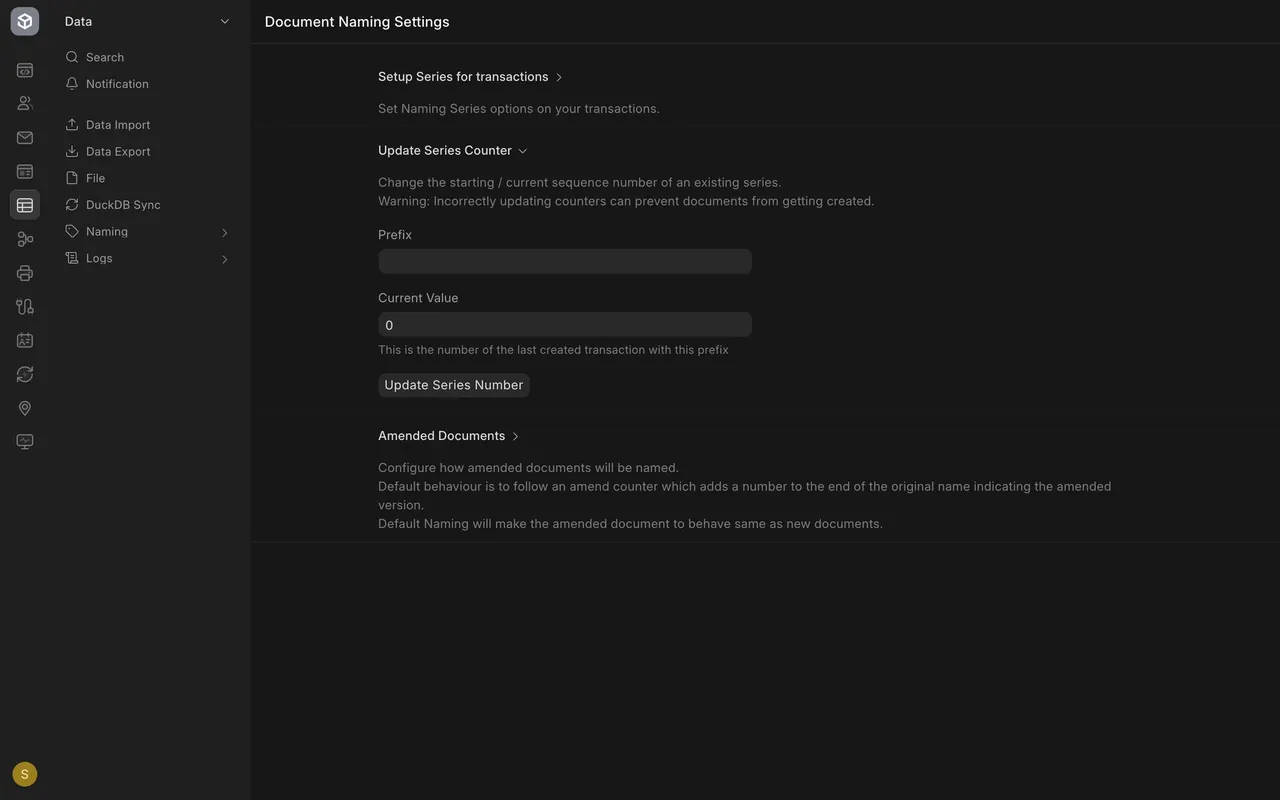
- Open Update Series Counter and type the prefix, including the year, for example SAL-ORD-2026-.
- Current Value is the number of the last document made with that prefix.
- Looking is safe. The button Update Series Number changes the counter, and the page warns that a wrong counter can stop documents from being created. Never set it lower than the numbers already used.
When to add a new series
Add a series when the number should tell a story, for example one prefix for each branch. Each prefix has its own counter. Add the prefix on a new line in the series list, and new documents offer it in their Series box. Create one test document and check its number before you rely on it.
Step 4: use a naming rule
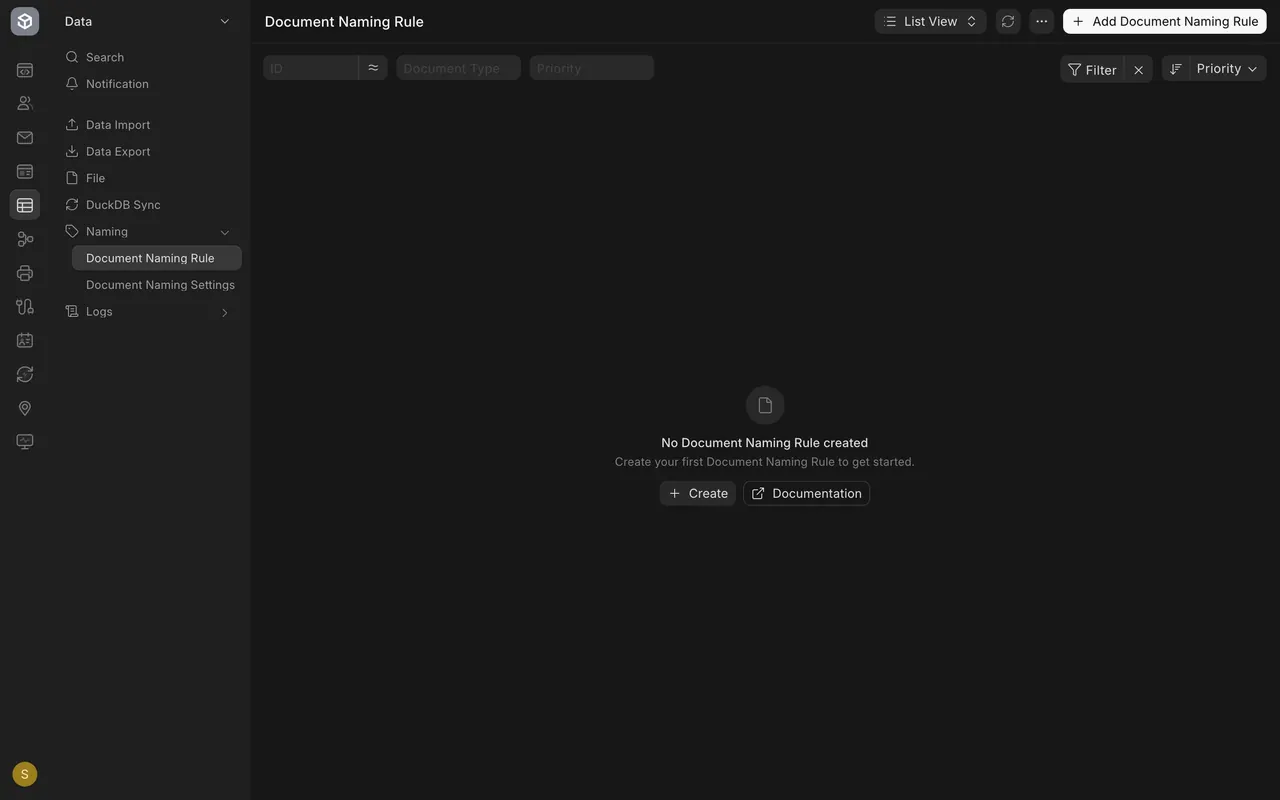
- Open Document Naming Rule under Naming. In this example the list is empty.
- Choose Add Document Naming Rule.
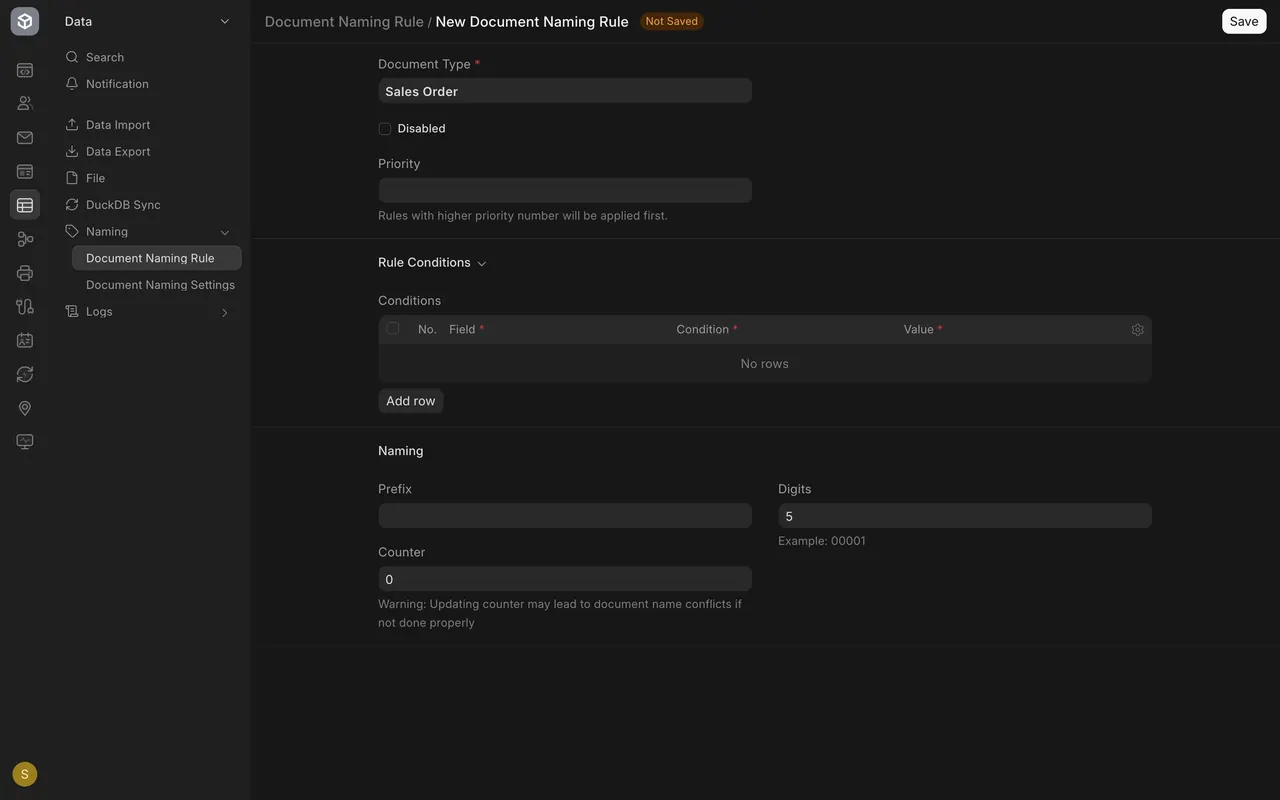
- Pick the Document Type. Set a Priority: a higher number is applied first.
- Open Rule Conditions and add conditions, each with a field, a condition and a value.
- Set the Prefix, the Digits and the Counter.
What you may see on your own site
- Your prefixes may differ from the example, and some series may have been added by your administrator.
- Your list of naming rules may already have entries.
- You need a system manager sign-in to see these pages.
Common mistakes
- Changing the counter to "tidy up". A counter set below the numbers already used can stop documents from being created.
- Forgetting the year in the prefix. The counter belongs to the resolved prefix, such as SAL-ORD-2026-.
- Adding a series and not testing it. Create one test document and check its number.
- Setting two rules with the same priority. Give each rule its own priority, so you know which one is applied first.
Check yourself
3 quick questions.
1. What are the three parts of SAL-ORD-2026-00020?
2. You open Update Series Counter and type a prefix. What is safe?
3. When do you use a Document Naming Rule?