V16 Training · Admin and Setup · Lesson 6 of 6
Email setup
This lesson shows how Parsimony sends email, and what "if your site is set up to send email" means in the other lessons. It is for system managers.
Written guide
The idea
Parsimony sends email through an Email Account. Automatic emails, such as "this was received", come from Notifications. If no outgoing account is enabled, Parsimony cannot email a document for you, and the other lessons say "if your site is set up to send email" for that reason.
The screens use example data from a demo company. Your own site shows your own accounts. Sign-in details are never shown here, and you should keep them out of messages and screenshots too.
Step by step
Step 1: Email Account
- Open the Email section in your sidebar, then Email Account.
- Each row is a mailbox. In this example there is one, Parsimony Account Emails, with the status Default Sending. That marks the account Parsimony chooses for outgoing mail, unless told otherwise.
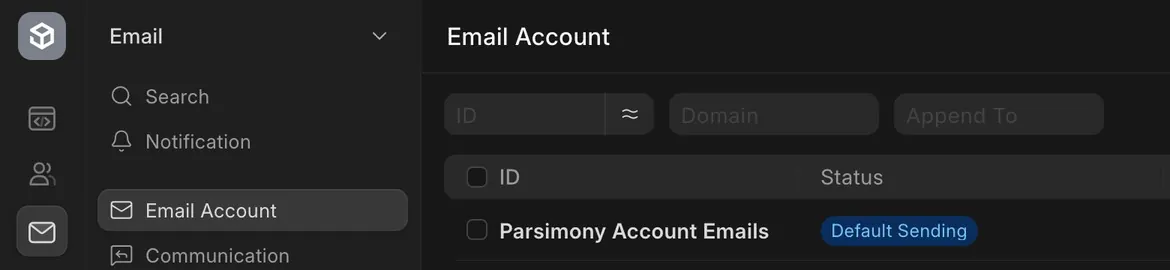
- Open the account. Enable Outgoing lets Parsimony send mail through it. Enable Incoming lets Parsimony receive mail through it. Here outgoing is ticked and incoming is not.
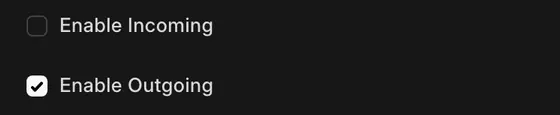
- Outgoing is mail leaving Parsimony, such as a quotation or an invoice. Incoming is mail arriving, such as a reply.
- The rest of the page holds sign-in details. Never paste them into a message or a ticket.
Step 2: Notification
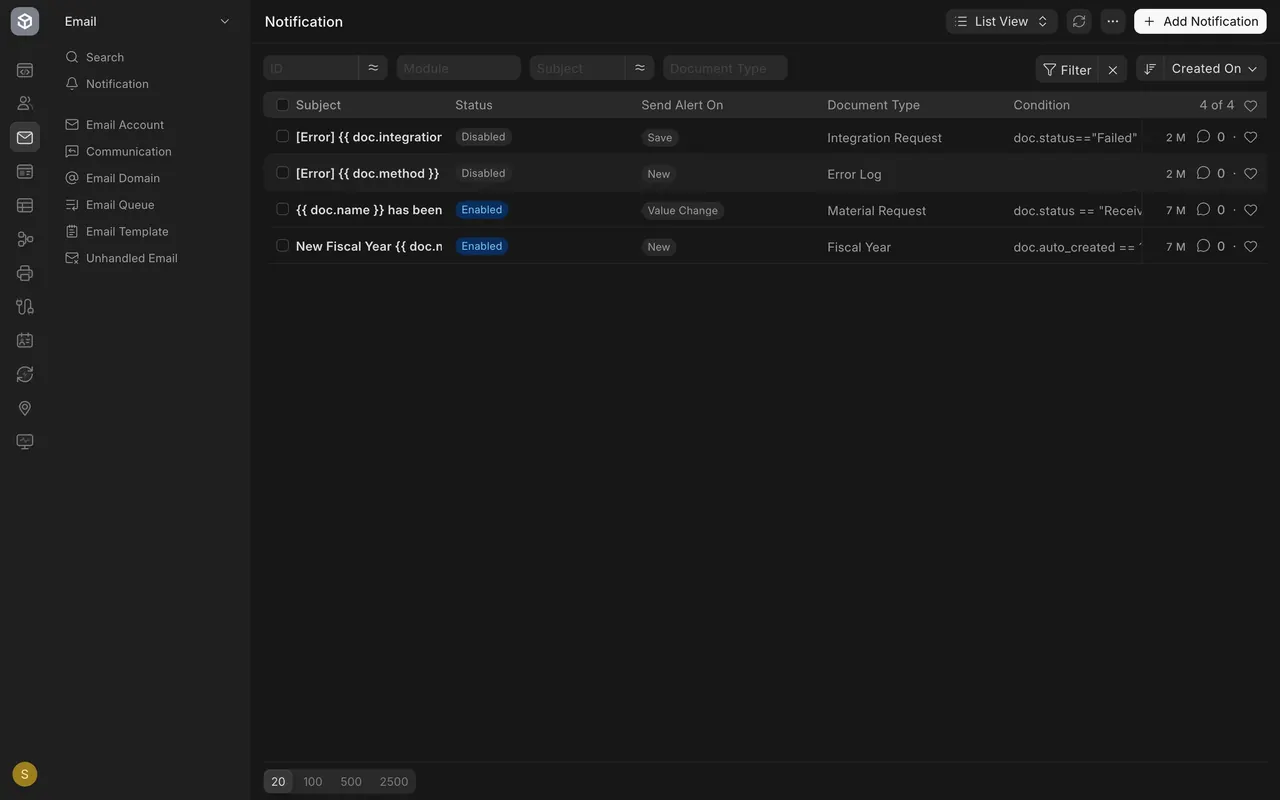
- Open Notification. These are emails Parsimony sends by itself when something happens. In this example there are four, and two are enabled.
- Open Material Request Receipt Notification. Document Type is Material Request, Send Alert On is Value Change, the Channel is Email, and Enabled is ticked. Untick it and that notification stops.
Step 3: "If your site is set up to send email"
It means an outgoing account is enabled. If yes, Parsimony can email a quotation, an invoice or a purchase order for you. If not, print it or download it and send it yourself.
What you may see on your own site
- You may have no account, or several. Names, addresses and notifications are your own.
- A notification can be enabled or disabled; check the Status column.
Common mistakes
- Editing sign-in details without a reason. Change them only when your email provider tells you to.
- Unticking Enable Outgoing. Documents can no longer be emailed from Parsimony.
- Expecting a notification when it is disabled. Check the Status column.
- Sharing a screenshot of the account form. It holds private details.
Check yourself
3 quick questions.
1. What does "Enable Outgoing" allow?
2. What does "Default Sending" tell you?
3. Your site is not set up to send email. What can you do with a quotation?