V16 Training · Accounting · Lesson 3 of 6
Supplier invoices and payments
This lesson shows you how to enter a supplier's bill against what the warehouse actually received, check it against the order, and pay it.
Written guide
The idea
Before you enter a supplier's bill, you need two answers: did you order these goods, and did they arrive? Accounts staff answer that with a three-way match. The Purchase Order says what you ordered and at what rate. The Purchase Receipt says what the warehouse accepted. The supplier's bill says what they want paid. When all three agree, you enter the bill as a Purchase Invoice and pay it with a Payment Entry of type Pay.
Supplier bills can arrive by email, by post, sometimes both. The supplier's own invoice number is your defence against paying the same bill twice.
Step by step
- Open the Purchase Receipt list (Stock module). A receipt with status To Bill and an empty % Amount Billed bar has been received but not yet fully billed. That is your work queue.
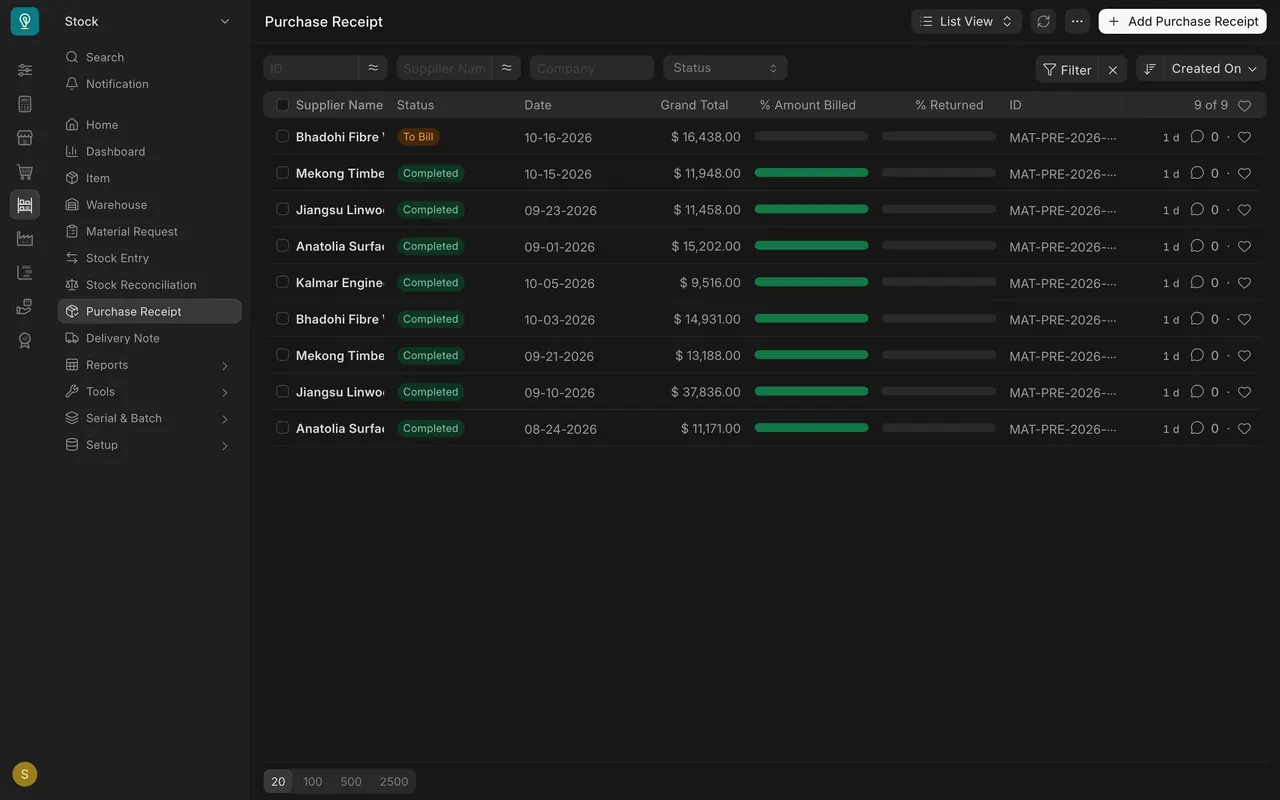
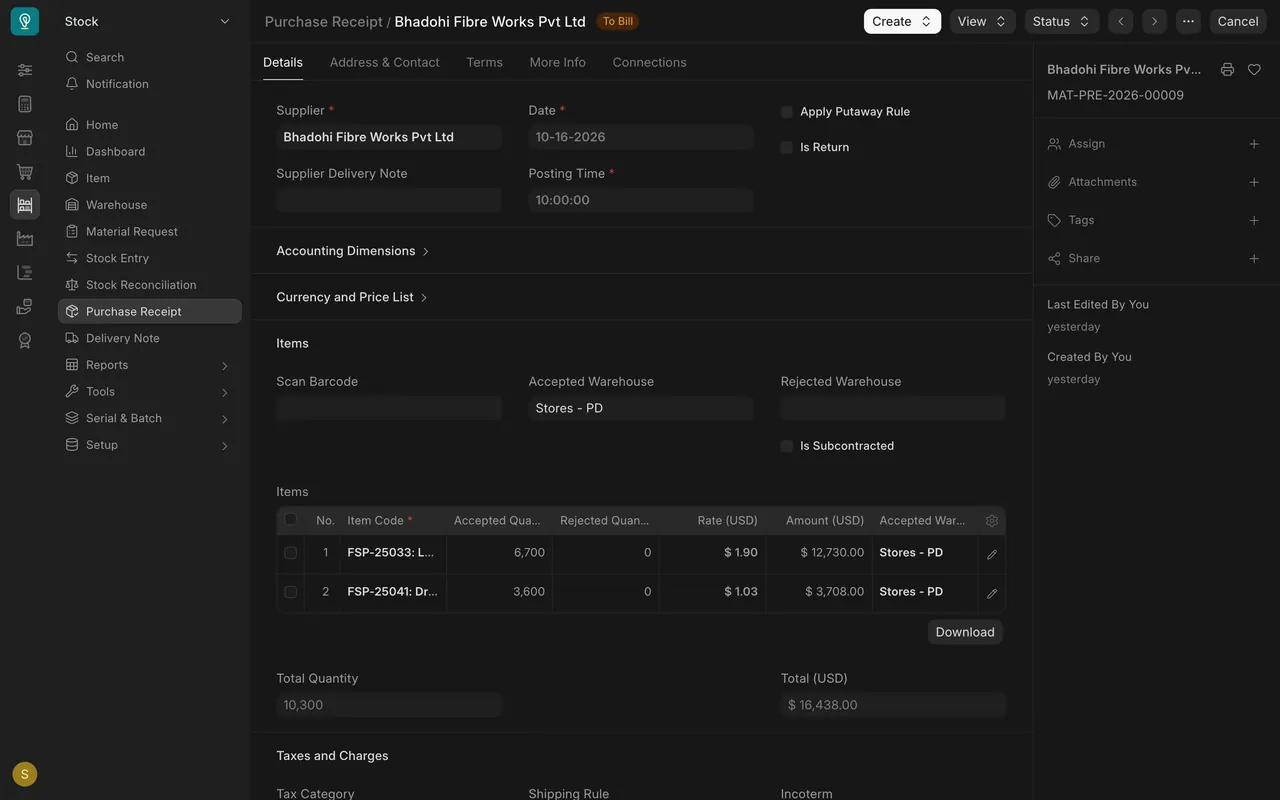
- Open the receipt and use Create at the top right to make the purchase invoice from it. With the Accounts User role you can read a receipt but not change it.
- Or click Add Purchase Invoice and use Get Items From to pull the lines from the receipt. Either way, items, quantities and rates come across. Do not retype them.
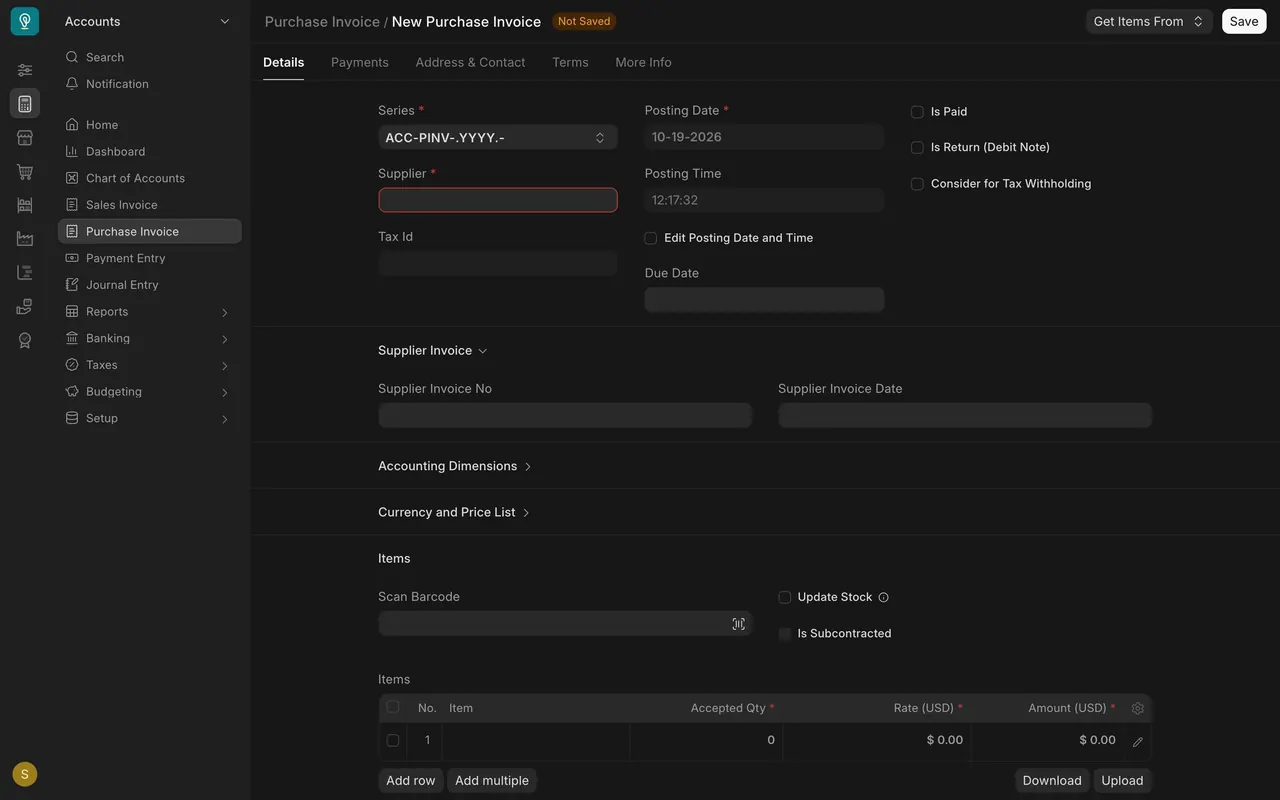
- In the Supplier Invoice section, type the Supplier Invoice No and Supplier Invoice Date exactly as printed on the bill.
- Do the three-way match on every line:
- Quantity: the bill's quantity equals the receipt's Accepted Quantity.
- Rate: the bill's rate equals the order rate.
- Total: the totals agree to the cent.
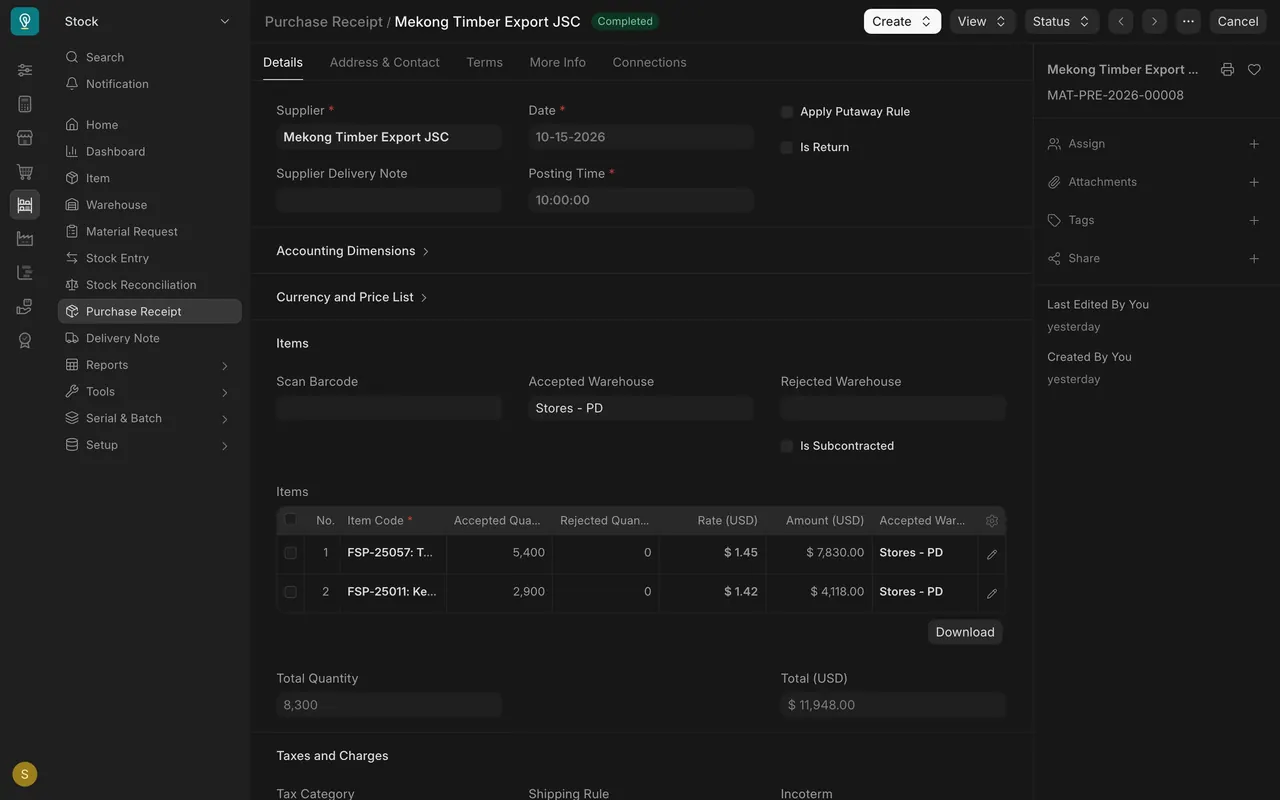
In this example, a timber exporter's order, receipt and bill all show 5,400 square feet at $1.45 and 2,900 at $1.42, a total of $11,948.00.
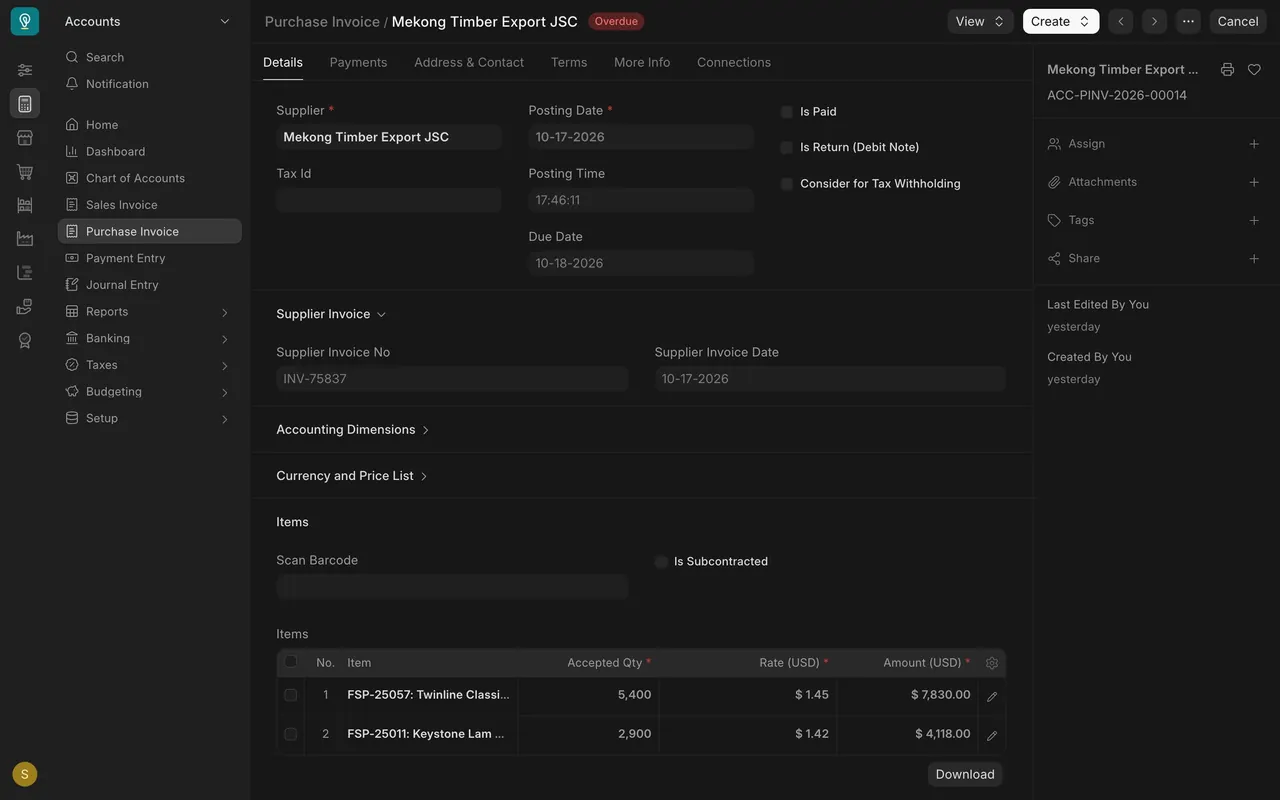
- If anything differs, do not edit the invoice to fit. Ask Purchasing to settle it with the supplier and get a corrected bill.
- Check the Due Date. Once it passes and the bill is still unpaid, the list shows Overdue. Plan payments by due date, earliest first. In this example every bill fell due on 10-18-2026, so every unpaid bill is already Overdue.
- Save, read it once more, then submit. Once submitted, the receipt's % Amount Billed bar fills and its status moves from To Bill to Completed, as the timber exporter's receipt of 10-15-2026 shows in the receipt list.
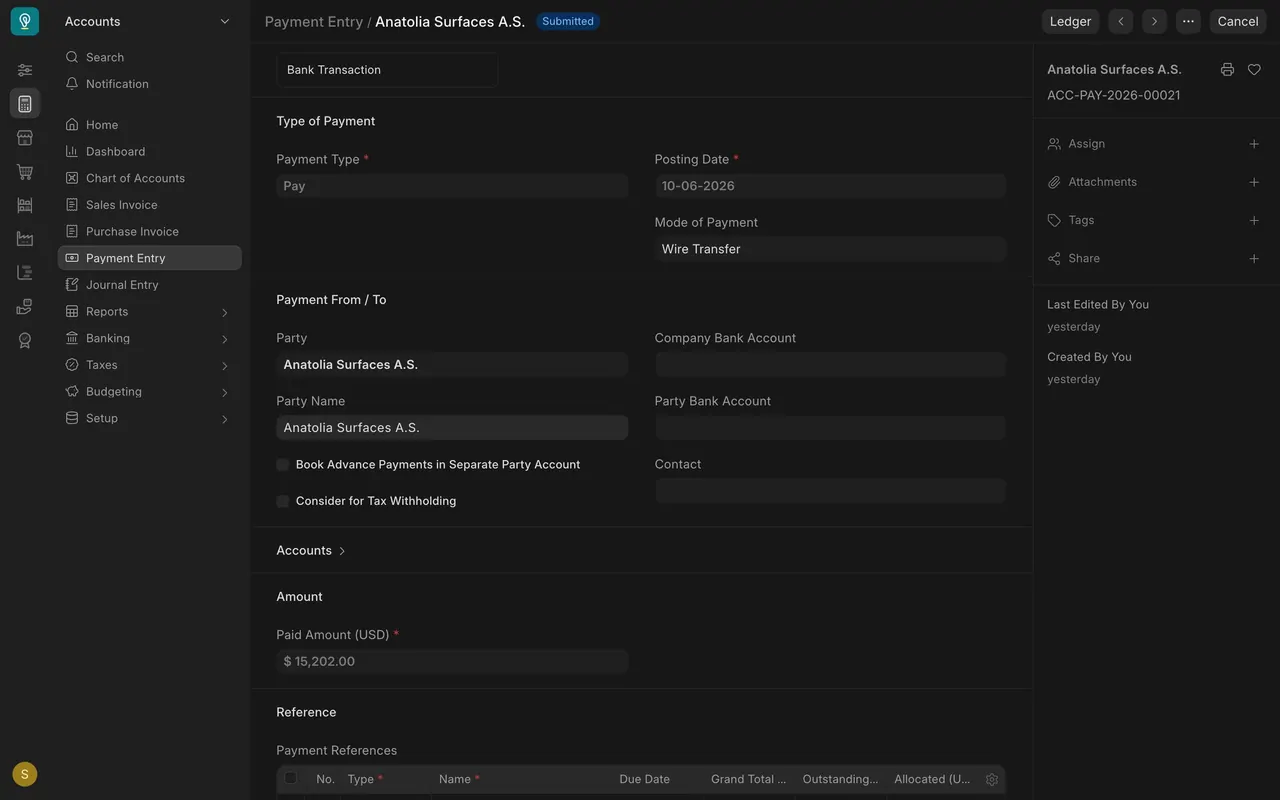
- To pay, open Payment Entry, click Add Payment Entry and set Payment Type to Pay. Set Party Type to Supplier and choose the supplier in Party.
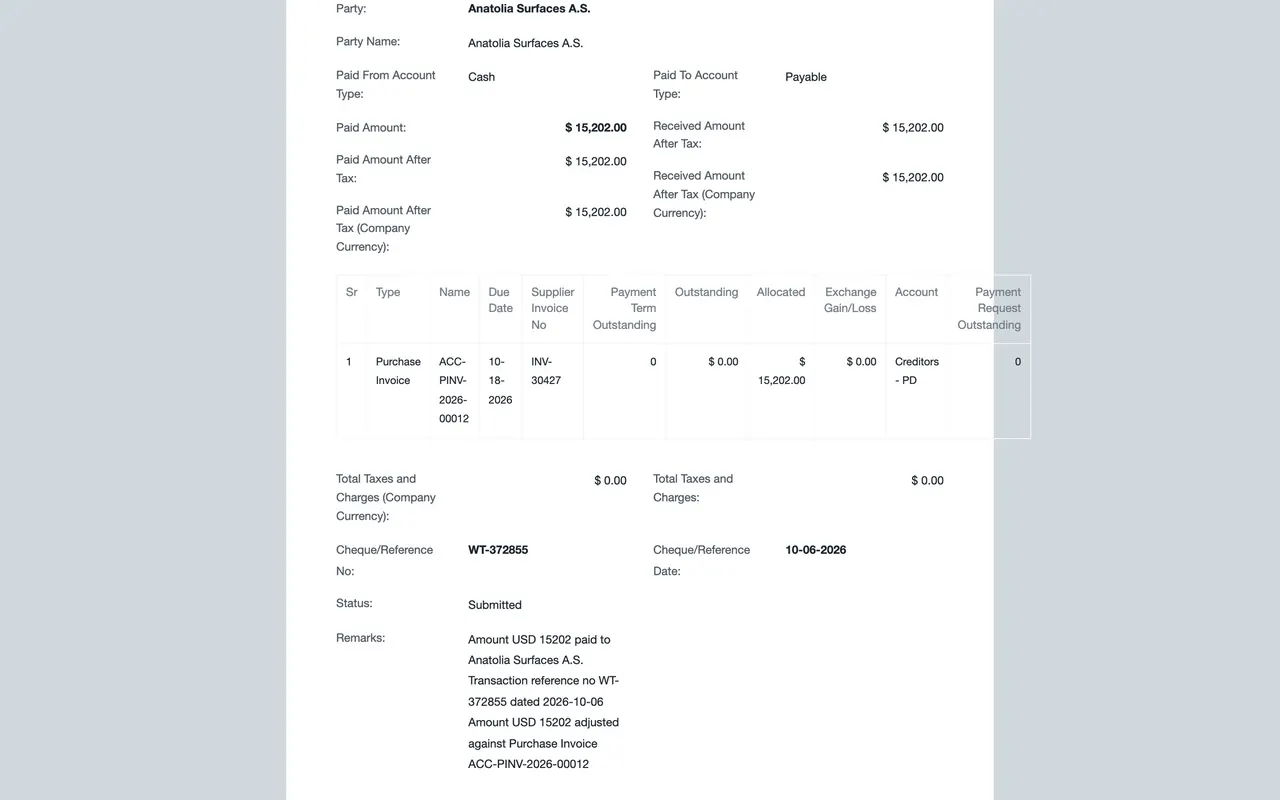
- Set the Posting Date to the day the money left, the Mode of Payment (for example Wire Transfer) and the bank reference.
- In Payment References, load the supplier's open bills the same way as in lesson 2, allocate the amount to the bills it pays, then save and submit. The money moves from the cash account to Creditors (what your company owes suppliers), and the bill turns Paid.
How this example is set up
- Payable account: Credit To is mandatory on a purchase invoice and is normally your Creditors account. Every open bill in Accounts Payable sits on that account.
- Numbering: each bill and each supplier return gets its own automatic document number.
- Who can do what: in this example, the Accounts User and Accounts Manager roles can create, submit and cancel purchase invoices and payments, and the Purchase User role can only read purchase invoices. Your company sets these roles for your own team.
- Suppliers: the example data has eight overseas suppliers, for example Anatolia Surfaces (Turkey) and Mekong Timber Export (Vietnam). Confirm currency and terms on the order before you query a difference.
- 1099 tax reporting: in the United States, a supplier record can carry a tax reporting flag for the 1099 form, and a 1099 print format is available. In this example no supplier has it ticked, and Purchasing usually keeps the flag current. If a supplier is flagged, record every payment to them as a payment entry. Whether a supplier needs a 1099 is a question for your tax adviser.
- Email: whether anything is emailed to suppliers when you submit depends on how your site is set up. In this example nothing is sent.
Common mistakes
- Paying from the email. Enter the bill against the receipt first. A bill with no receipt usually means the goods have not arrived.
- Skipping the Supplier Invoice No. Without it you cannot spot a duplicate bill.
- Editing quantities or rates to match the bill. That hides a short shipment or a price change. Send it back to Purchasing.
- Paying without allocating. The bill stays open in Accounts Payable and may be paid twice.
- Ignoring the Due Date. A bill that passes its due date unpaid turns Overdue. Sort the list by due date and plan payments, earliest first.
Check yourself
3 quick questions.
1. A purchase receipt shows the status To Bill. What does that tell you?
2. Why do you enter the Supplier Invoice No exactly as printed on the bill?
3. The bill shows 2,900 square feet, but the receipt accepted 2,700. What do you do?