V16 Training · Accounting · Lesson 2 of 6
Record a customer payment
This lesson shows you how to record money a customer has paid so that it clears exactly the invoices it was meant for.
Written guide
The idea
A payment has two jobs. It moves money into the cash account, and it reduces what the customer owes on specific invoices. If you only do the first job, the cash is right but the invoices still look unpaid. The receivables report then shows a debt that does not exist, and someone may chase a customer who already paid.
The second job is called allocation. Every customer payment in Parsimony is a Payment Entry of type Receive, and its Payment References table says which invoices it pays and how much goes to each. A payment is finished when it is allocated, not when it is saved.
Step by step
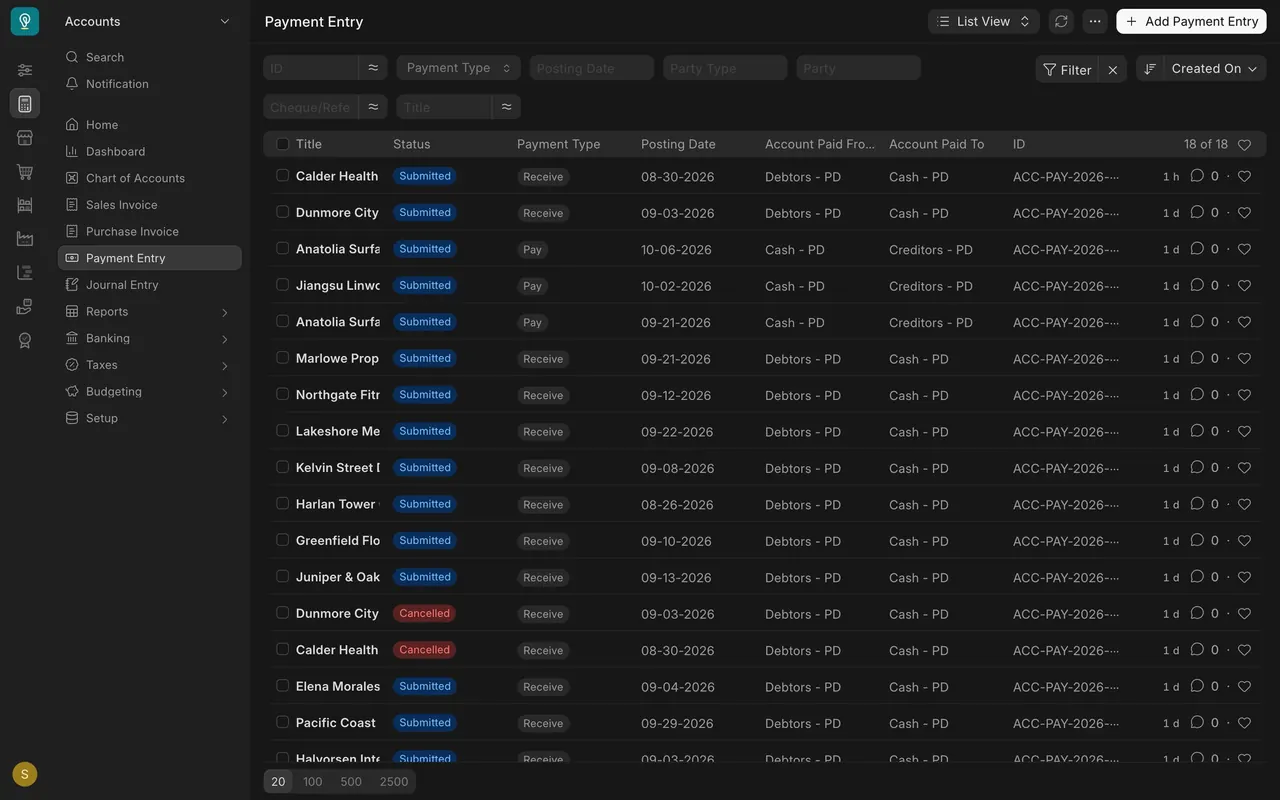
- Open Payment Entry in the Accounts sidebar. The list shows each payment's Payment Type (Receive or Pay), posting date and the accounts it moved money between.
- Click Add Payment Entry. A new entry starts with Payment Type set to Receive and Party Type set to Customer, which is right for money coming in.
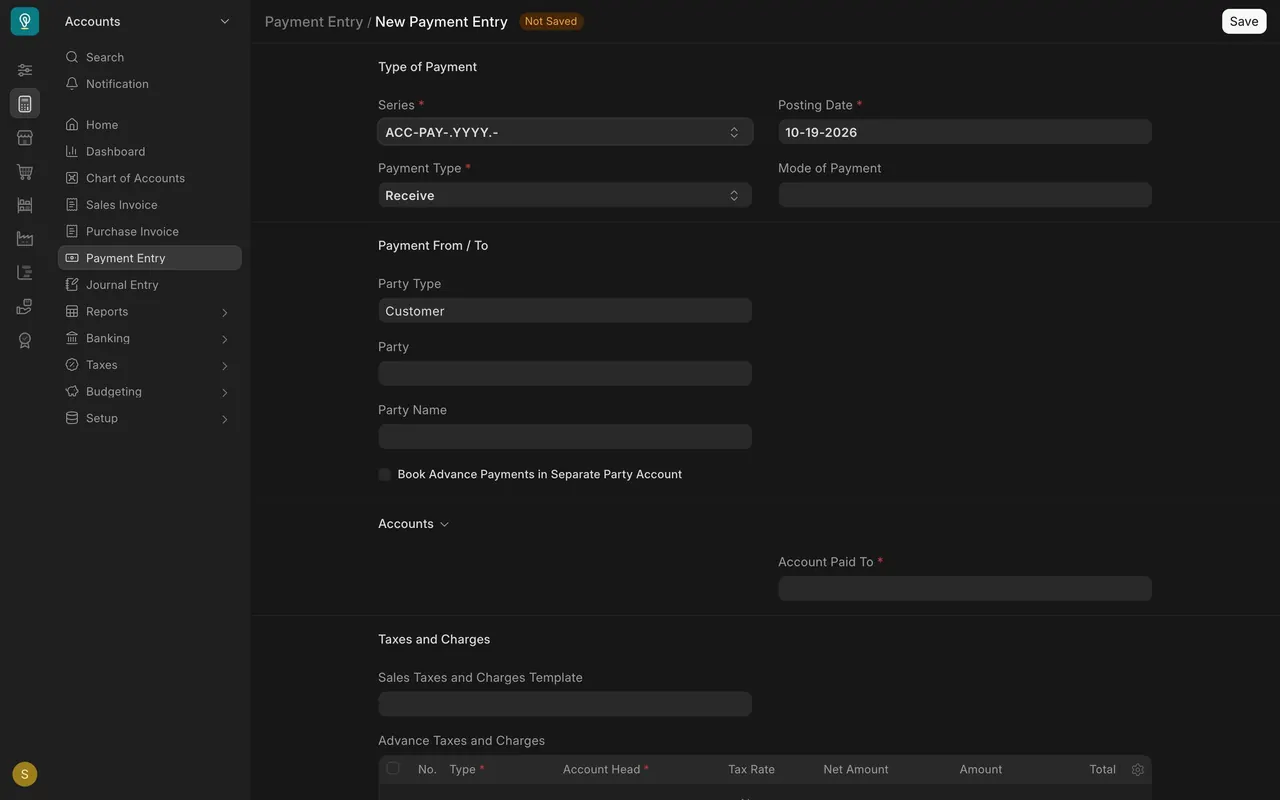
- Choose the customer in Party. Party Name shows the customer's full name.
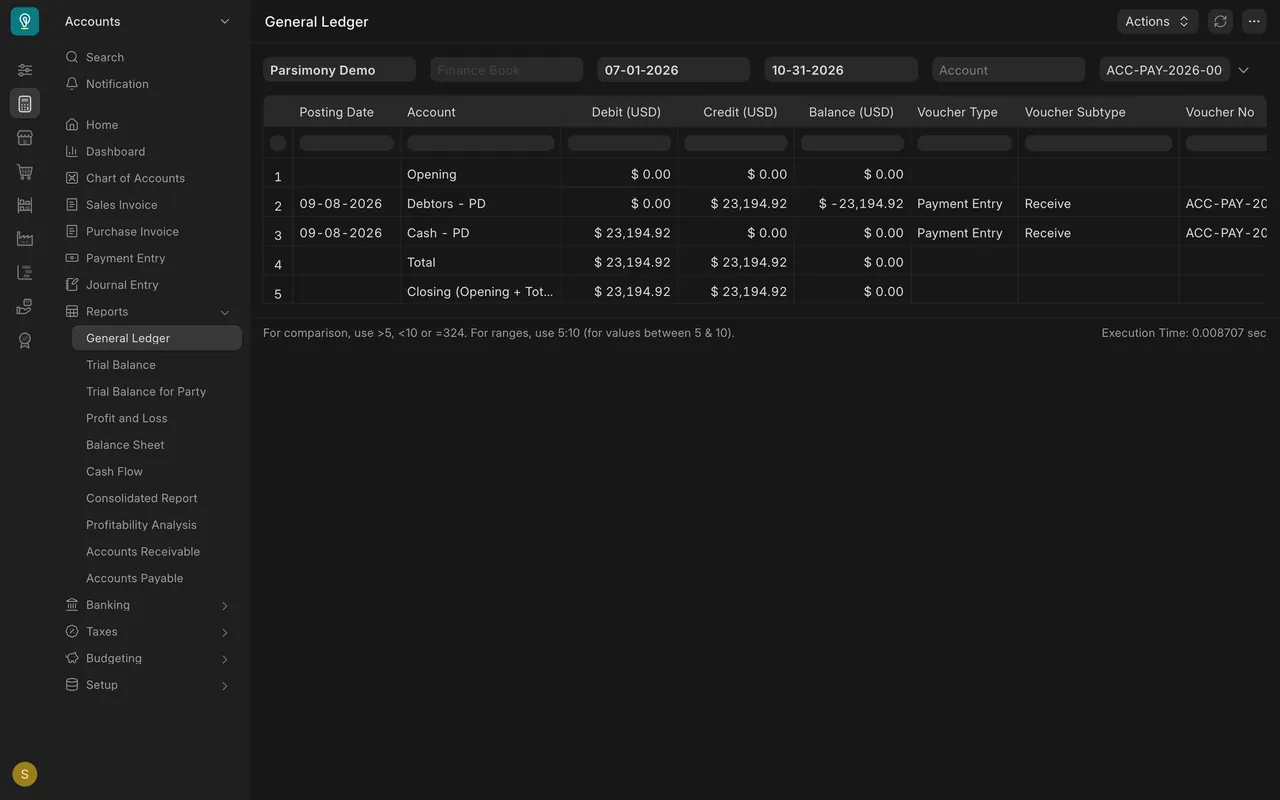
- Check Account Paid To. It is the account where the money landed. In this example, customer receipts go to the cash account, named Cash - PD here.
- Set the Posting Date to the day the money arrived, not the day you are typing. Month-end figures depend on it.
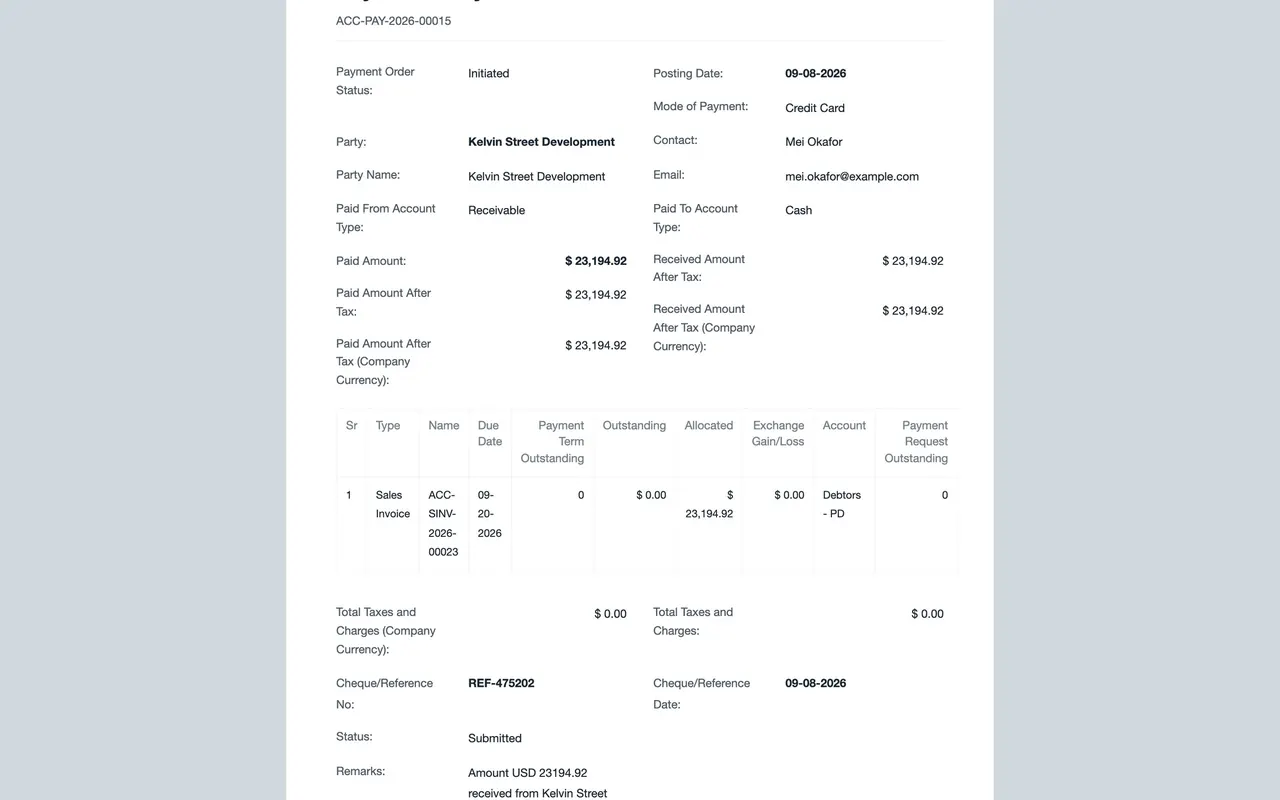
- Set Mode of Payment (for example Credit Card or Wire Transfer) and enter the bank's reference in Cheque/Reference No and Cheque/Reference Date further down the form.
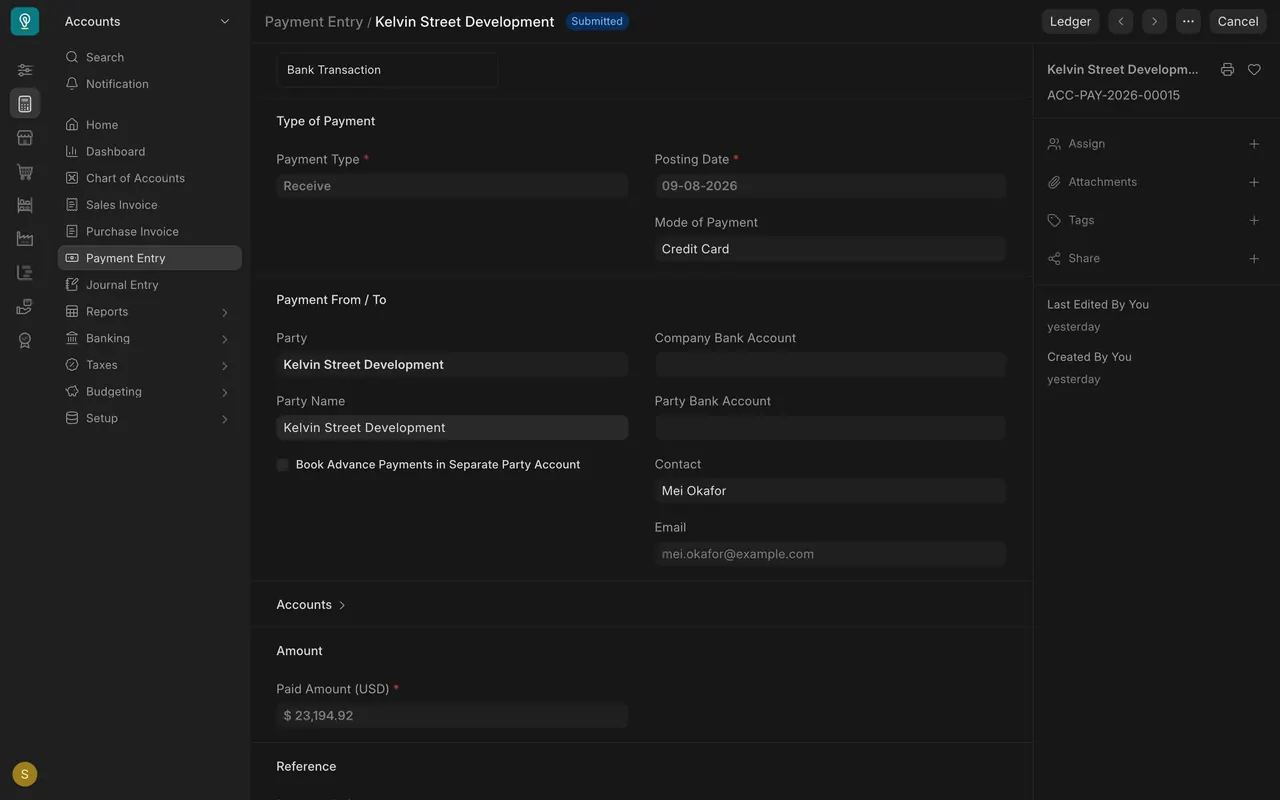
- Enter the Paid Amount (USD), then go to Payment References. After you choose the customer, a button appears that loads their open invoices into this table. Click it, then set Allocated on each row the customer is paying and clear the rows they are not. Each row names an invoice with its Due Date, Outstanding amount and an Allocated amount. Allocate the payment to the invoices the customer actually paid. In this example, $23,194.92 was allocated in full to one invoice, so its outstanding dropped to $0.00.
- If the customer paid only part of an invoice, allocate only that part. The rest stays open on the invoice and keeps ageing, which is the truth the next person needs.
- Check Unallocated Amount (USD) before you submit. If it is more than zero, part of the money is not yet tied to an invoice. Fix that now, or note why (for example, an advance before invoicing).
- Save, check the allocation once more, then submit.
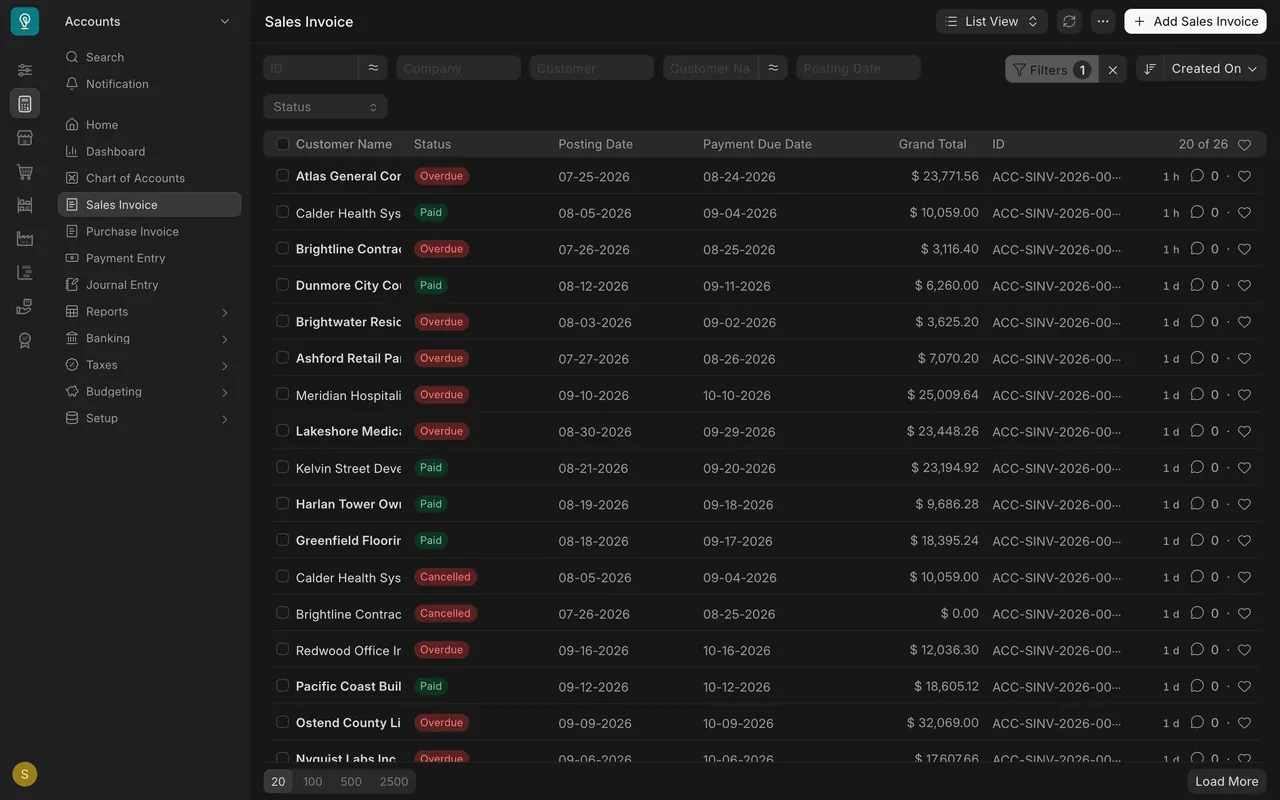
- Check the result. The Ledger button on the payment, or the General Ledger report filtered to it, shows the cash account debited and the Debtors account (the money customers owe) credited by the same amount. The invoice in the Sales Invoice list now reads Paid.
How the example is set up
- Accounts: customer receipts move money from the Debtors account (money customers owe) to the cash account. Here they are named Debtors - PD and Cash - PD, where PD is the example company's short name; yours will have your own company's name.
- Modes of payment: Credit Card and Wire Transfer appear on the example's recent entries. Your site lists the modes your company set up.
- Numbering: each payment gets a number from a numbering series. Your administrator can set the pattern.
- Who can do what: users with the Accounts User or Accounts Manager role can create, submit and cancel a Payment Entry.
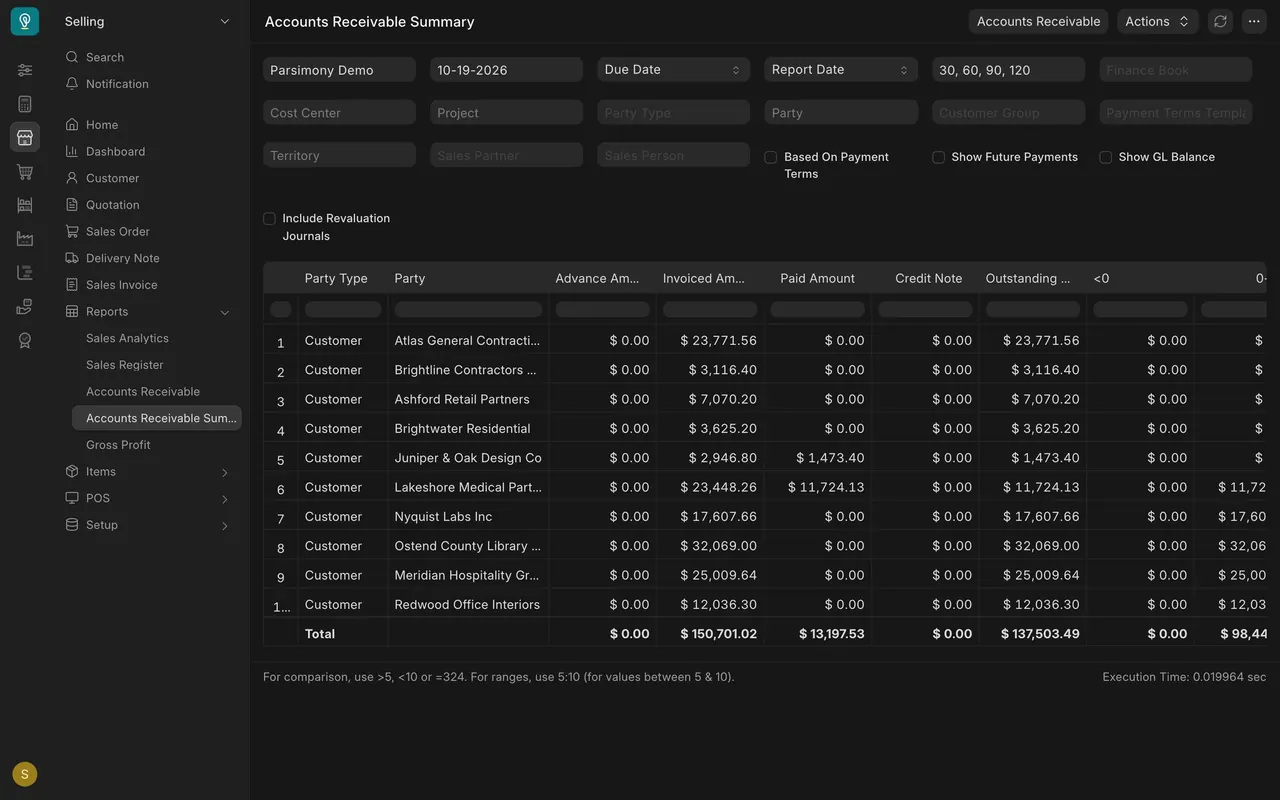
- Partial payments are normal. Two customers in the example data have paid half of an invoice. The Accounts Receivable Summary shows both the Paid Amount and what is still outstanding.
- Email: if your site is set up to send email, the customer can be sent the receipt. If not, nothing is sent when you submit.
Common mistakes
- Saving without allocating. The cash is right, but the invoice still looks unpaid and shows up on ageing reports. Fill Payment References before you submit.
- Allocating to the oldest invoice by habit. Allocate to the invoices the customer says they paid, using their remittance or reference. Ask if it is unclear.
- Using today's date. A payment that arrived on the 30th but is posted on the 2nd lands in the wrong month.
- Patching a wrong allocation. Do not post a second payment or a journal to "even it out". Cancel the payment entry (you can) and enter it again correctly. The payment list shows what a clean correction looks like: two receipts appear twice, once Cancelled and once Submitted.
- Forgetting the reference. Without the bank's reference number, the payment is hard to match to the bank statement later.
Check yourself
3 quick questions.
1. A customer paid an invoice in full. The payment is saved and submitted, but the invoice still shows Overdue. What is the most likely cause?
2. A customer pays half of a $2,946.80 invoice. What should you do?
3. Which accounts does a customer receipt move?