V16 Training · Accounting · Lesson 1 of 6
Raise a sales invoice
This lesson shows you how to raise a sales invoice from what actually shipped, check it, and submit it so it posts correctly.
Written guide
The idea
A delivery that has not been invoiced is money nobody has asked for yet. The sales invoice turns a shipment into a debt the customer owes. A wrong invoice sends collections after the wrong amount and puts a false figure in the receivables report.
Bill what shipped, not what was ordered. A sales order can be delivered in parts, and a part can be short or swapped. The delivery note records what left the warehouse, so it is the safest place to start.
By the end of this course you will be able to:
- Raise and check a sales invoice.
- Record a customer payment and allocate it.
- Enter and pay a supplier invoice.
- Post a journal entry for costs with no invoice.
- Correct mistakes with cancel and amend, reconciliation and credit notes.
- Read the core financial reports.
Step by step
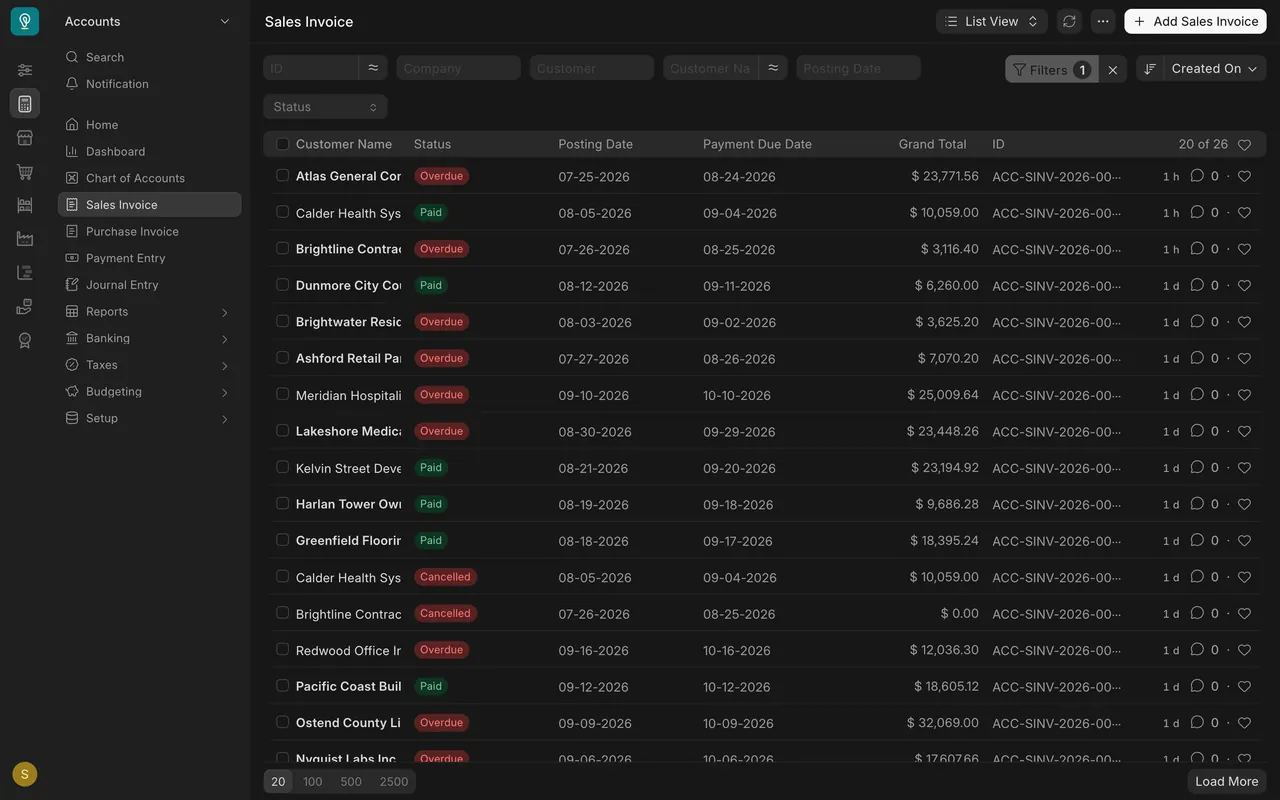
- Open the Accounts module and choose Sales Invoice in the sidebar. The list shows each invoice's status (Overdue, Paid, Cancelled), dates and grand total.
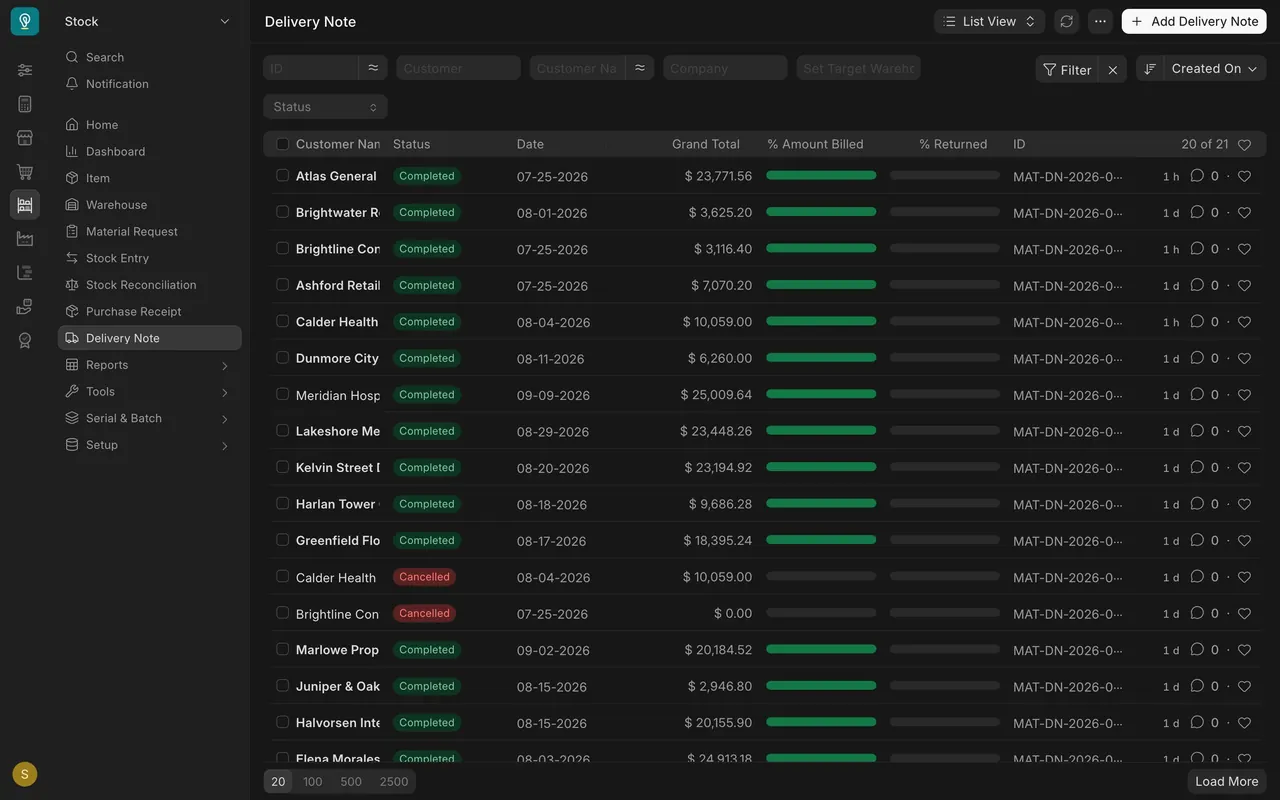
- Find what needs billing. Open the Delivery Note list (Stock module). The % Amount Billed column shows a bar per delivery. A full bar means invoiced, as on every Completed delivery in the example data. A delivery with an empty or part-filled bar still needs an invoice. Cancelled deliveries also show an empty bar; they are never billed.
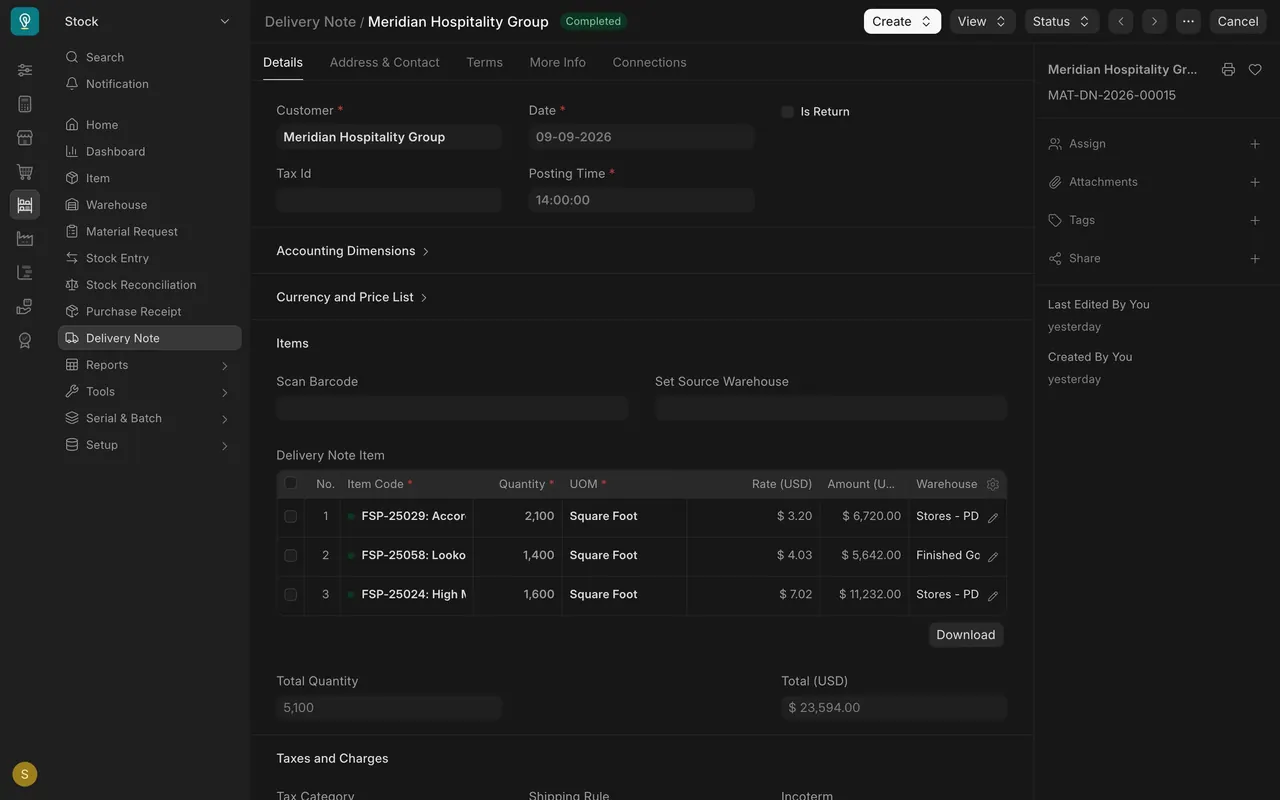
- Open a delivery that still needs billing and use the Create button at the top right to raise the invoice from it. As an Accounts User you can read a delivery note but not change it. On a delivery that is already billed, the Connections tab lists the sales invoice made from it.
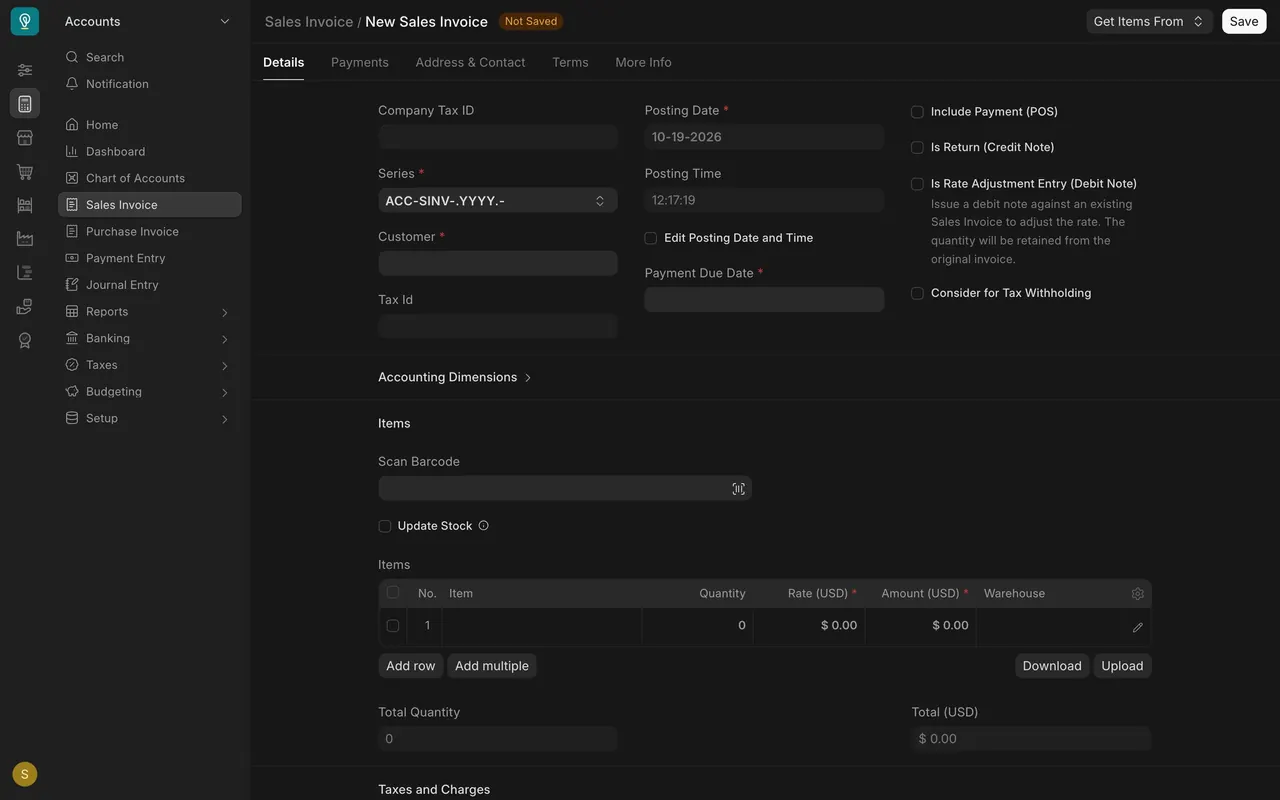
- From a blank invoice (Add Sales Invoice), use Get Items From at the top right to pull the lines from the delivery. Do not type them by hand.
- Compare the lines with the delivery: same items, same quantities. In the example data, a hotel group's delivery of 2,100, 1,400 and 1,600 square feet became an invoice with exactly those quantities.
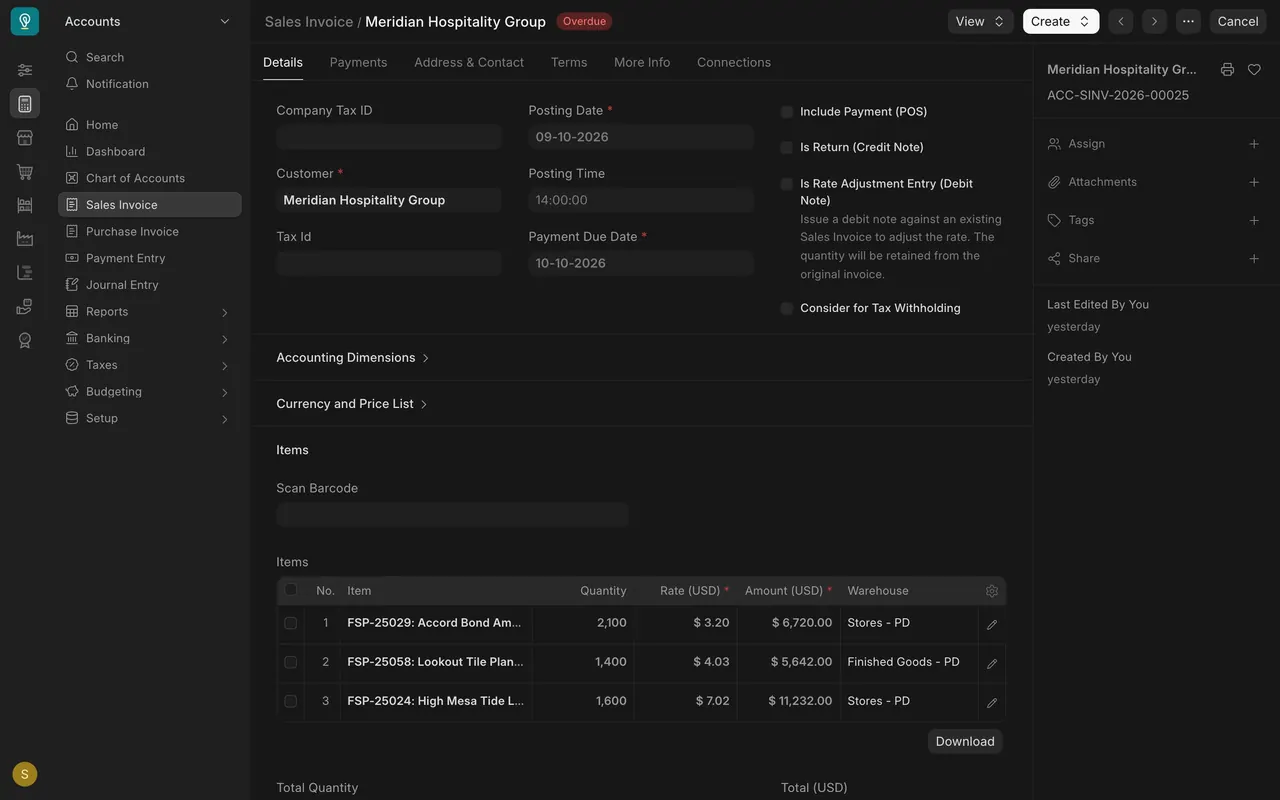
- Check the Posting Date. It decides which month the sale lands in. Normally that is today. If the sale belongs to an earlier month, tick Edit Posting Date and Time, set it before you save, and tell your Accounts Manager.
- Check the Payment Due Date. When it passes and the invoice is unpaid, the status changes to Overdue. It should match the customer's agreed terms: 30 days after posting in the example (09-10-2026 to 10-10-2026). If it looks wrong, ask Sales before you submit.
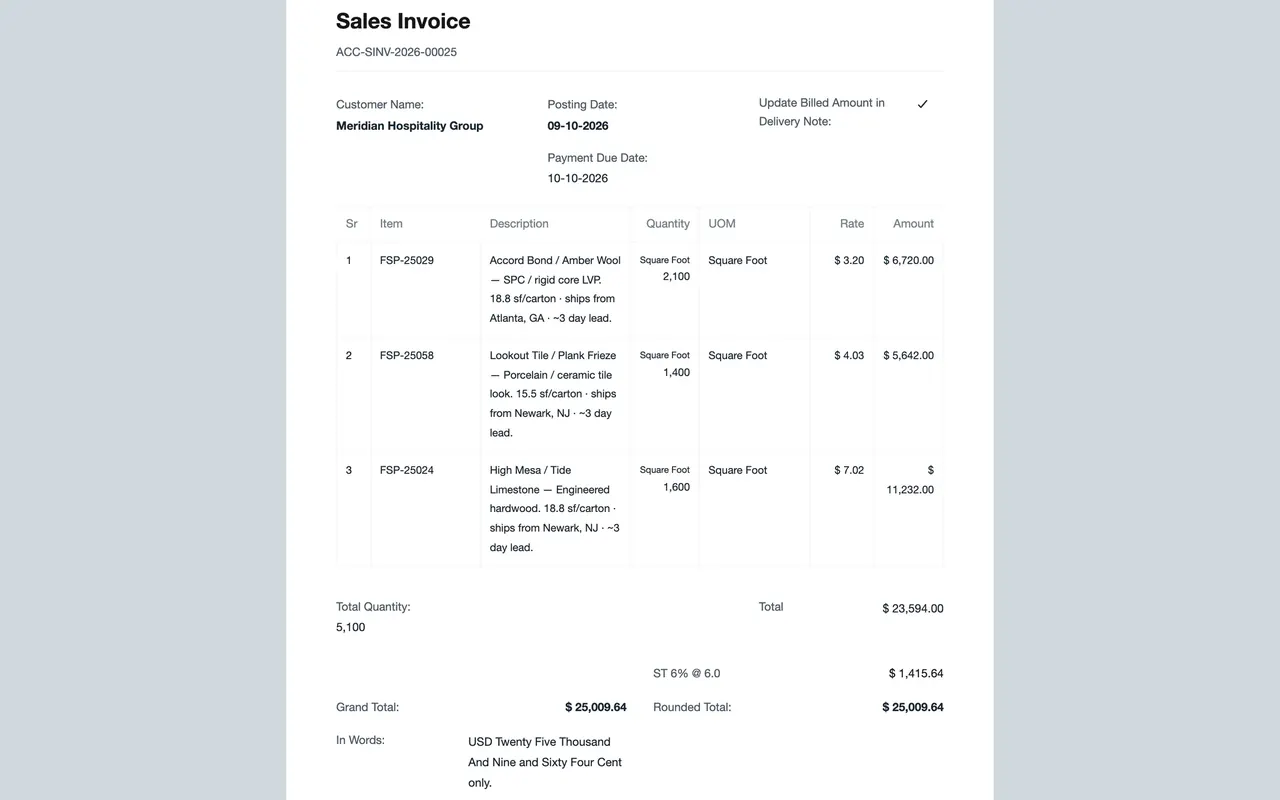
- Check the totals. The example adds a six percent sales tax line (shown as ST 6% @ 6.0, where ST stands for sales tax), so the Grand Total is the goods total plus tax. The Rounded Total and the amount In Words must agree with it.
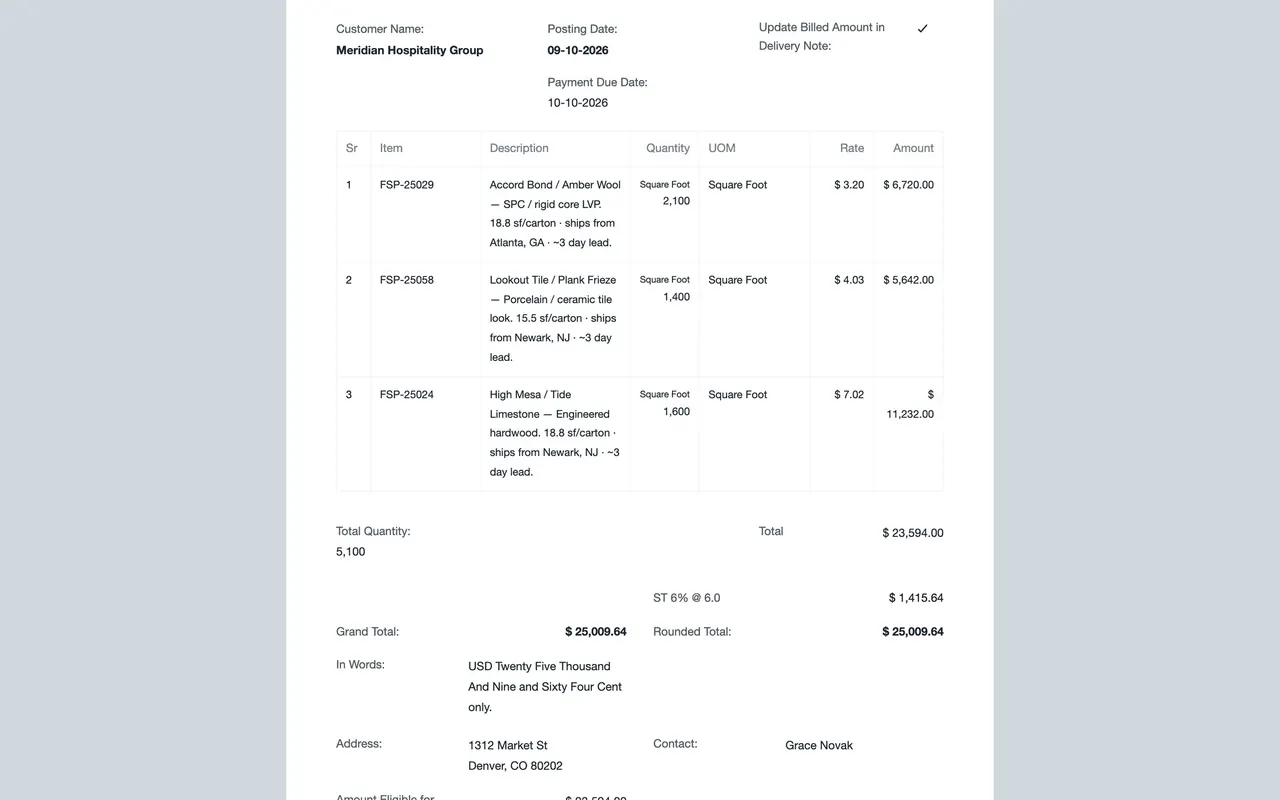
- Check the sales tax exemption flag (Is customer exempted from sales tax?, further down the Details tab). If it looks wrong for this customer, stop and ask Sales to fix the customer record. Do not change it on the invoice to make a number work.
- Click Save, read the draft once more, then submit. Submitting posts the invoice to the ledger and locks it.
Open the Print menu and choose the print view to see the invoice exactly as your customer will receive it.
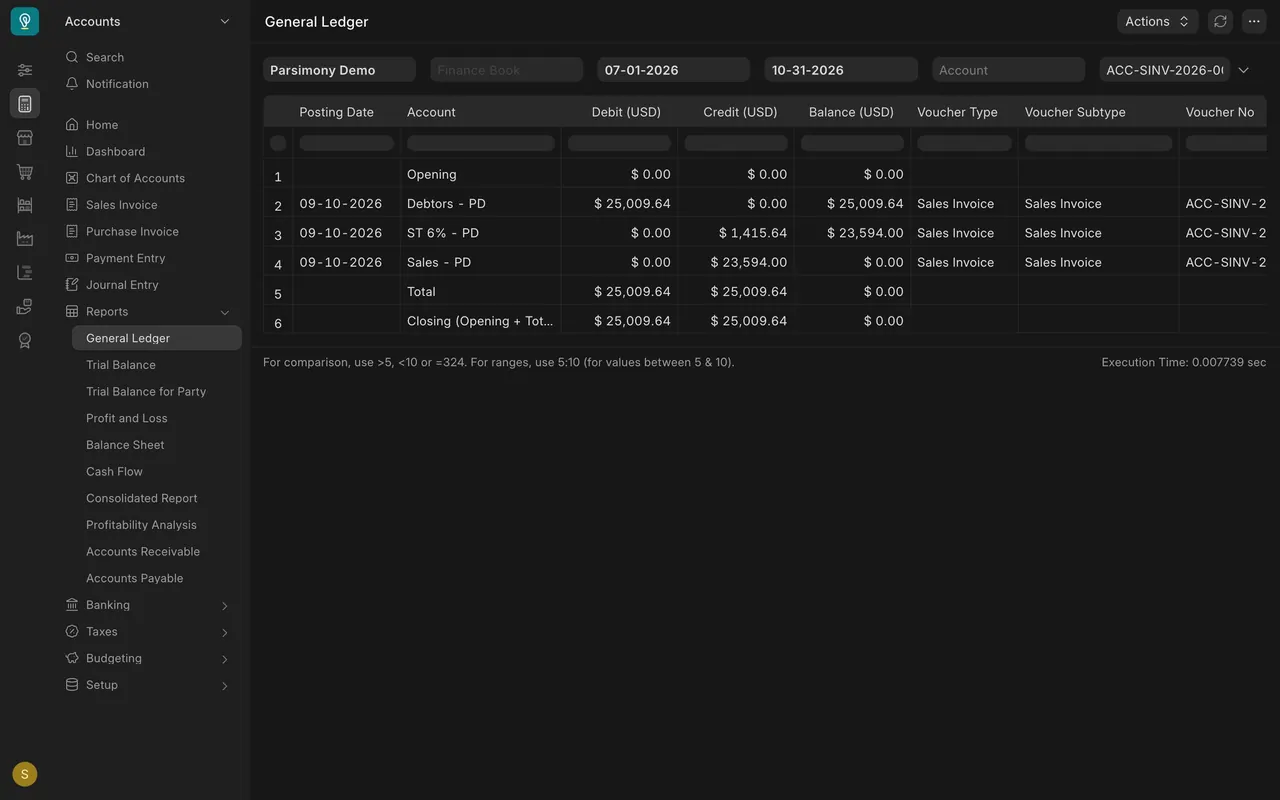
- Check what it posted. In General Ledger, filtered to the invoice, the Debtors account carries the full amount as a debit; the sales tax account and the Sales account (goods) carry the credits.
How it is set up in the example
Your own Parsimony site may differ in these details. Ask your Accounts Manager if something on your screen does not match.
- Company and currency: the example company bills in US dollars. Your company has its own currency, and its account names may carry a suffix for the company.
- Numbering: each invoice gets a number from a series your company sets up. Credit notes for returns use their own series.
- Receivable account: Debit To is mandatory and is normally the Debtors account. You rarely need to change it.
- Shown on the invoice: Tax ID, Rounded Total and In Words. The discount account fields are hidden in the example.
- Custom field: the sales tax exemption flag exists on Customer, Quotation, Sales Order and Sales Invoice in the example.
- Who can do what: an Accounts User can create, save and submit a sales invoice but cannot cancel one; only an Accounts Manager cancels. Your company may set roles differently.
- Email: if your site is set up to send email, you can email the invoice to the customer. If not, use Print or PDF to send it.
Common mistakes
- Billing from memory. Typed lines drift from what shipped. Pull lines from the delivery note with Create or Get Items From.
- Billing twice. Raising one invoice from the sales order and another from the delivery bills the same goods twice. Pick one route per order and check % Amount Billed first.
- Wrong posting date. The sale lands in the wrong month. Set it before you save; after submit, an Accounts Manager has to cancel and amend.
- Fixing tax on the invoice. Changing the exemption flag to make the total "look right" hides a customer data problem.
- Submitting without reading. You cannot cancel a submitted invoice yourself. Read the draft first.
Check yourself
3 quick questions.
1. Where is the safest place to start a sales invoice for goods that have left the warehouse?
2. What does the Posting Date on a sales invoice decide?
3. You hold the Accounts User role and notice a mistake on an invoice you just submitted. What can you do?