V16 Training · Accounting · Lesson 5 of 6
Correct mistakes the right way
This lesson shows you how to find payments that are not tied to an invoice, correct a wrong invoice with cancel and amend, and decide when a credit note is the right tool instead.
Written guide
The idea
Mistakes happen: an invoice goes out with the wrong lines, a payment is saved without being allocated, goods come back. A submitted document is never edited. You correct it with another document that explains itself, so the next person (and the auditor) can follow what happened.
There are three tools, and each has its own job:
- Payment Reconciliation ties money that arrived without an invoice to the invoices it pays.
- Cancel and amend replaces an invoice that was wrong from the start. The corrected copy keeps the old number with -1 on the end and points back to the original.
- A credit note reduces what the customer owes when the sale really happened, for example after returned goods or an agreed price cut.
Step by step
Check partial payments and loose money
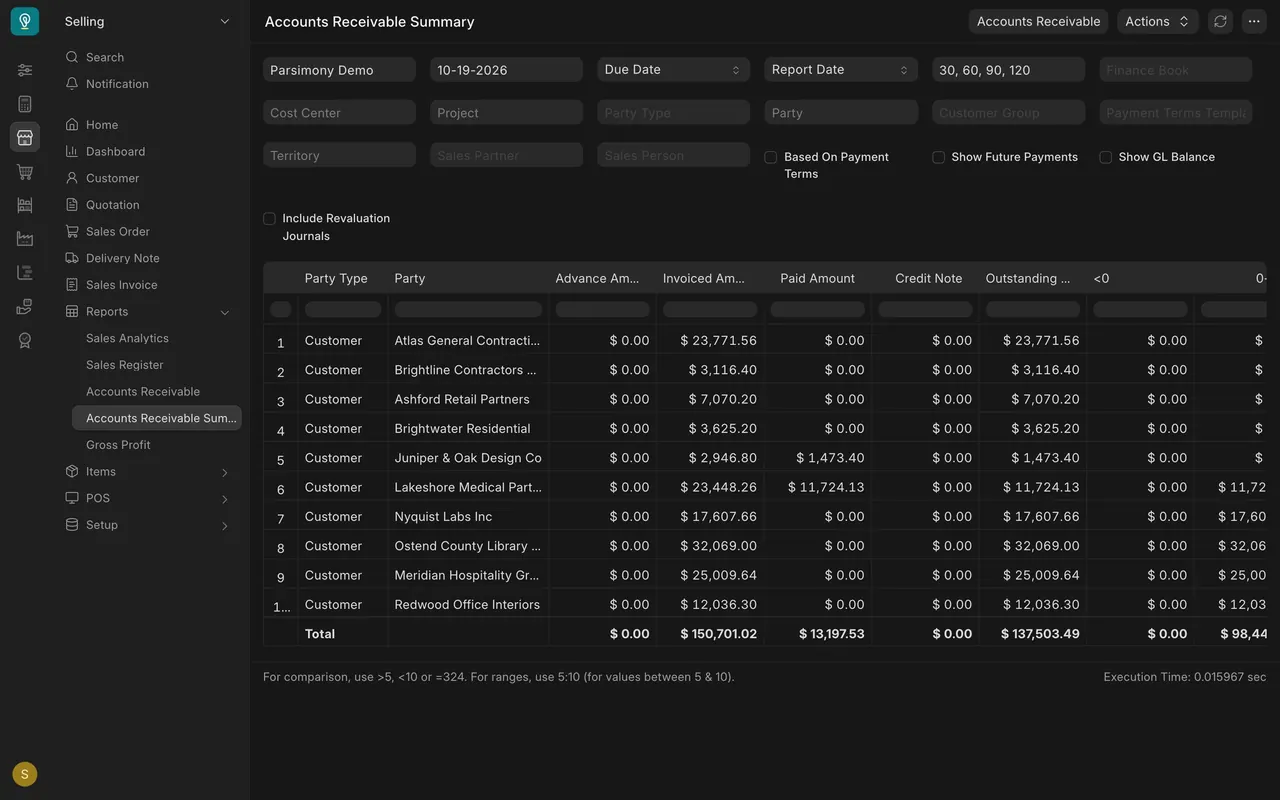
- Open the Accounts Receivable Summary. Look at Paid Amount next to what is still outstanding. In this example, two customers have paid exactly half of an invoice. That is fine: the payment is allocated and the balance keeps ageing.
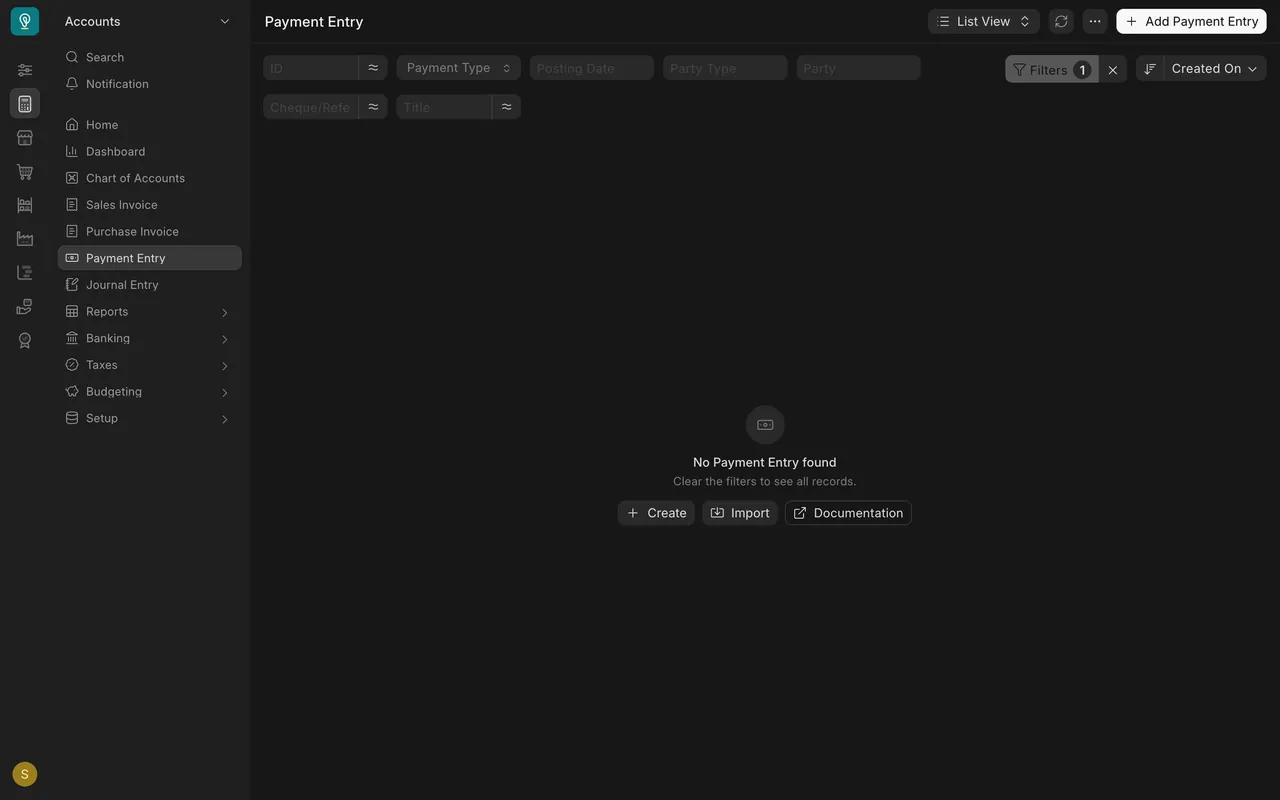
- Now look for money with no home. Open the Payment Entry list and add a filter on the unallocated amount, greater than zero. In this example the list is empty, which is what good looks like.
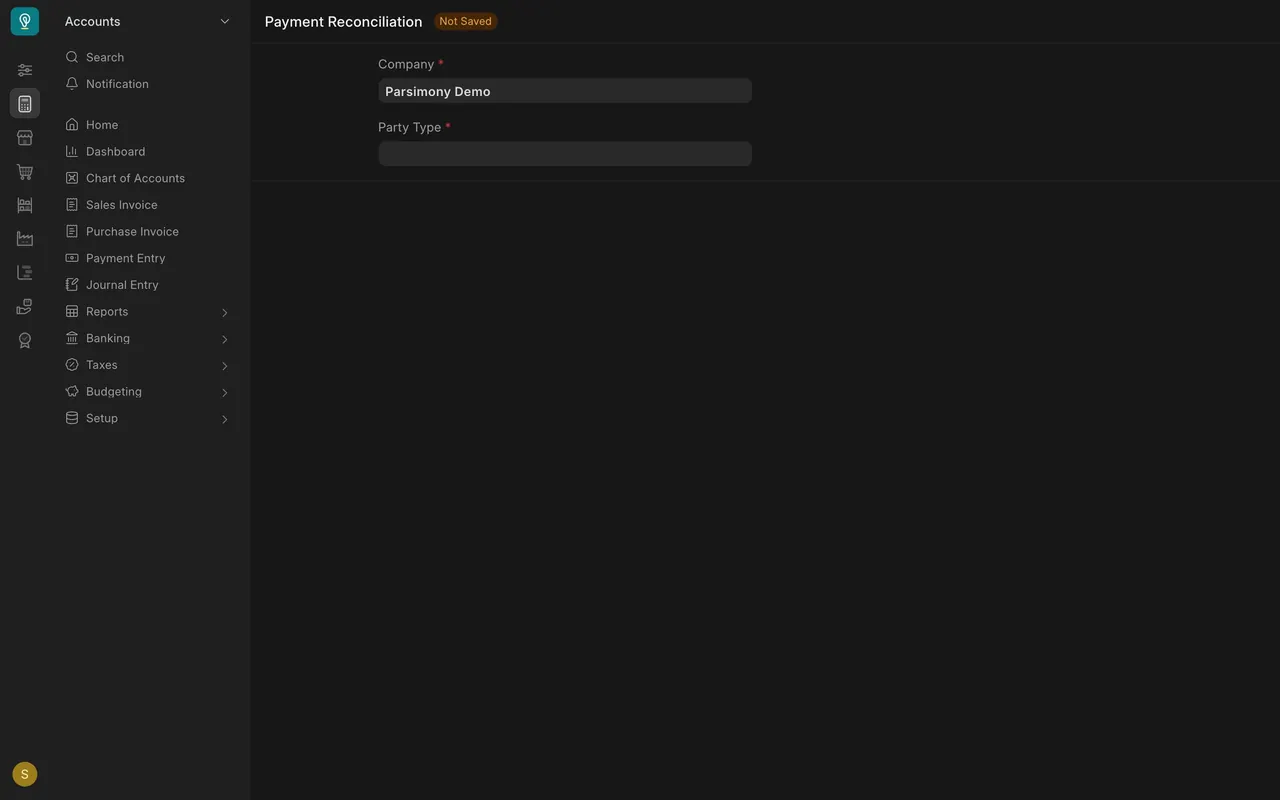
- If anything appears, open Payment Reconciliation (Accounting home page, Reconciliation card), then:
- Set Company and Party Type.
- Choose the customer or supplier, and its receivable or payable account.
- Load the open entries.
- Tick the payment and the invoices it pays.
- Allocate.
- Reconcile.
If you matched the wrong pair, Unreconcile Payment (same card) undoes it.
Correct a wrong invoice: cancel and amend
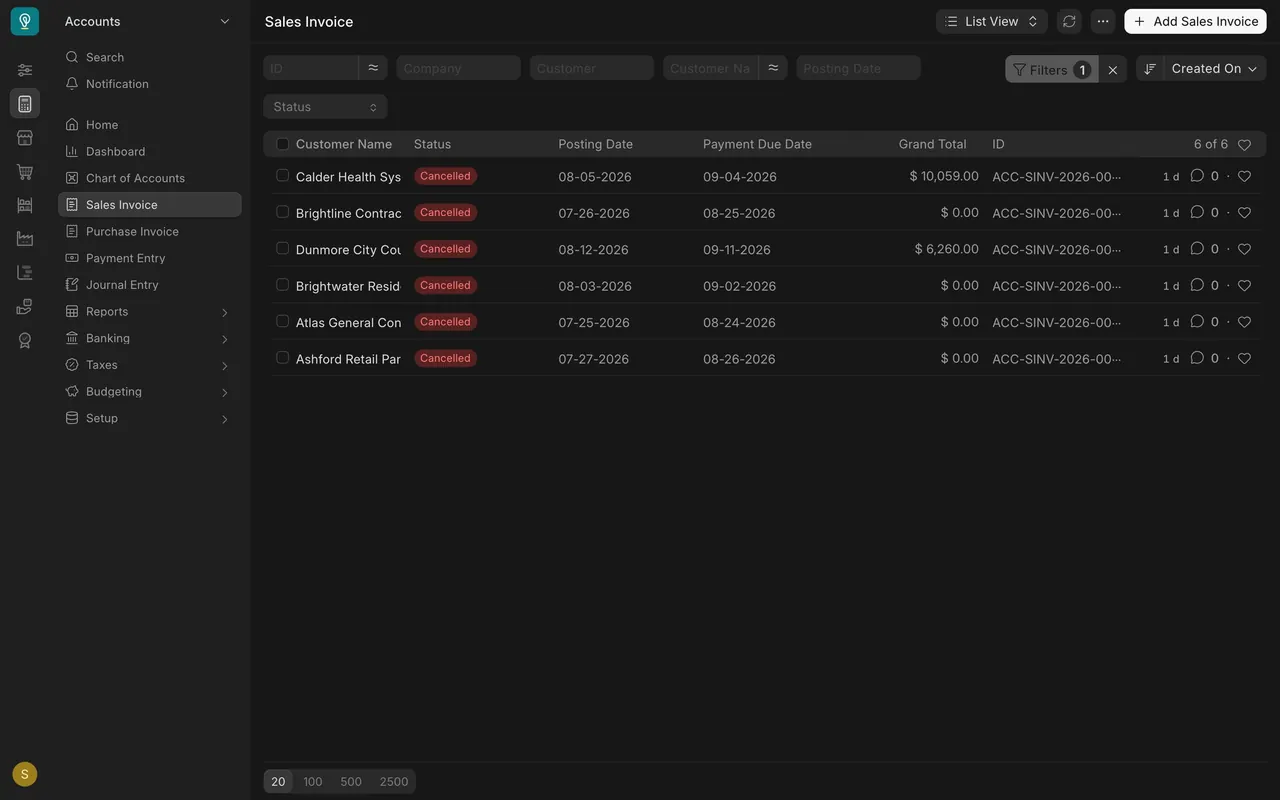
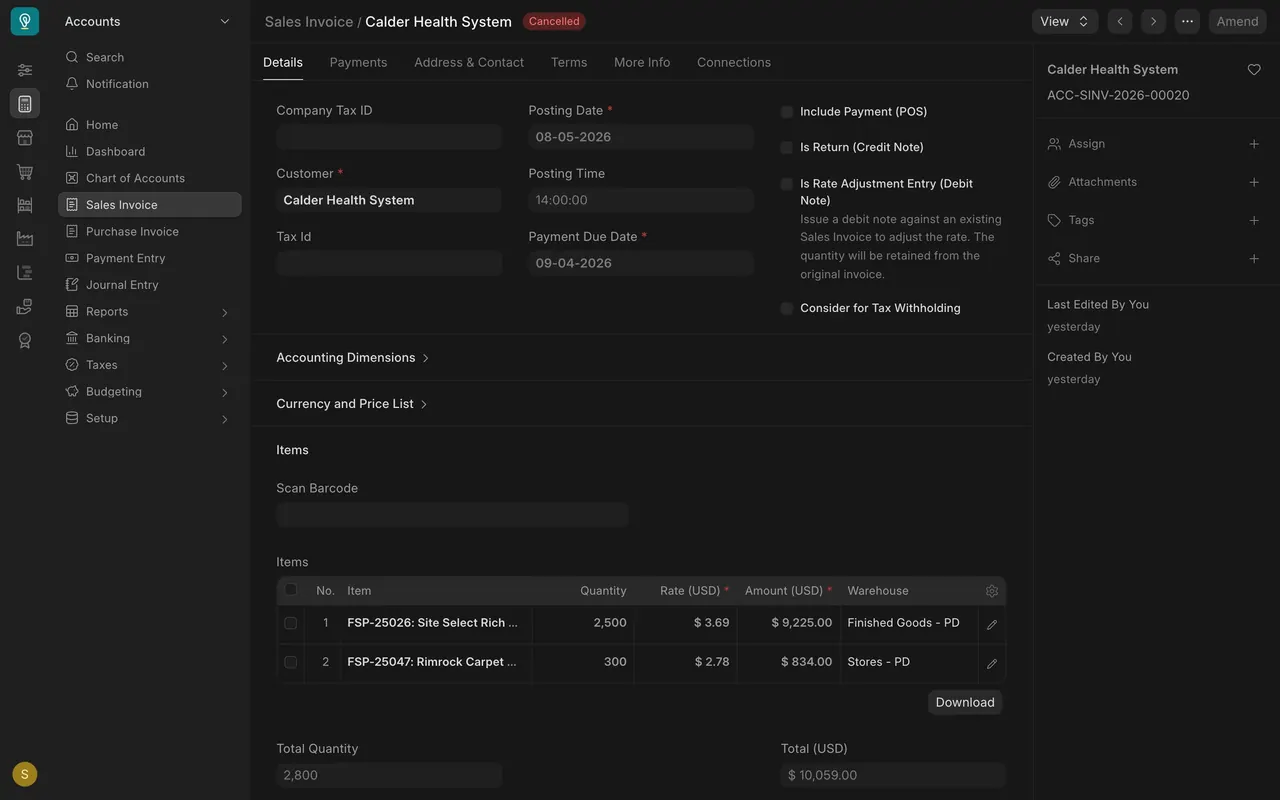
- In this example, six sales invoices from July and August were cancelled and replaced.
- With the standard roles, only an Accounts Manager can cancel a sales invoice. Ask one, and never use someone else's login.
- A cancelled invoice shows the Amend button. The Accounts Manager who cancelled it clicks Amend, which creates a draft copy to correct and submit. Once the corrected copy exists, the button greys out, as here.
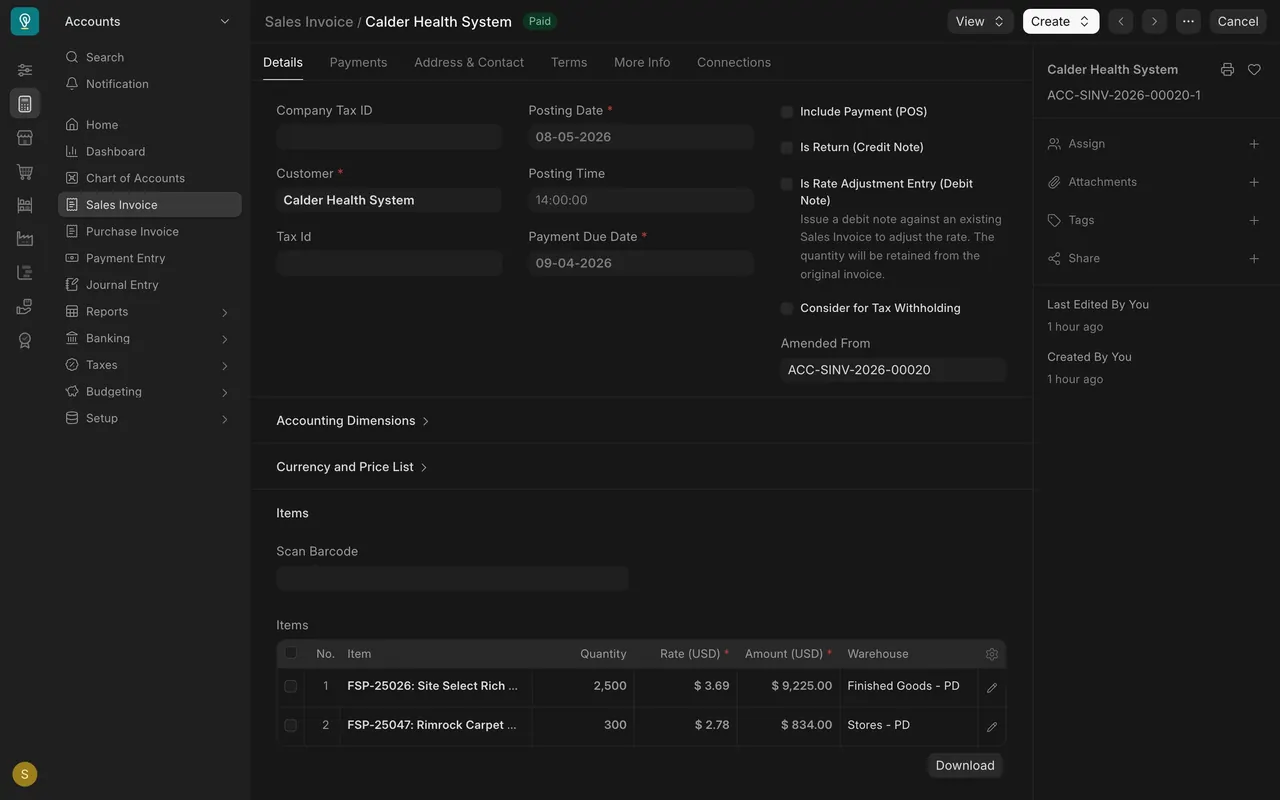
- The corrected copy carries the old number with -1 on the end, and Amended From points back to the original. In this example, the corrected copy is now Paid.
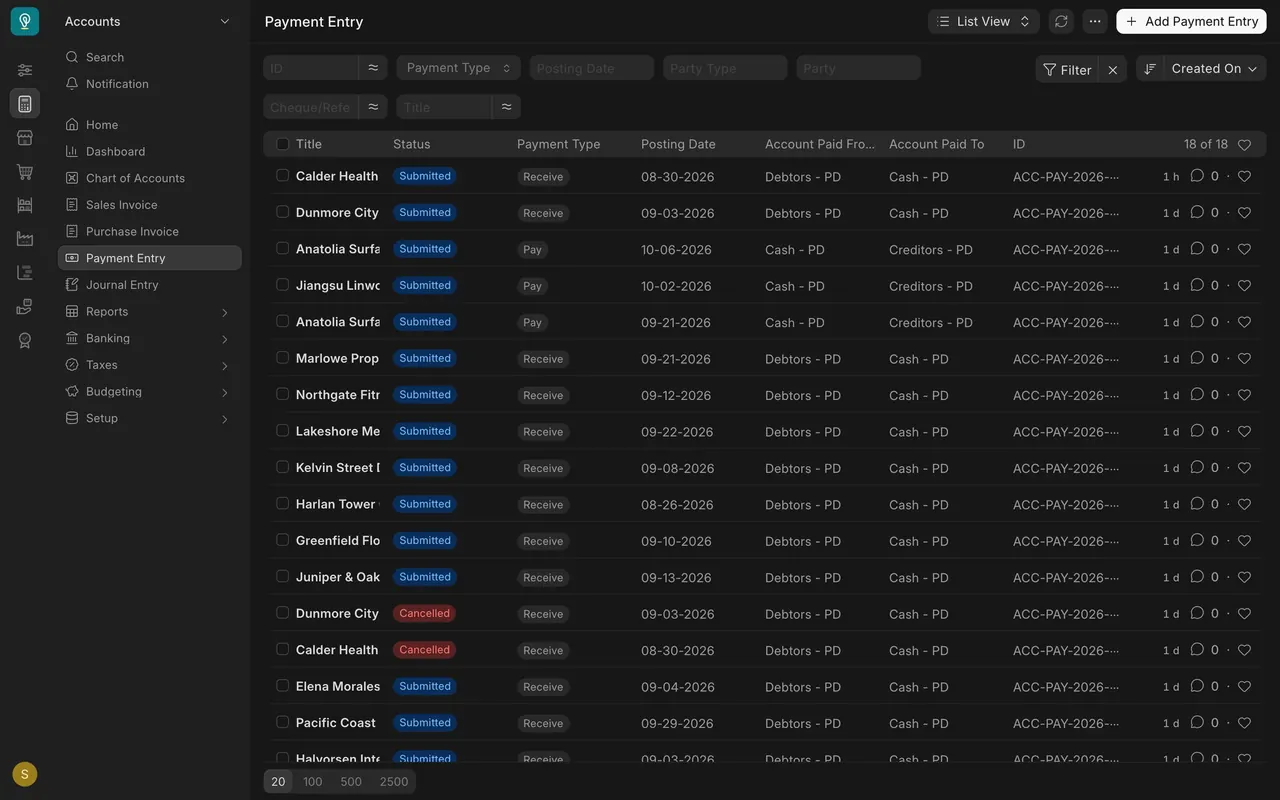
- Check the payments. Cancelling an invoice unlinks any payment allocated to it, so the payment stays submitted but becomes unallocated. Reconcile it to the corrected copy with Payment Reconciliation, or cancel it and enter it again. In this example, one customer's first receipt was cancelled, and a new receipt pays the amended invoice.
Issue a credit note
- Use a credit note when the original sale stands but the customer is owed money back. Raise it from the submitted invoice with the Create button, or start a new invoice and tick Is Return (Credit Note). Keep only the lines and quantities being credited.
- Save, check, submit. The credit reduces the customer's balance and appears in the Credit Note column of the Accounts Receivable Summary. If goods physically came back, tell the warehouse: they record the return on the delivery side.
- If the customer had already paid, the credit leaves money owed to them. Refund it with a payment entry, or allocate it to another invoice with Payment Reconciliation.
For suppliers the mirror image is a debit note: a purchase invoice with Is Return (Debit Note) ticked.
Standard setup
- Cancel rights: Accounts Manager cancels sales invoices; Accounts User cannot. Both can cancel payment entries and journal entries.
- Numbering: an amended copy adds -1 to the original number; returns get their own number series, separate from ordinary invoices.
- No credit notes in the example: the example data has none, so the Credit Note column is $0.00 for every customer.
- Cancelling an invoice unlinks its payments (a standard accounts setting; check yours): the payment stays submitted but unallocated until someone reconciles it.
- No approval workflow: the right to submit or cancel is the control.
Common mistakes
- Editing instead of reversing. A submitted invoice is locked for a reason. Cancel and amend, or issue a credit note.
- Cancelling a sale that really happened. If the goods were delivered and some came back, use a credit note. Cancel and amend is for documents that were wrong from the start.
- Forgetting the payment. Cancelling an invoice without dealing with its payment leaves money unallocated.
- Leaving unallocated payments. They make customers look like they owe money they have paid. Check the filter every week.
- Borrowing a manager's login to cancel. Ask the manager.
Check yourself
3 quick questions.
1. A customer returns part of a delivery (say 300 square feet of flooring) that was correctly invoiced. What do you issue?
2. You filter the Payment Entry list to an unallocated amount above zero and it is empty. What does that mean?
3. An invoice was wrong from the start, and a customer payment was allocated to it. After the Accounts Manager cancels and amends the invoice, what do you do about the payment?