V16 Training · Selling and Customer Relationships · Lesson 6 of 6
Lost deals, projects and sales reports
This lesson shows you how to close out lost deals with a reason, keep big jobs tied to their project, and read the four reports that show where sales stand.
Written guide
The idea
Every quote ends one of three ways: it becomes an order, it is lost, or it quietly expires. The first is easy to see. The other two only teach you something if somebody records why.
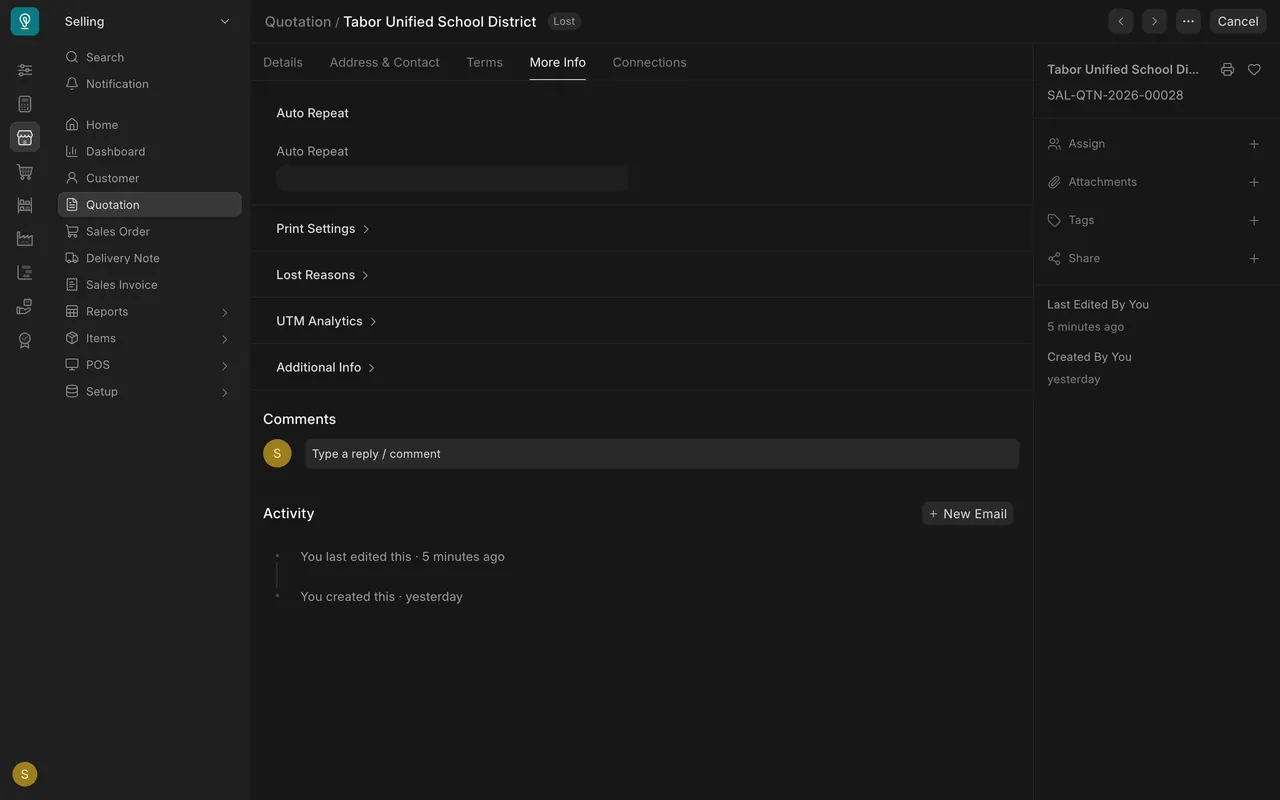
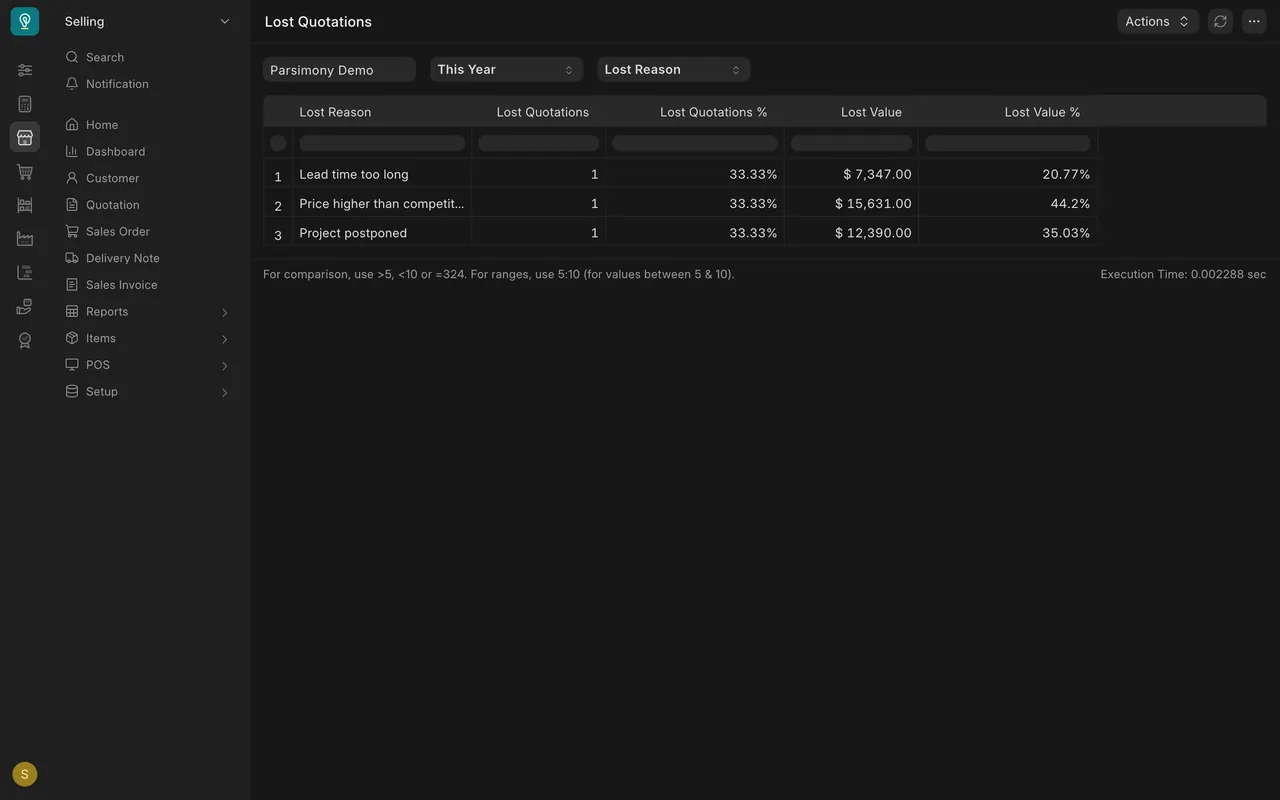
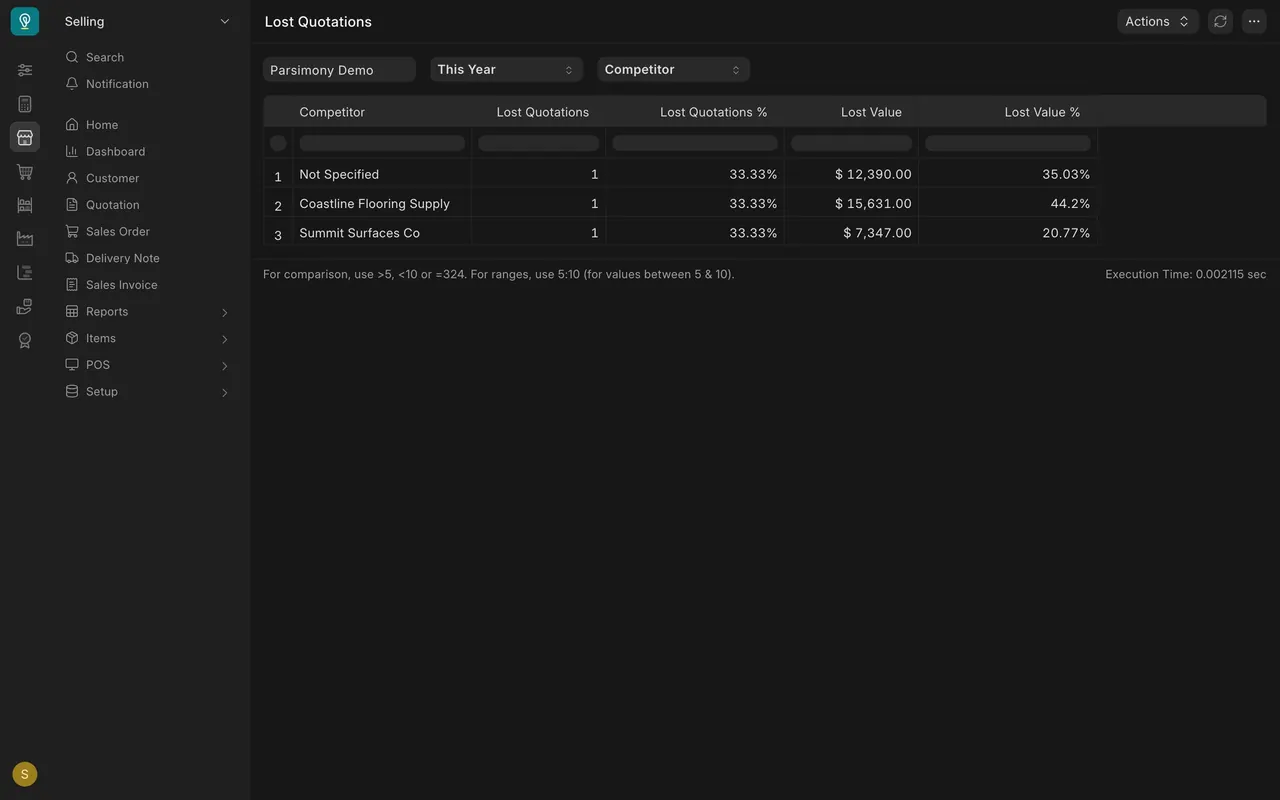
In the example data used here, three quotes were set as lost with a reason; Tabor Unified School District's was lost on price, to Coastline Flooring Supply. Three more simply expired. Nobody recorded why, so Lost Quotations misses them.
Big commercial jobs, such as the Wexler Hotel or Harlan Tower in this example, are tracked as projects. Invoices carry the project, so Accounts can see what each job owes. Your part is to give Accounts the project name when you hand over the order.
Four standard reports cover most of what Sales needs.
This is the last lesson of the course. Next, take the Buying course, to see how the products you sell get bought.
Step by step
Close out expired and lost quotes
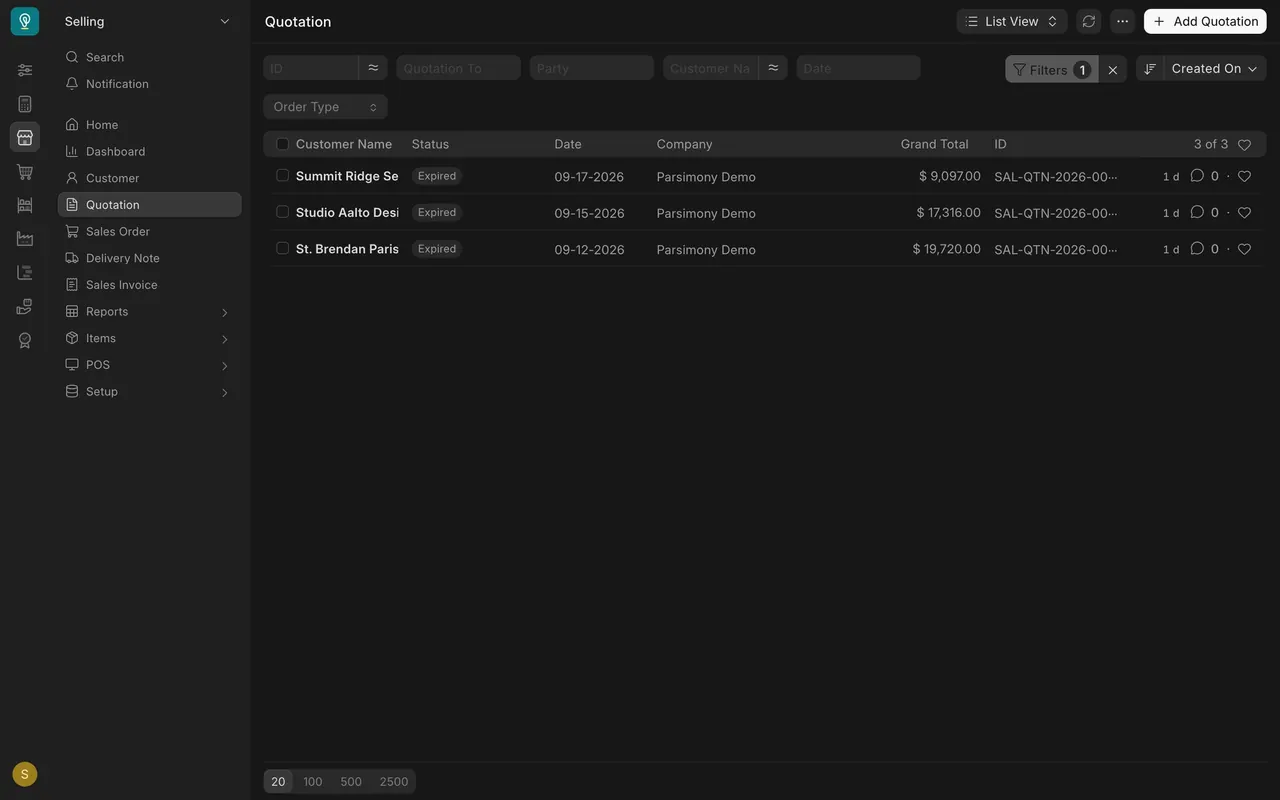
- Open the Quotation list, click "Filter" and filter on the status "Expired".
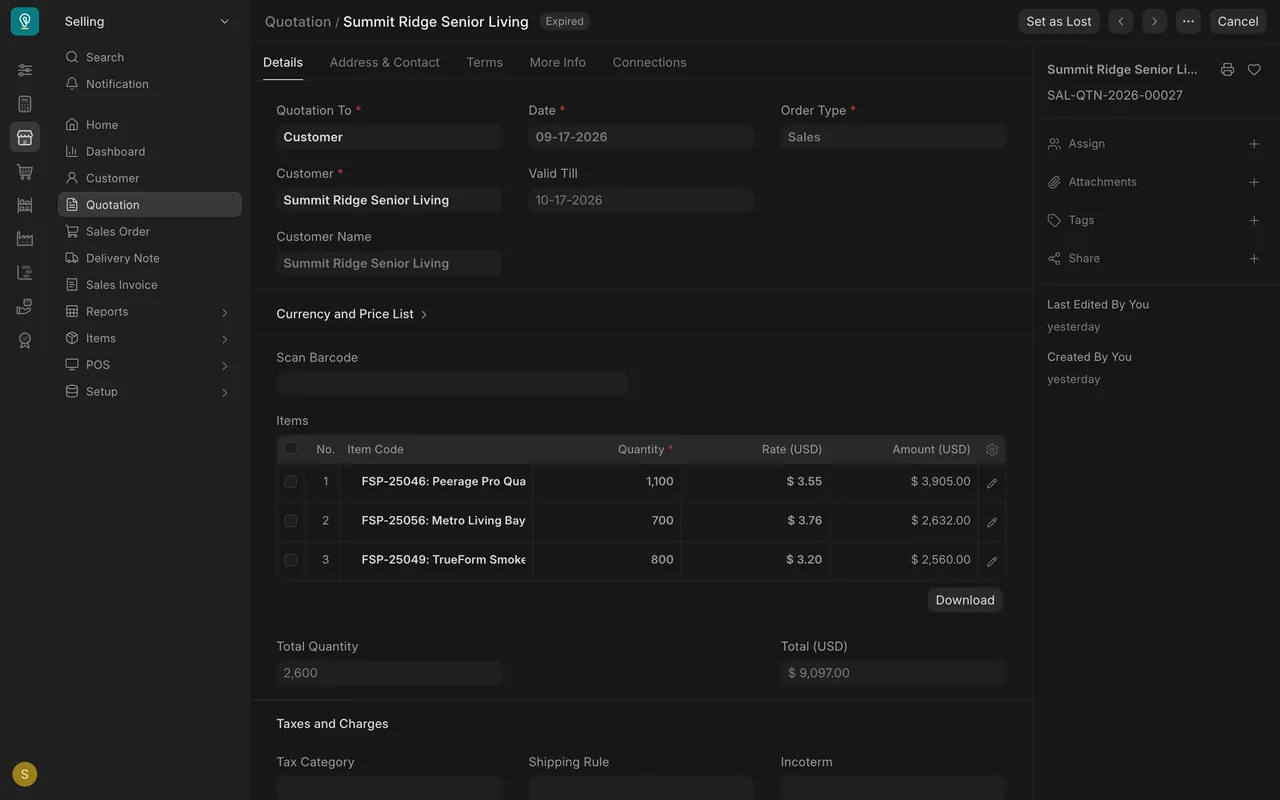
- Open each one. In this example, Summit Ridge Senior Living's quote was valid till 10-17-2026.
- If the customer has simply gone quiet, call them first. The job may still be alive.
- If the deal is gone, click "Set as Lost" at the top of the quotation. Pick the reason from the list, add the competitor if you know who won, and write what happened in a sentence.
- The reason, the competitor and your sentence are kept on the quote's "More Info" tab, in the "Lost Reasons" section.
- A quote that already has a sales order cannot be set as lost.
Review lost deals
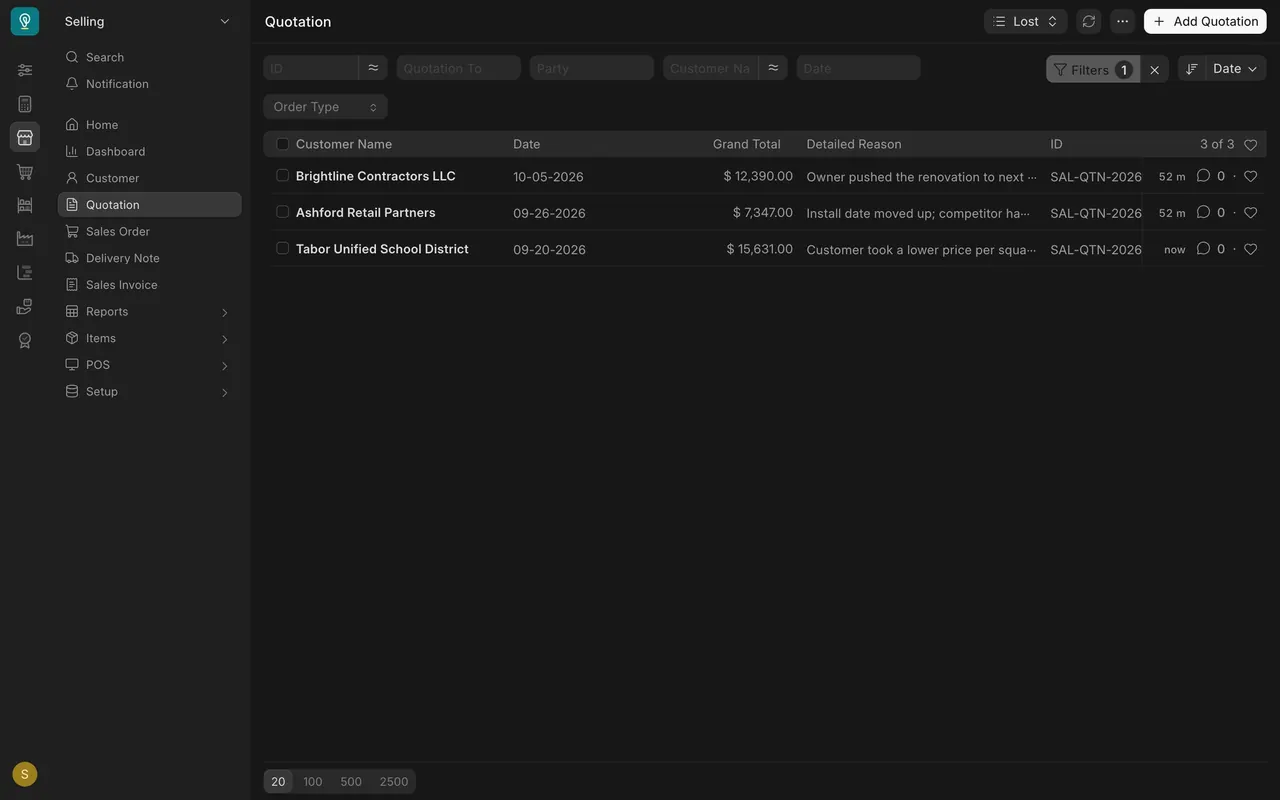
- The Quotation list also has a "Lost" view: only lost quotes, with a "Detailed Reason" column.
- Open "Lost Quotations" (Selling, Sales Reports). It groups lost quotes by "Lost Reason" for "This Year".
- Group it by "Competitor" to see who you lose to. "Not Specified" counts the losses with no competitor named.
- Expired quotes never show here. Only quotes set as lost do.
Keep jobs tied to their project
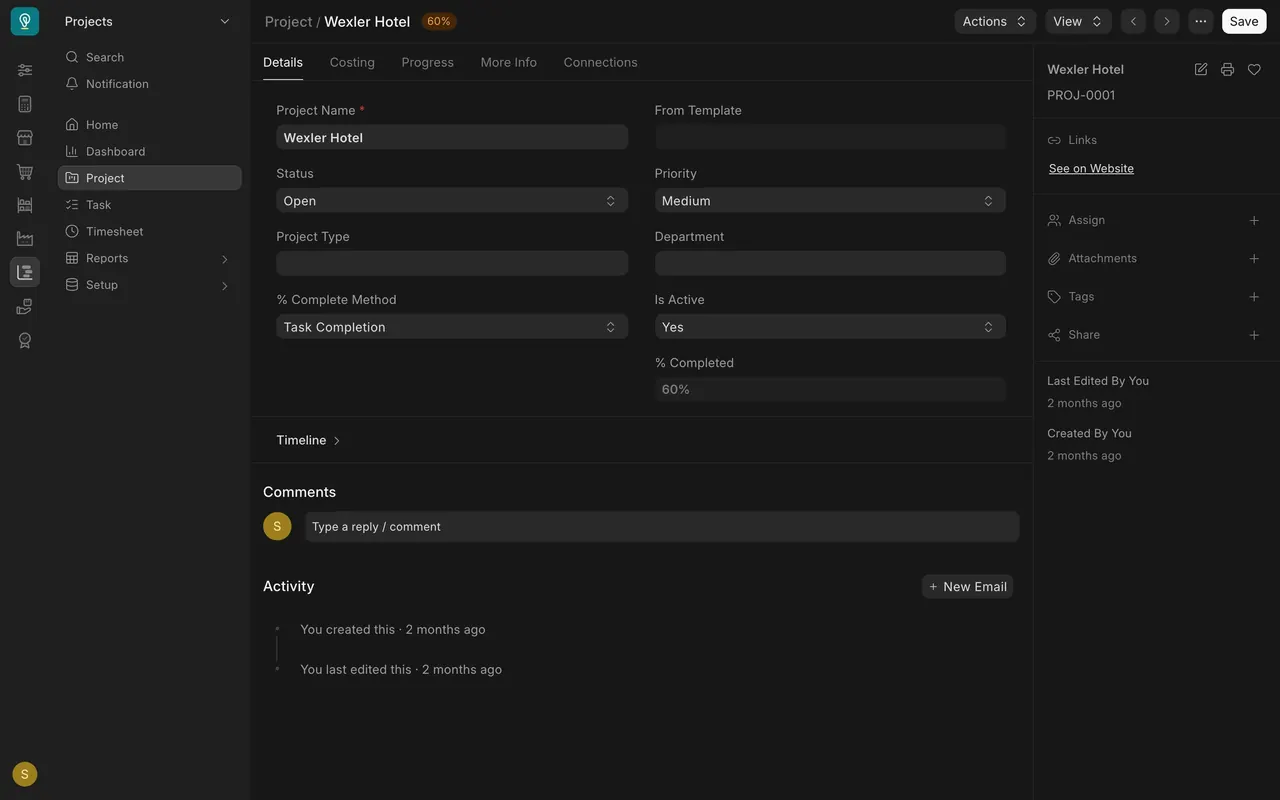
- Commercial jobs are projects in the Projects workspace, for example, in this example, Wexler Hotel, Calder Medical Center and Ostend Public Library.
- Open a project to see its status and "Percent Complete" (shown as "% Completed"). The Wexler Hotel project is "Open" and 60 percent complete.
- When a deal belongs to a job, give Accounts the exact project name, as it appears in Projects, when you hand over the order, so the invoice carries it.
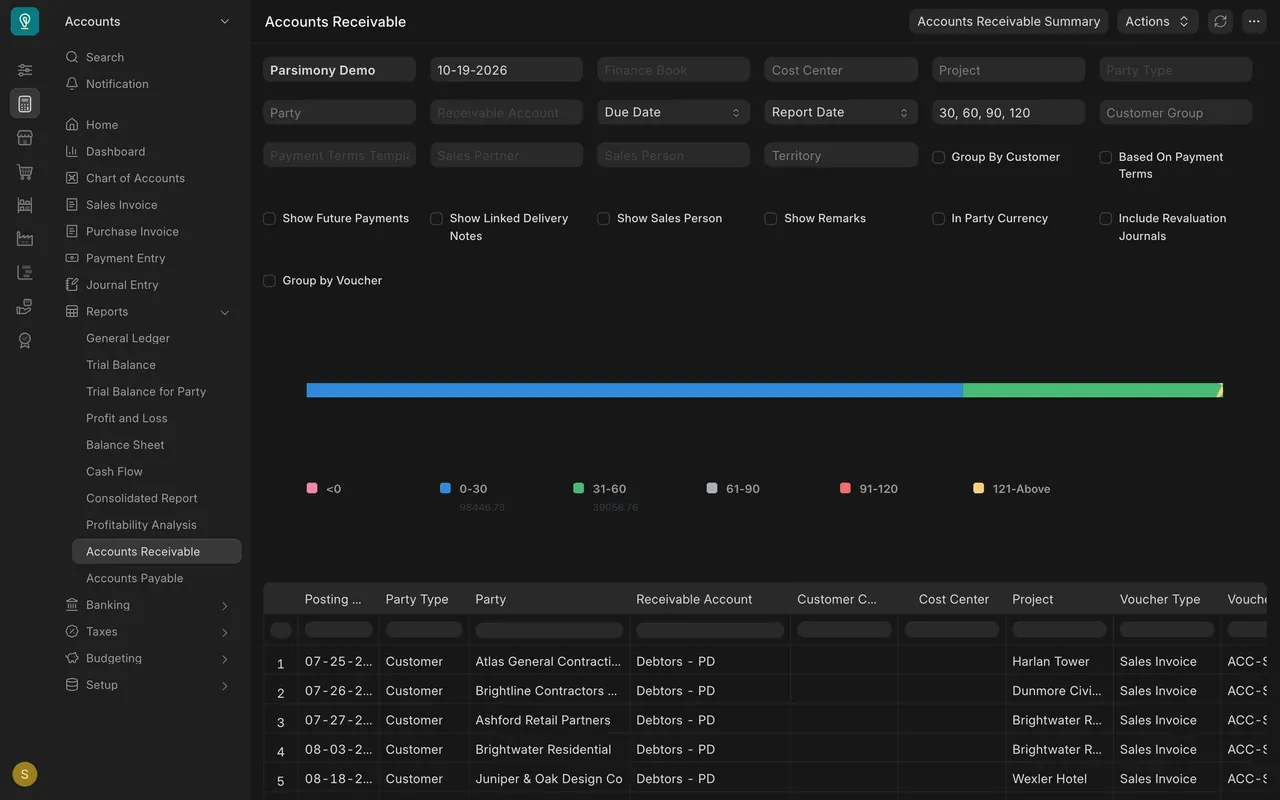
- The "Accounts Receivable" report has a "Project" column and filter.
Read the sales reports
All four are on the Selling home page under Sales Reports and Customer Reports. You can also press Cmd+K or Ctrl+K and type the name.
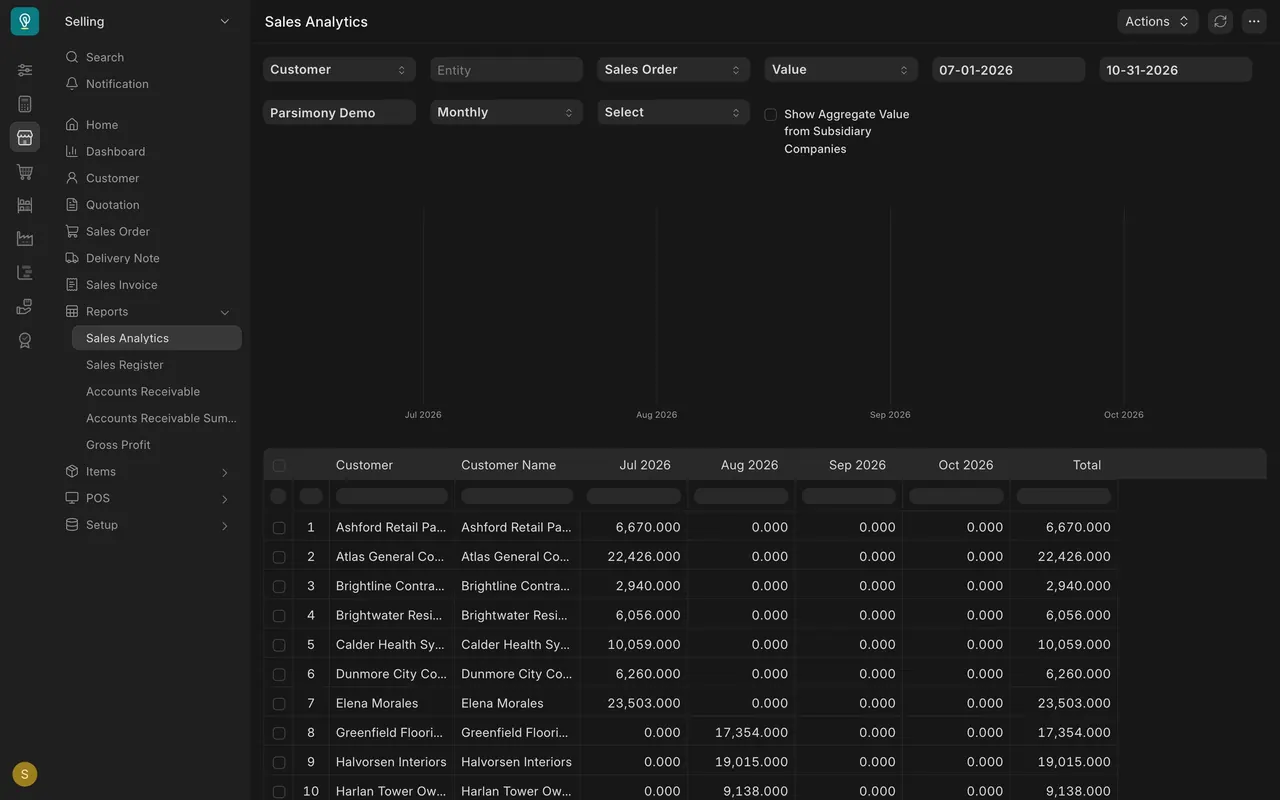
- "Sales Analytics": who ordered what, month by month. Set the filters to "Customer", "Sales Order", "Value" and "Monthly", and pick your dates.
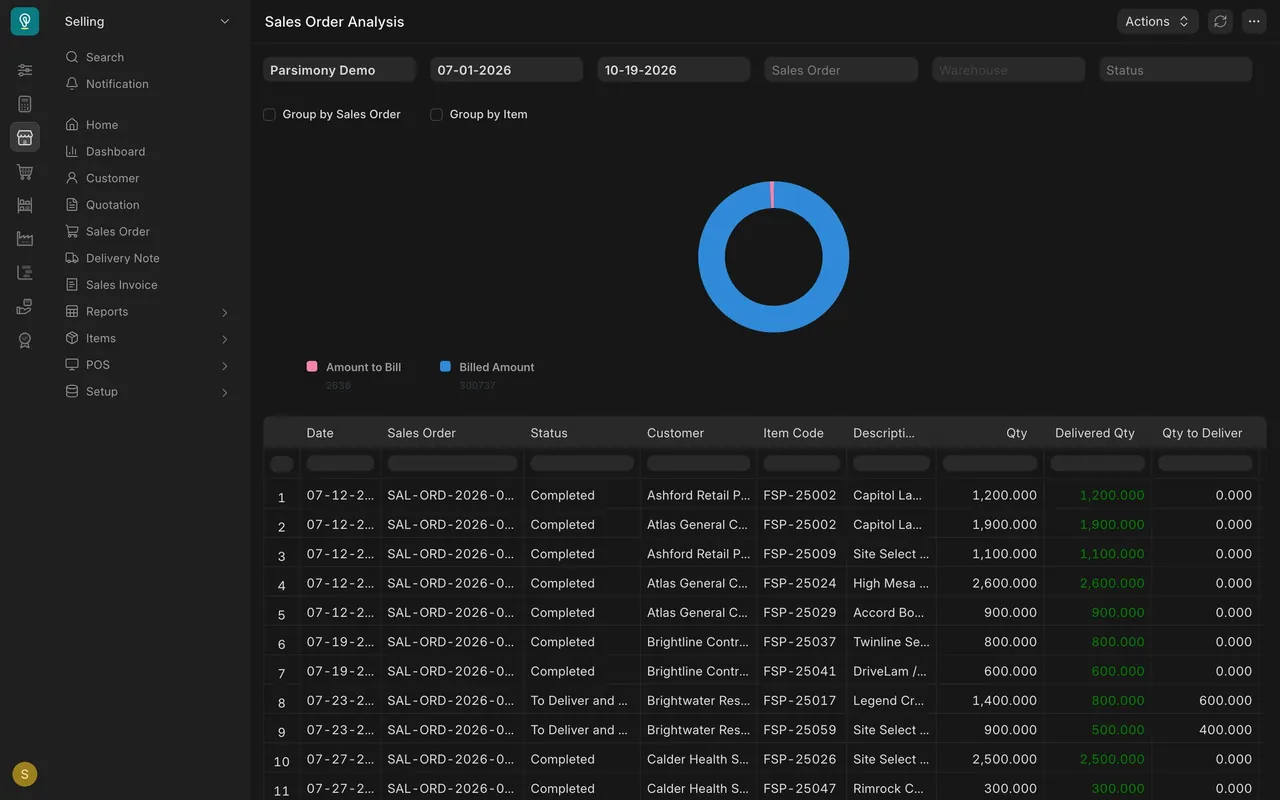
- "Sales Order Analysis": every order line, with "Qty", "Delivered Qty" and "Qty to Deliver". Set the date range wide enough: the default is the last month only. One Brightwater Residential line has 600 square feet still to deliver.
- "Lost Quotations": lost deals grouped by reason or competitor.
- "Accounts Receivable": who owes your company money and how overdue it is, in age bands such as 0 to 30 and 31 to 60 days. Check it before you take a big new order from a customer who pays slowly. If the report does not open for your role, ask Accounts.
What the example site uses
- Reports: the example site uses the standard reports; it has no custom sales reports. Your company may add its own.
- Lost reasons: the example site has "Price higher than competitor", "Lead time too long", "Project postponed" and "Specification changed". Its competitors: Coastline Flooring Supply, Summit Surfaces Co and BuildRight Distribution. Only a Sales Master Manager (a role in Parsimony) can add a lost reason or a competitor.
- Projects: the example site has twelve commercial projects, such as Wexler Hotel, Calder Medical Center, Brightwater Residences and Tabor Elementary School.
- Dates: set the report dates first. A report only shows what falls inside its filters.
Common mistakes
- Letting quotes expire without a word. Call the customer or set the quote as lost, with a reason.
- Picking the nearest reason. A wrong reason misleads the report. If the real one is not on the list, ask for it to be added. The same goes for a competitor that is not on the list.
- Reading a report with the wrong dates. Sales Order Analysis defaults to the last month. Widen the range before you decide nothing is pending.
- Different names for the same job. Use the project name exactly as it is in Projects.
- Taking a big order without checking Accounts Receivable. A customer with overdue invoices is a risk to discuss with your manager first.
Check yourself
3 quick questions.
1. A customer bought from a rival who had stock for an earlier install date. How do you set the quote as lost?
2. Sales Order Analysis shows "Nothing to show". What should you check first?
3. A customer with invoices 31 to 60 days overdue wants a big new order. What do you do first?