V16 Training · Reports and Dashboards · Lesson 1 of 6
Filter a report and save your view
This lesson shows you how to make a report answer one question, and how to keep the result as a saved report.
Written guide
The idea
A report is a list of rows that Parsimony adds up for you. You rarely want all of it. You want the rows that answer one question, in the order that matters, with the columns you need. Three moves do that: filter, sort and columns. Then you can keep the result as a saved report.
The screens use example data from a demo company that sells flooring, in the Accounts Receivable Summary report. Your own Parsimony site shows your company's customers. The same moves work on other reports.
Step by step
Open the report
- Open the Reports section in your area's sidebar, for example under Selling or Accounts, and pick Accounts Receivable Summary.
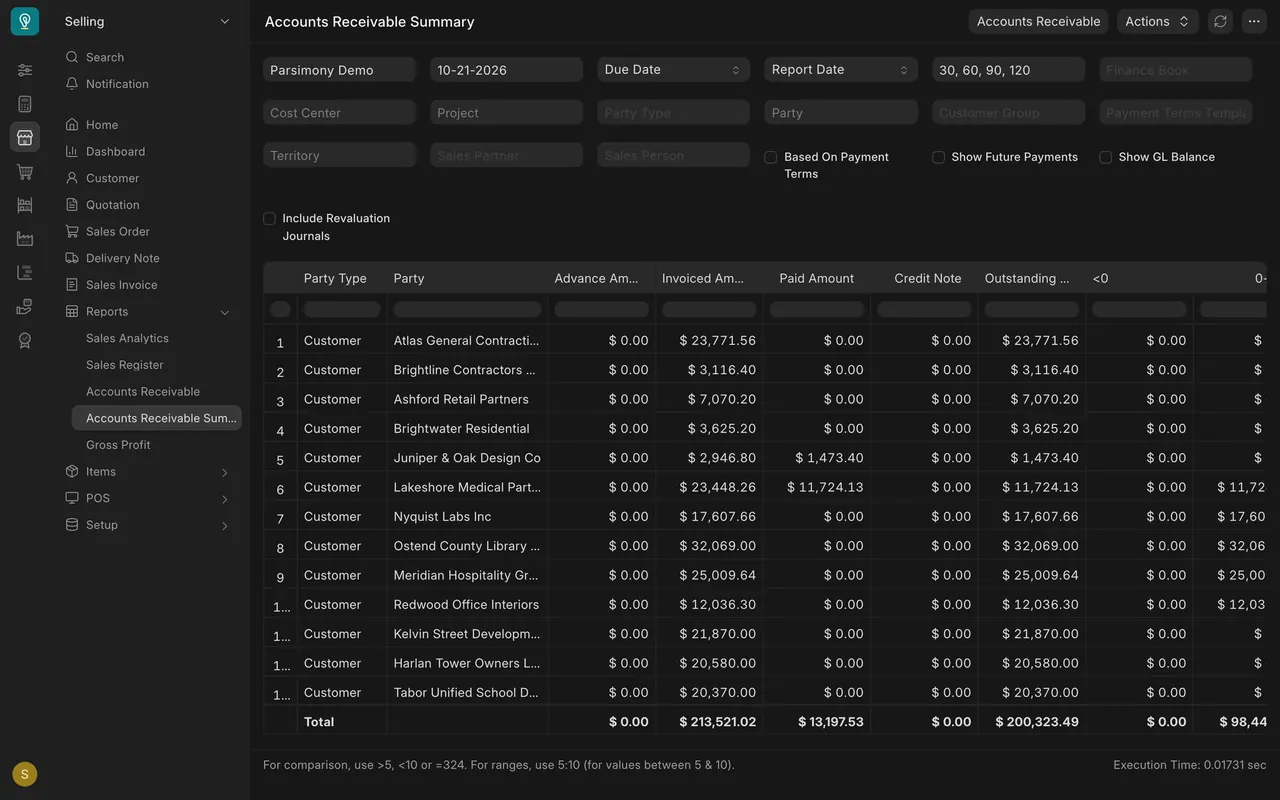
- Each row is a customer and what they still owe. In this example there are thirteen customers, and the Total row at the bottom adds up to $200,323.49.
One: filter
- The boxes across the top are the report's filters, such as Customer Group, Party and Territory. Each one narrows the rows.
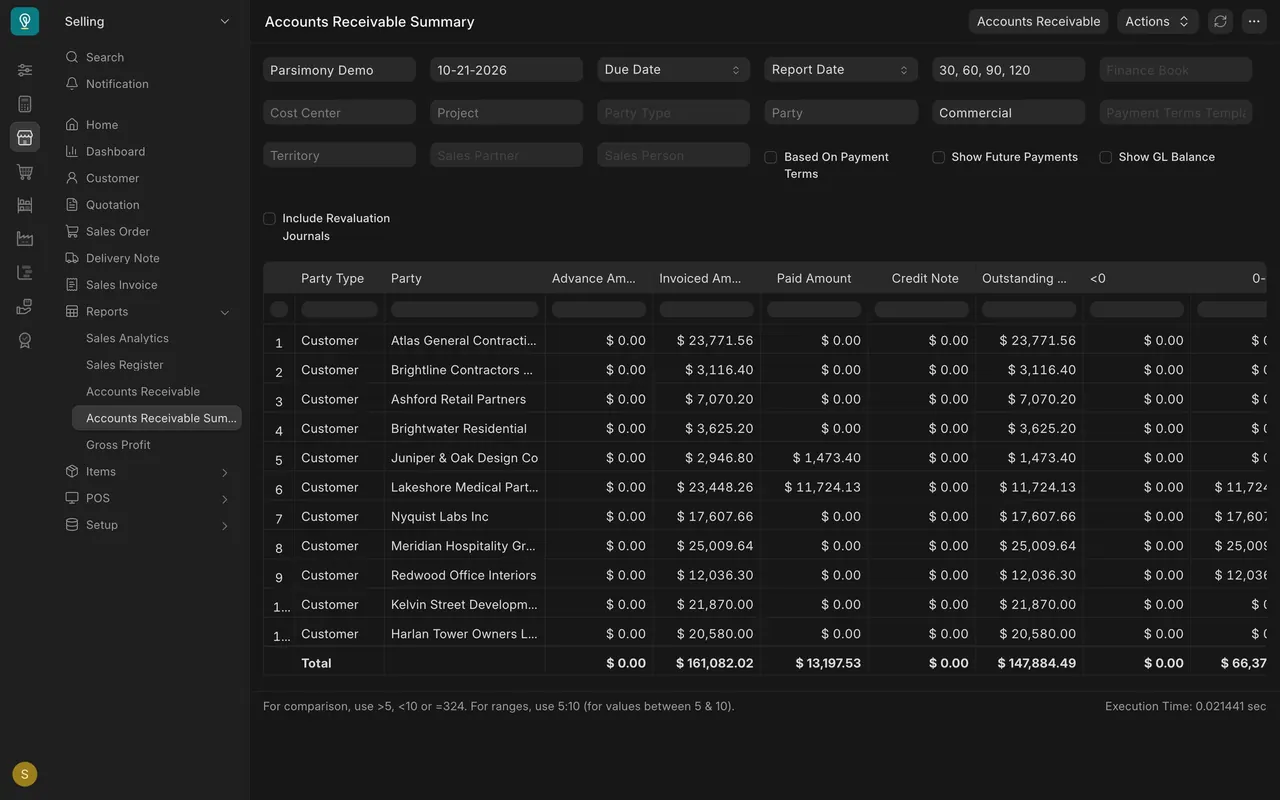
- Pick Commercial in Customer Group. The table now shows eleven customers, and the Total drops to $147,884.49.
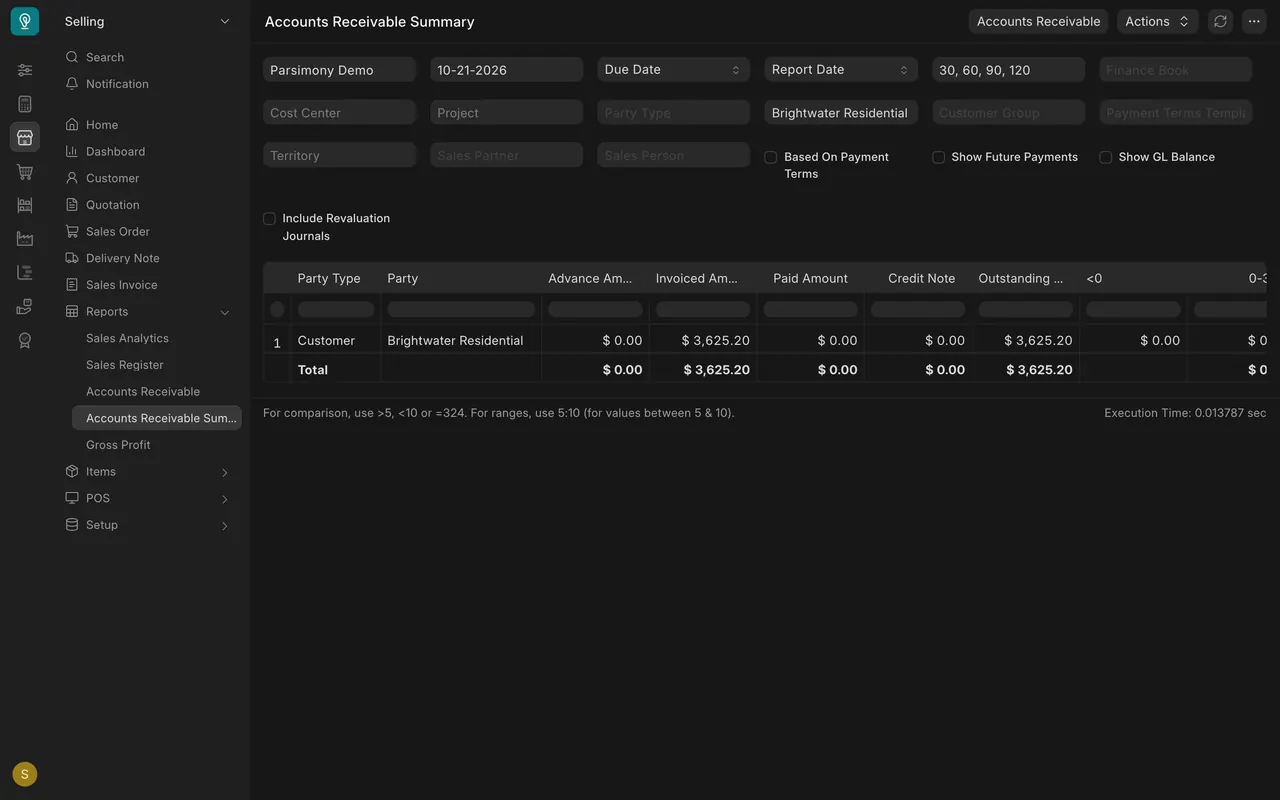
- Type one customer into Party and you get that customer alone. Here, Brightwater Residential leaves a single row of $3,625.20.
- To clear a filter, empty its box. The report goes back to every customer.
Two: sort
- Point at a column heading, such as Outstanding Amount, and open its small menu.
- Choose Sort Descending and the biggest balance comes first. Sort Ascending puts the smallest first, and Reset sorting puts the rows back.
Three: columns
- The same small menu has Remove column, which hides a column you don't need. Freeze keeps a column in place while you scroll sideways.
- To bring a removed column back, open the three-dot menu at the top right and choose Add Column.
- The table is wider than the screen, so scroll sideways for more columns, such as Territory and Customer Group.
Four: keep it with Save
- Open the three-dot menu at the top right and choose Save.
- A box asks for a Report Name.
- Parsimony saves a new report with your filters and your columns. The original report stays as it was.
- Only people who manage reports see Save. A saved report is its own report, so ask your administrator who else can open it.
Lists have their own filters. They are covered in Getting Started, lesson three, "Work with lists".
What you may see on your own site
- The menu item on this version is Save, and the box is called Save Report. Your administrator may have different report-manager permissions, so you might not see it.
- Reports differ: some have a chart above the table, and a few, such as Stock Balance, ask you to press Generate New Report before they show rows.
- The date, the filters and the customers on your site are your own.
Common mistakes
- Quoting a Total without checking the filters. The Total covers only what the filters allow.
- Saving a view with a filter you forgot was on. The new report keeps exactly what you see.
- Hiding a column and forgetting it. Use Add Column in the three-dot menu to bring it back.
- Expecting everyone to see your saved report. Ask your administrator who can open it.
Check yourself
3 quick questions.
1. In Accounts Receivable Summary you pick "Commercial" in Customer Group. What happens to the rows and the Total?
2. You want the customers who owe the most at the top. What do you do?
3. What does Save do on a report?