V16 Training · Month-End Close · Lesson 1 of 6
Bank accounts and bank reconciliation
This lesson shows how to set up a bank account in Parsimony and reconcile it with the bank statement.
Written guide
The idea
Bank reconciliation checks that what the bank says happened matches what your books say happened. Each line on the statement is matched to a payment or entry in Parsimony. A line with no match gets a new entry.
The screens use example data from a demo company, with a bank called Harbor Demo Bank. Your own site shows your own banks.
Step by step
- Set up the bank account. Open Bank Account and add one. Pick the Bank, link the Company Account (the bank account in your chart of accounts), and tick Is Company Account. Reconciliation only works for company accounts. Keep the real account number out of screenshots.
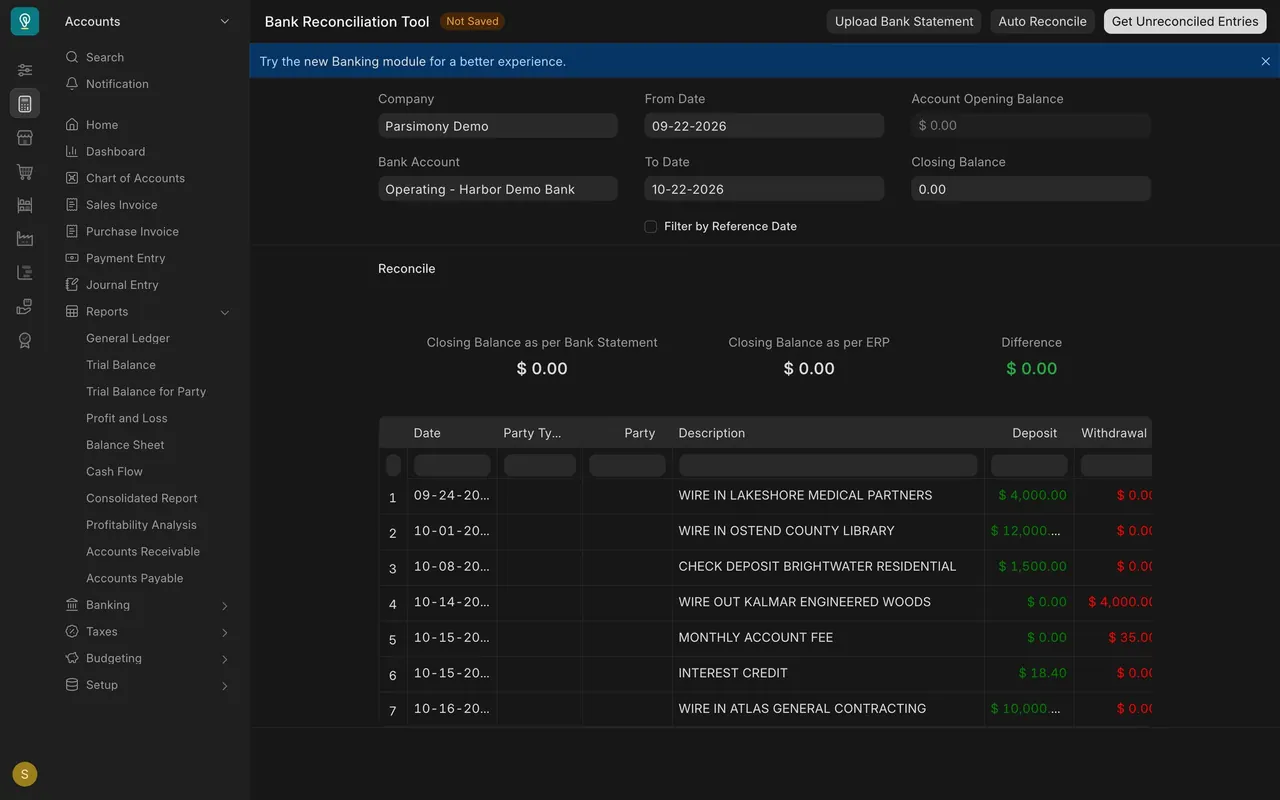
- Bring in the statement. Statement lines are Bank Transaction rows. Load your bank's file with Upload Bank Statement in the Bank Reconciliation Tool, or add lines by hand. New lines start as Unreconciled.
- Open the tool. Pick your Bank Account, then choose Get Unreconciled Entries. Each line has an Actions button.
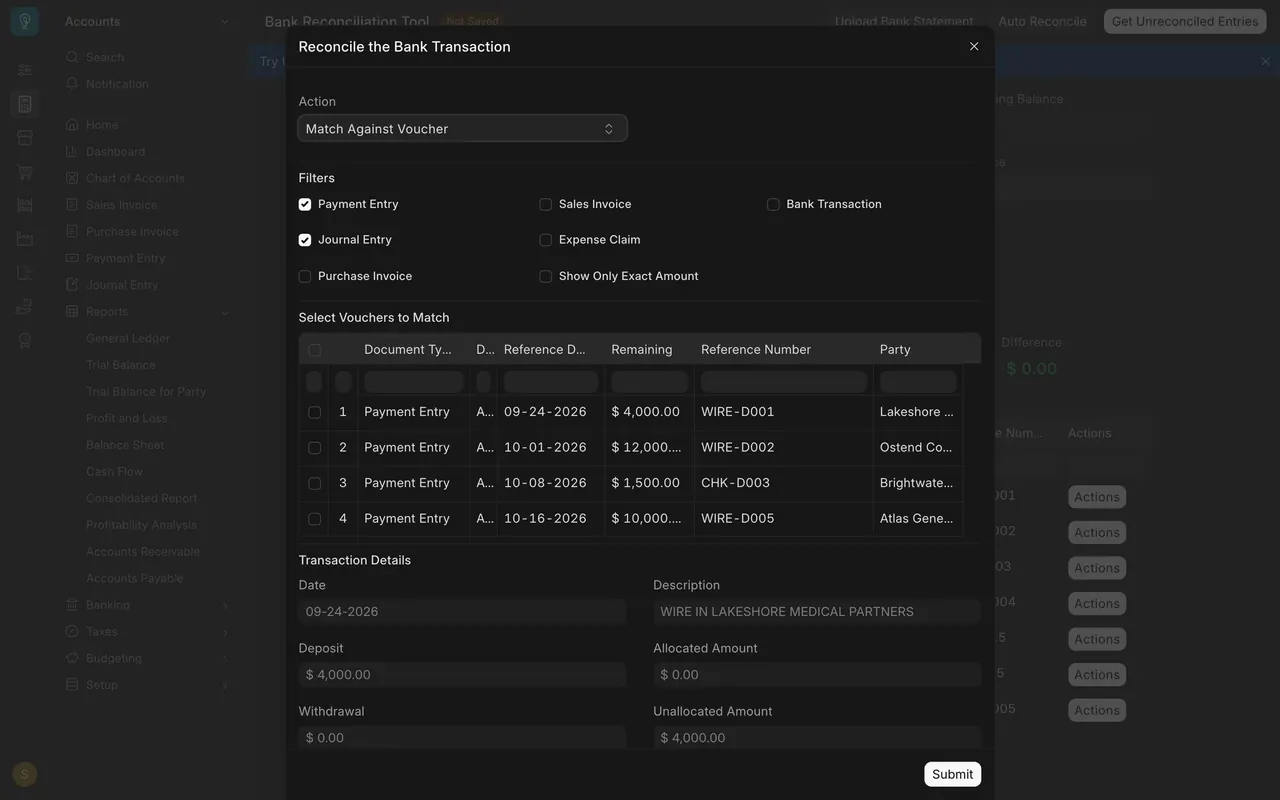
- Match. In the dialog, Match Against Voucher lists payments. Check the one for the same amount. A line can match several payments. Unallocated Amount shows what is still open.
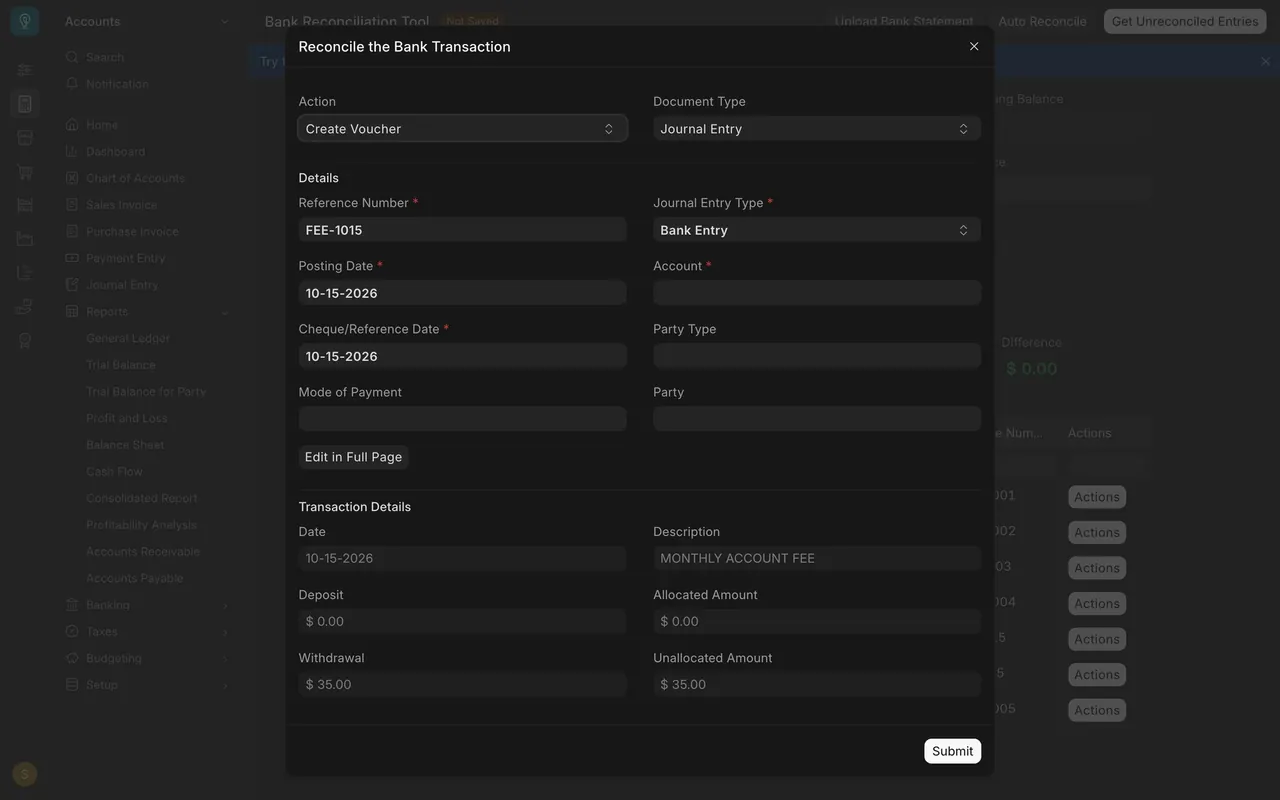
- Create what is missing. For a bank fee or interest, change Action to Create Voucher, set Document Type to Journal Entry, and choose the account. Then Submit.
Common mistakes
- Forgetting to tick Is Company Account, so the account is not offered in the tool.
- Pressing Submit before reading the amounts.
- Matching by amount only when two payments are the same size.
Check yourself
3 quick questions.
1. Which box must be ticked on the bank account for reconciliation to work?
2. A statement line has no payment in Parsimony. What do you do?
3. What does the Difference box show?