V16 Training · Items and Pricing · Lesson 6 of 6
Barcodes
This lesson shows you how to store a barcode on an item, and how a scanner uses it on a document.
Written guide
The idea
A barcode is a number printed on a label, usually as bars. You store it on the item once. After that, scanning it into a document finds the item for you, so nobody types item codes by hand.
The screens use example data from a demo company that sells flooring. Your own Parsimony site shows your own items.
Step by step
Add a barcode to an item
- Open the item, then choose the Inventory tab.
- Scroll to the Barcodes table. In this example it has two rows: one for the square foot and one for the carton.
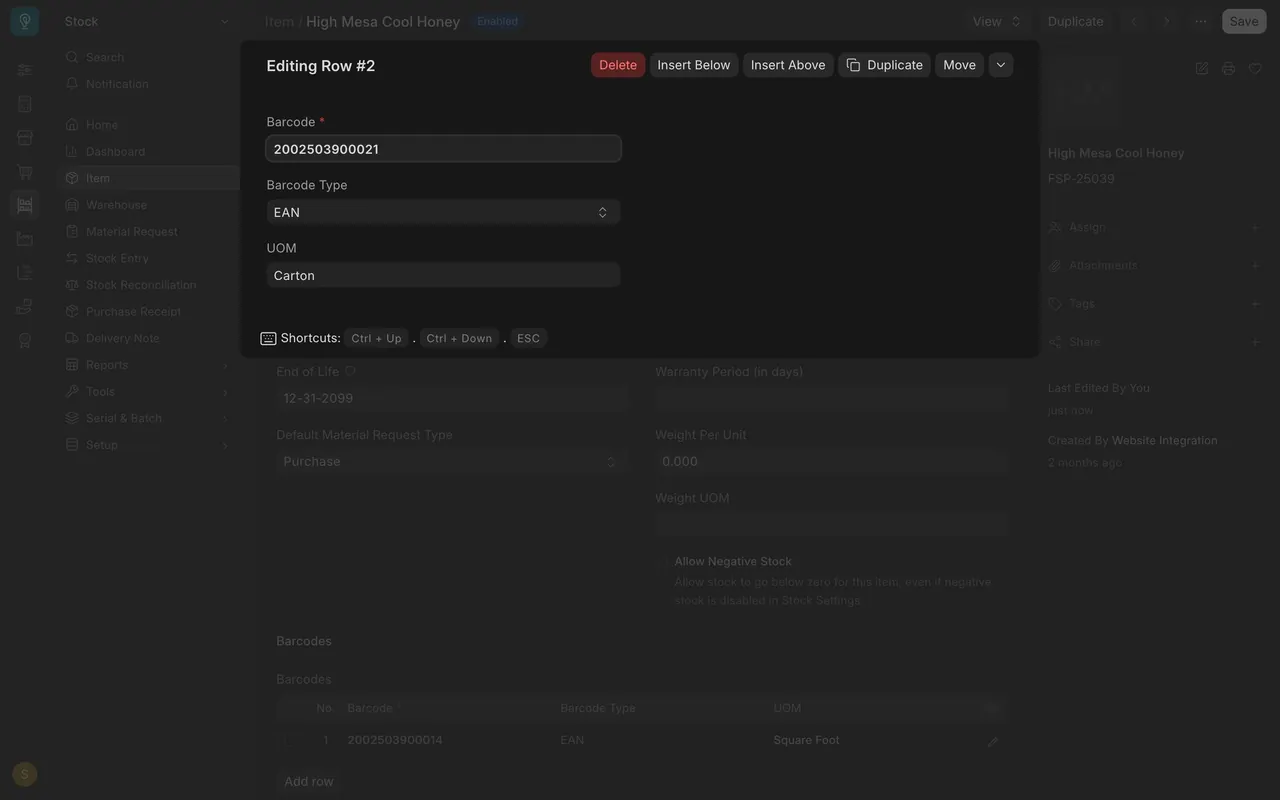
- Click a row to change it, or choose Add row. A box opens, such as "Editing Row 2".
- Type the number printed under the bars in Barcode. It is required. Here it is the carton's number.
- If you know the format, pick it in Barcode Type. You can leave it empty.
- Pick the UOM (unit of measure) the barcode stands for, here Carton. The square foot row has its own barcode.
- Save the item.
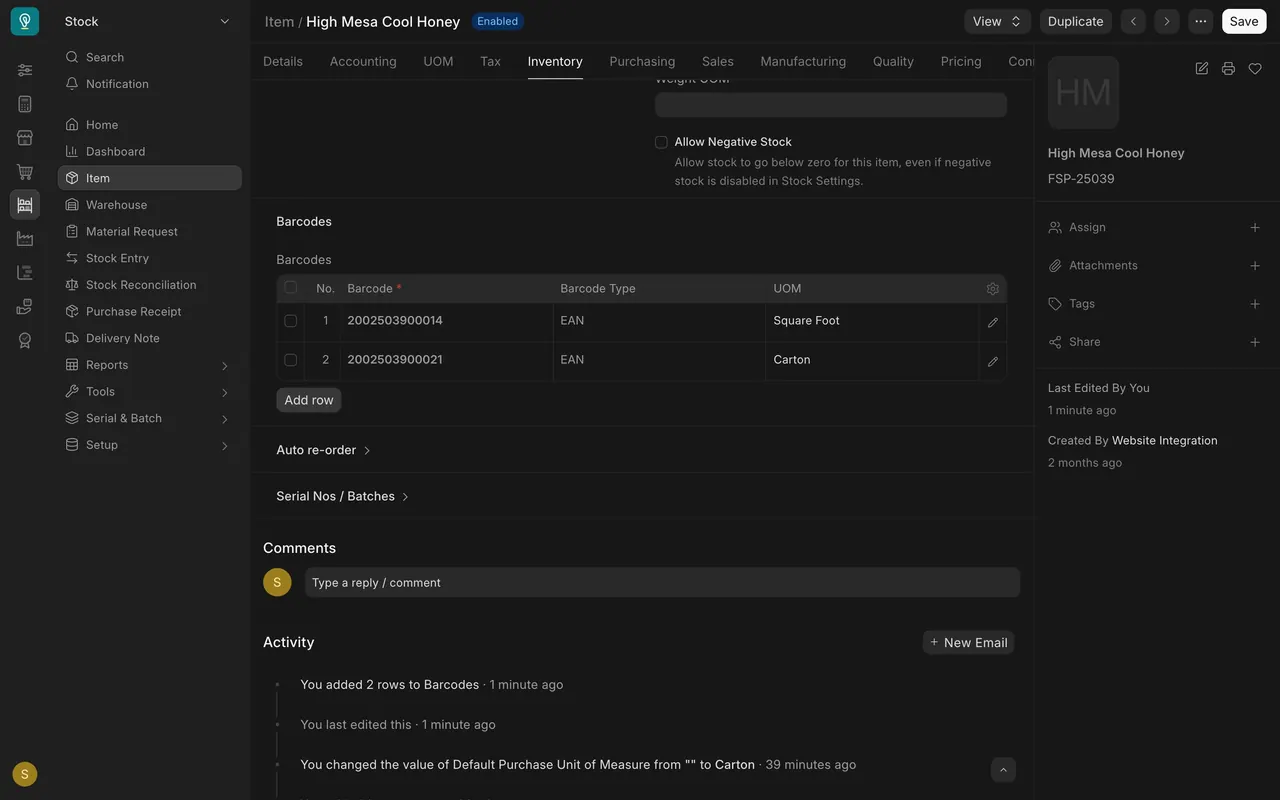
Scan into a document
- Open a new Delivery Note, Purchase Receipt or Stock Entry.
- Click the Scan Barcode field, above the items table.
- Scan. A scanner that plugs into your computer works like a keyboard: it types the number into the field and presses Enter.
- Parsimony finds the item with that barcode and adds a row in that barcode's unit, so the carton barcode gives cartons. Scanning the same barcode again adds to the quantity. If no item has that barcode, Parsimony tells you.
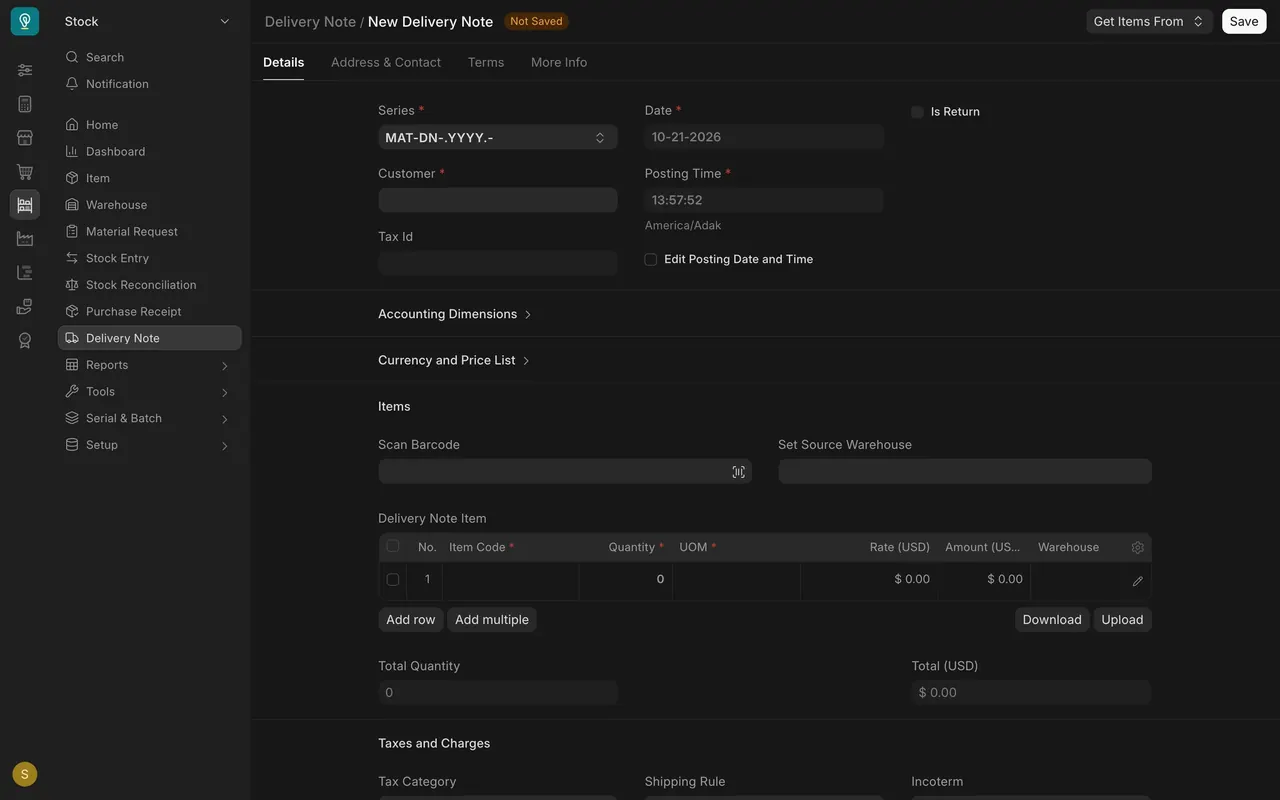
No scanner? Type or paste the number into the field and press Enter.
What you may see on your own site
- The barcodes here are demo data. Your own items carry your own barcodes.
- The row box has no Save button of its own: it saves with the item.
- Your administrator may hide or show fields differently.
Common mistakes
- Scanning before the barcode is stored on the item. Open the item and check its Barcodes table.
- Typing the number with spaces or a missing digit. Match the label exactly.
- Forgetting to save the item after adding the row.
- Scanning with the cursor somewhere else. Click Scan Barcode first.
Check yourself
3 quick questions.
1. Where do you store an item's barcode?
2. What does a scanner that plugs into your computer do?
3. On which documents can you scan into a Scan Barcode field?