V16 Training · Getting Your Data In · Lesson 1 of 6
Plan your import
This lesson shows you how to plan a data import so that it goes in once and goes in cleanly.
Written guide
The idea
An import copies rows from a spreadsheet into Parsimony. Some data points at other data: stock points at items, and a balance points at a customer or a supplier. So the order matters, and the file needs to be clean before you load it. The screens use example data from a demo company.
Step by step
Step 1. Get the order right
Bring in, in this order: customers and suppliers, then items, then opening stock, then opening balances. Each one depends on the one before. Out of order, rows fail because the thing they point to is not there yet.
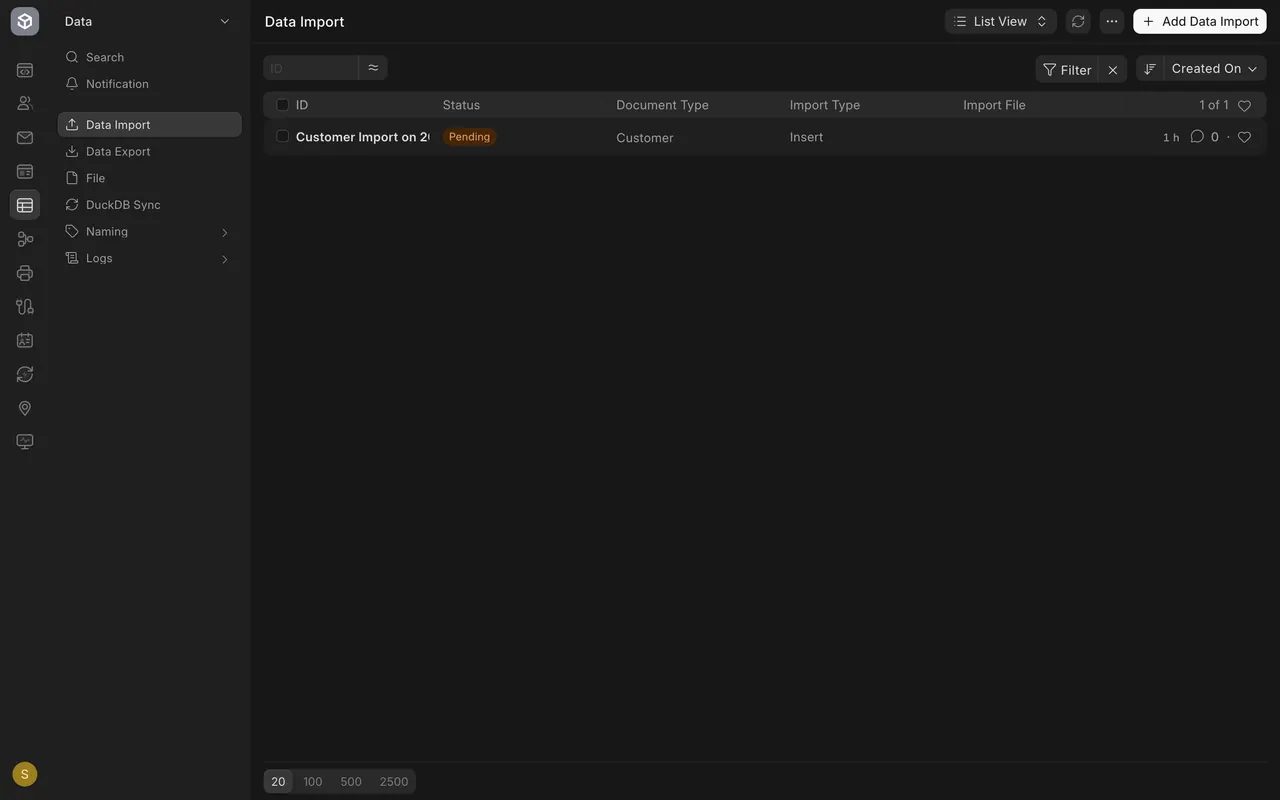
Step 2. Open the Data Import list
- Open Data Import in the sidebar. It lists every import your site has started. In this example there is one, a Customer import that has not been run, with the status Pending.
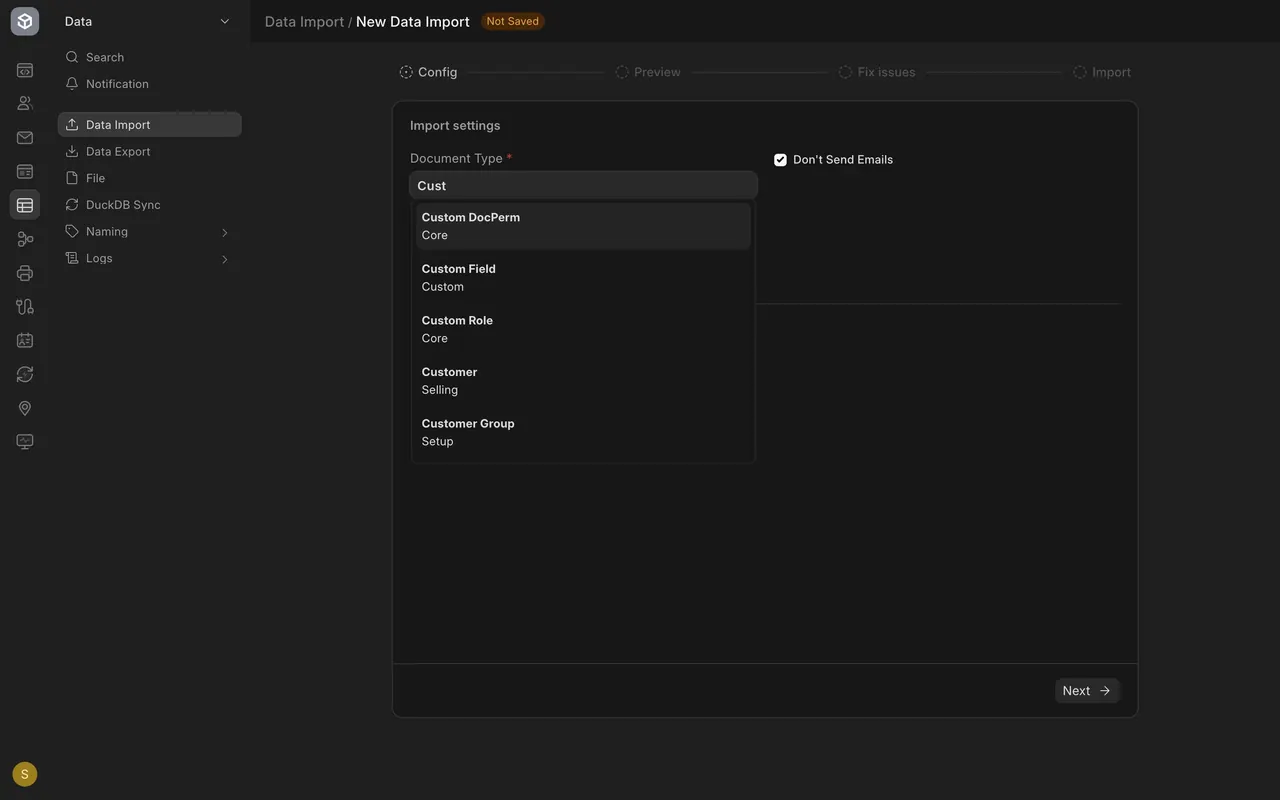
- Choose Add Data Import at the top right. The form opens unsaved, with the Not Saved badge.
- Pick the Document Type, for example Customer. Insert New Records adds new rows. The steps across the top are Config, Preview, Fix issues and Import.
Step 3. Download the template
- On a started import, choose Download Template.
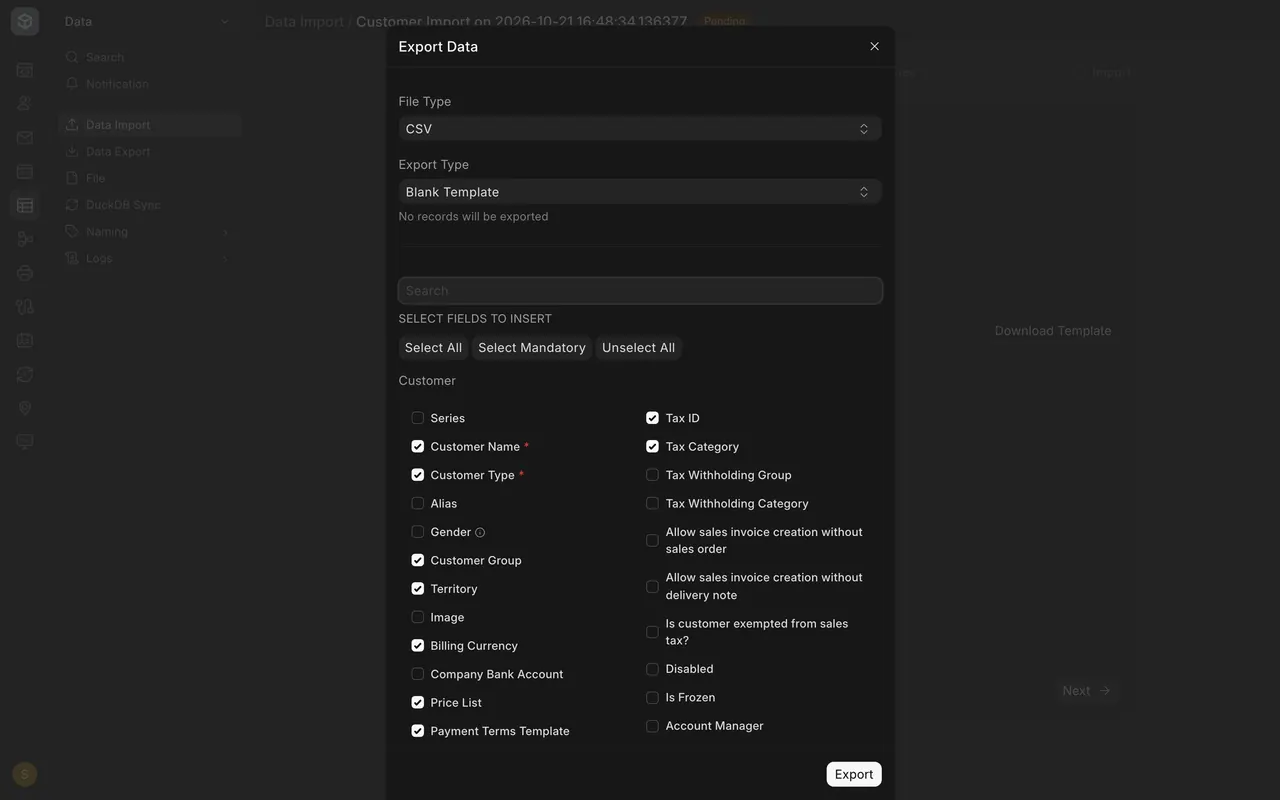
- In the Export Data box, pick Blank Template. Select Mandatory ticks only the required fields, which carry a red star. For a customer these are Customer Name and Customer Type.
- Tick any other columns you have data for, then export.
Step 4. Clean your data first
One row for each record, every required cell filled, spelling that matches things that already exist (a customer group, say), and no duplicates.
Step 5. Do a dry run
Put a few rows, say five, in the file and import those first. Check them in Parsimony, then bring in the rest.
What you may see on your own site
- Your list may be empty, or hold several imports.
- The columns in the template depend on the Document Type and on any extra fields your company added.
Common mistakes
- Importing items before the suppliers or customers they refer to.
- Loading the whole file first. Try a few rows.
- Leaving a required cell blank.
- Different spelling from what already exists.
Check yourself
3 quick questions.
1. Which should you import first?
2. How do you find which fields are required in the template box?
3. What is a dry run?