V16 Training · Getting Your Data In · Lesson 6 of 6
Check and fix your data
This lesson shows you how to prove an import is right, and how to fix it in bulk.
Written guide
The idea
An import that finished is not an import that is correct. Three reports, a few spot checks and a bulk fix tell you. The screens use example data from a demo company; your own Parsimony site shows your own numbers.
Step by step
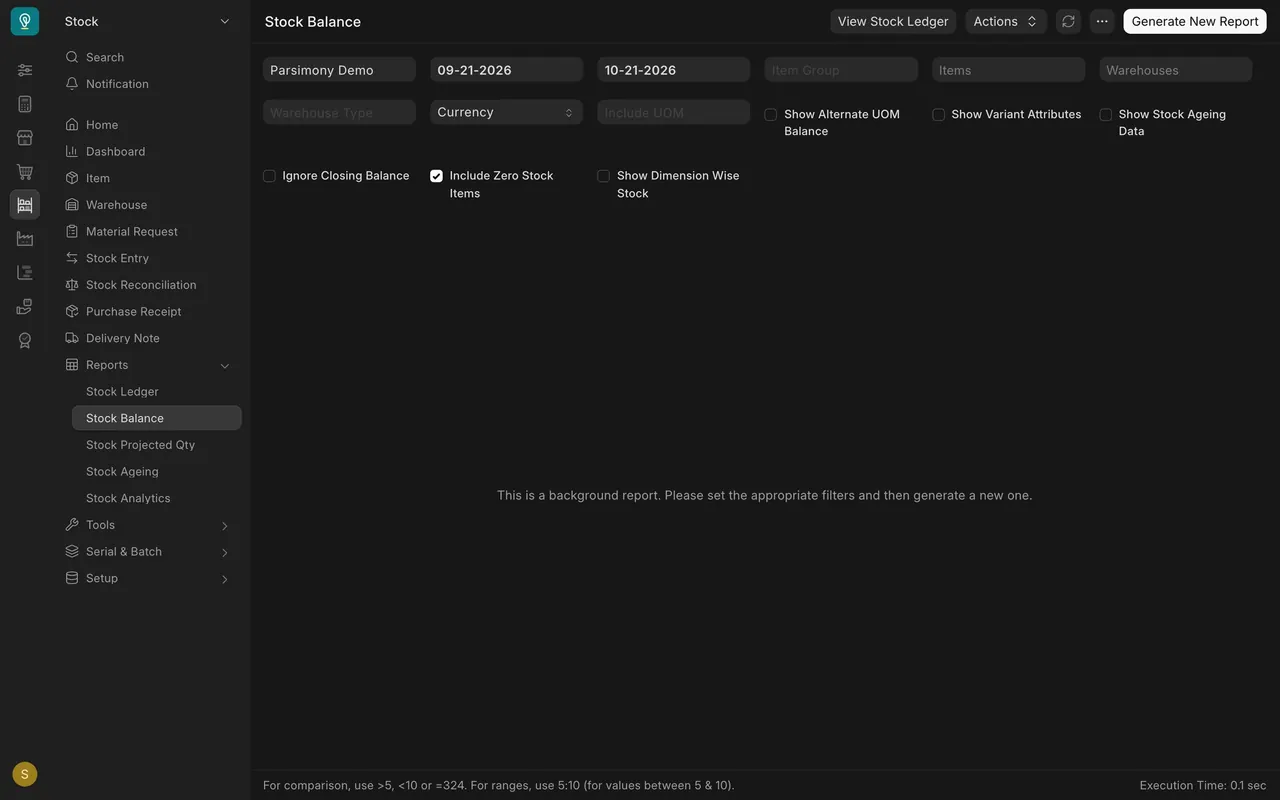
Step 1. Check stock in Stock Balance
- Open Stock Balance under Reports in Stock.
- It is a background report. Set your company and dates, then choose Generate New Report.
- Parsimony builds it in the background and shows the rows when it is ready. Compare each quantity with your count.
Step 2. Check the books in Trial Balance
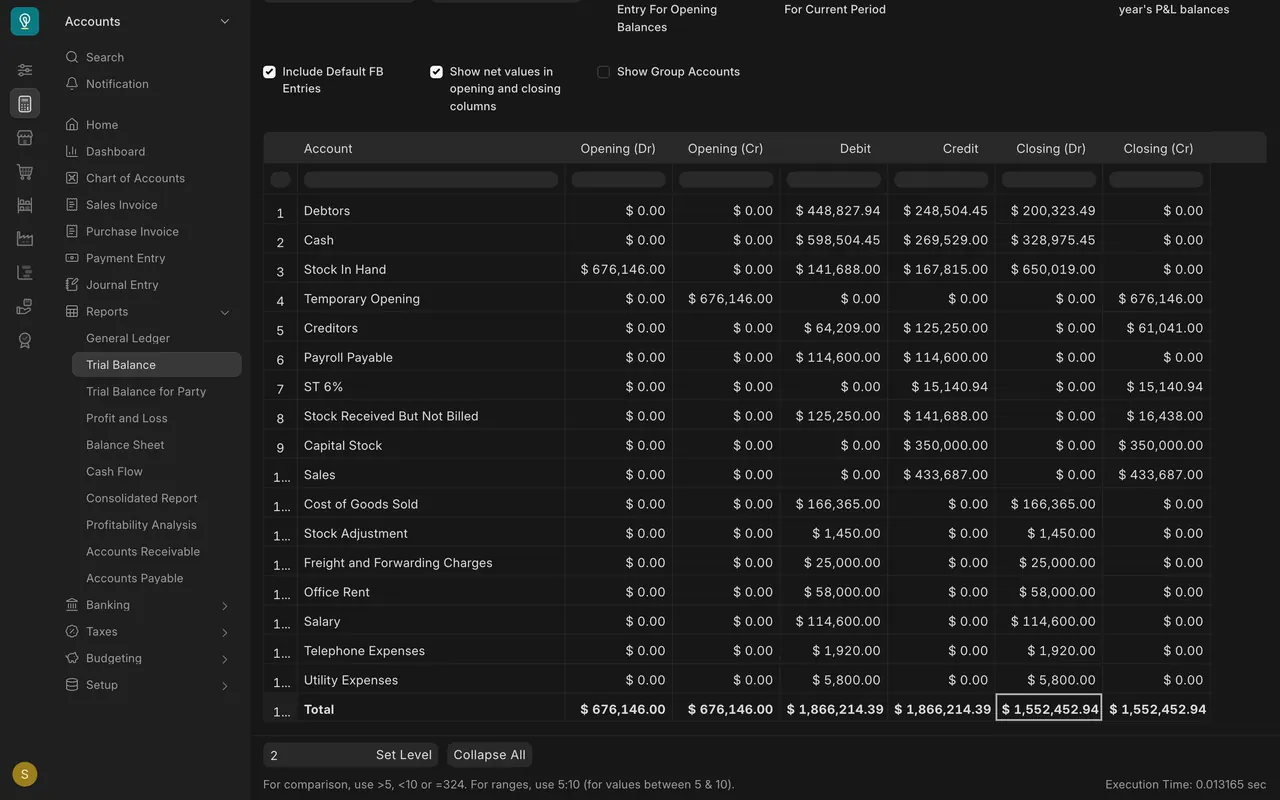
- Open Trial Balance under Reports in Accounts.
- In the Total row, Debit and Credit must be exactly equal. In this example both are $1,866,214.39. If yours differ, an opening entry is out of balance.
- Look at the other rows. Here Sales is larger than the costs below it, so the demo company shows a profit.
Step 3. Check what customers owe
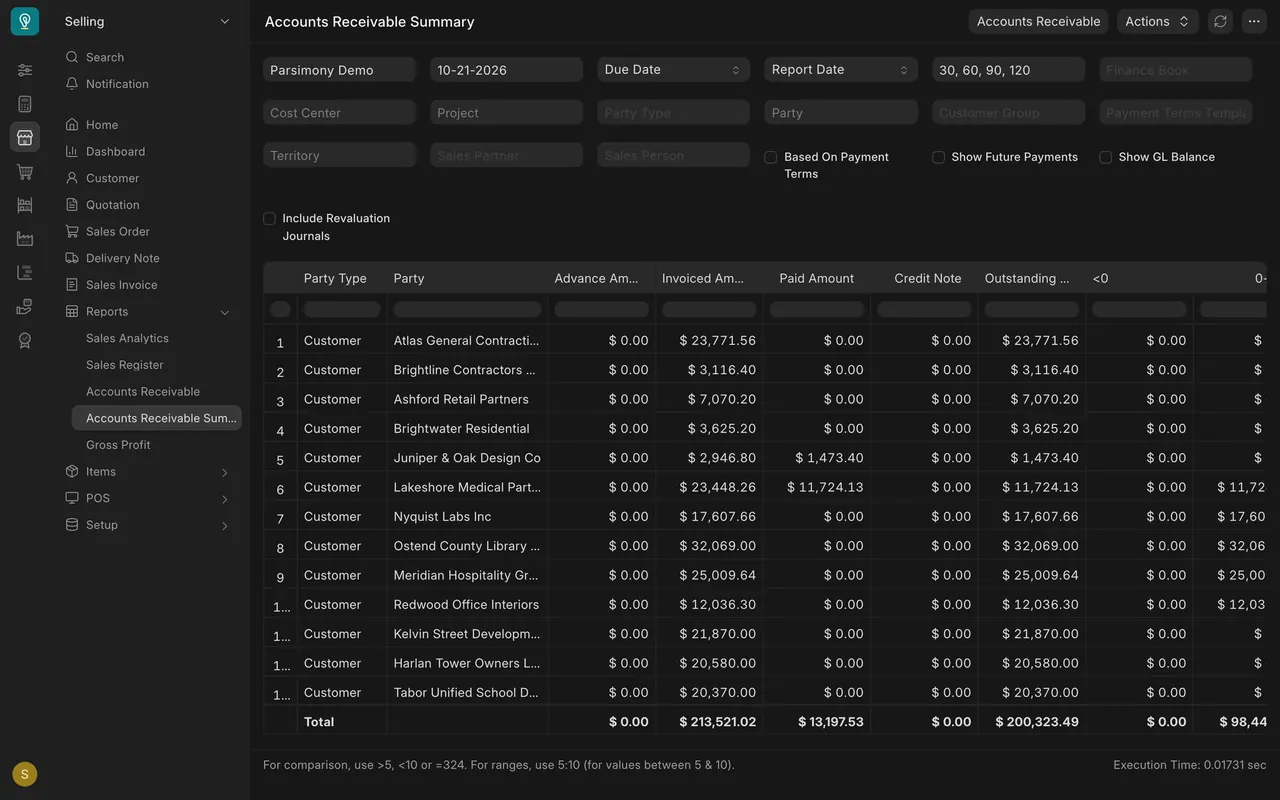
- Open Accounts Receivable Summary. In this example its Total is $200,323.49.
- That matches the Debtors line in Trial Balance. Two reports, one number.
Step 4. Spot-check records
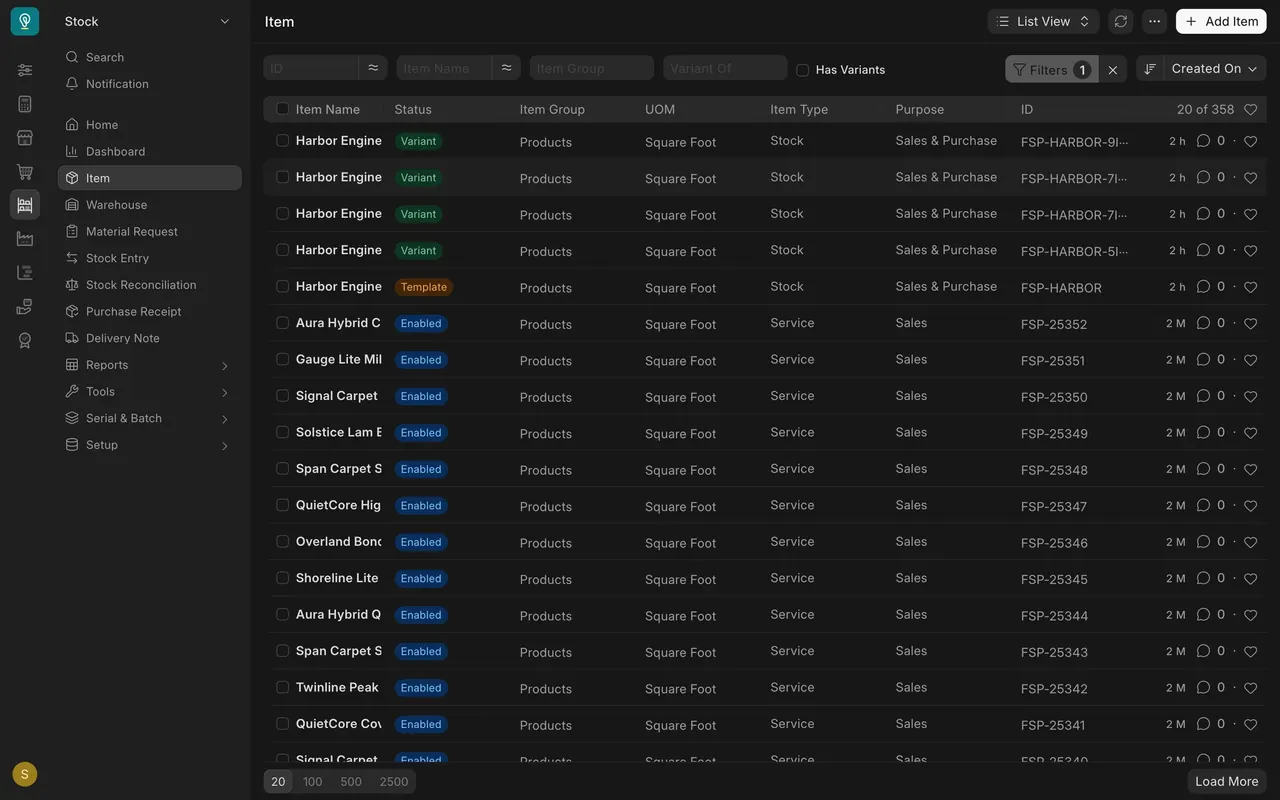
- Open the Item list, then open a few items you know well.
- Do the name, group and unit look the way you typed them?
Fix in bulk
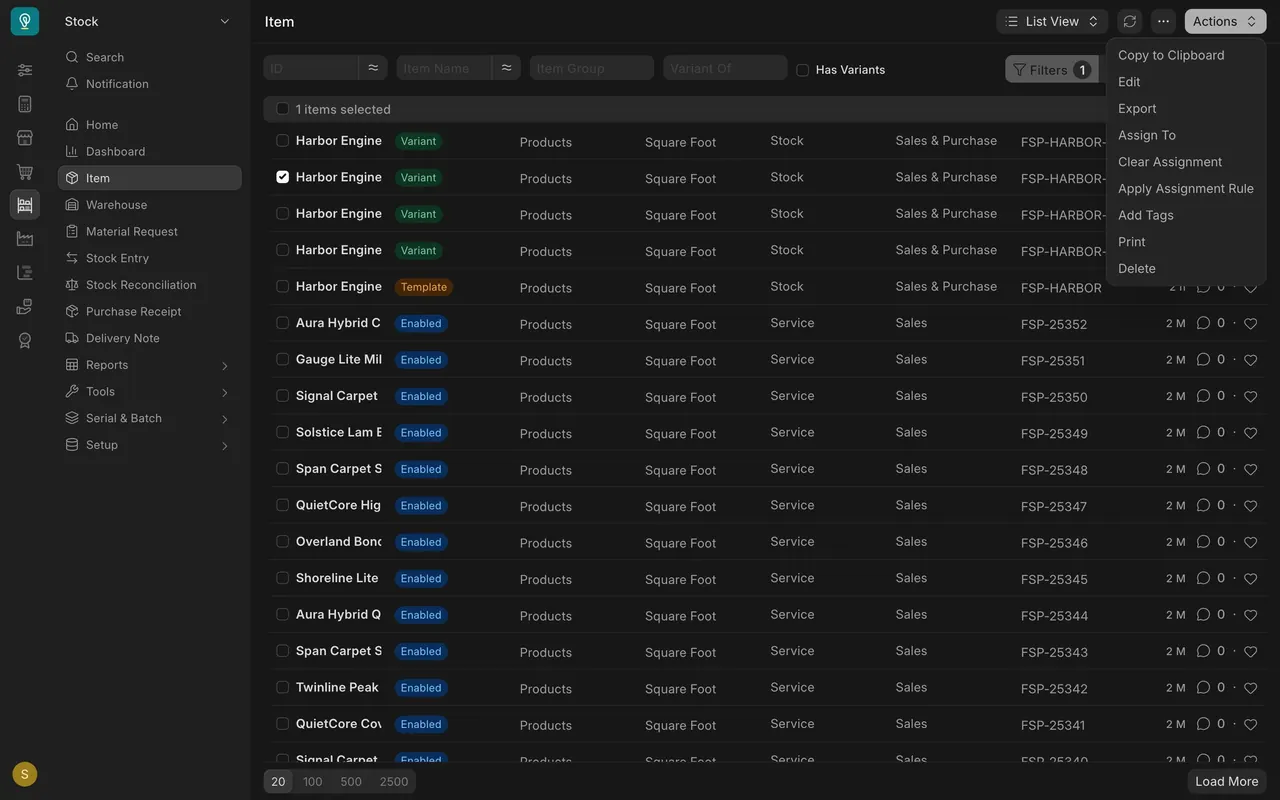
- Tick the rows, open Actions and choose Edit.
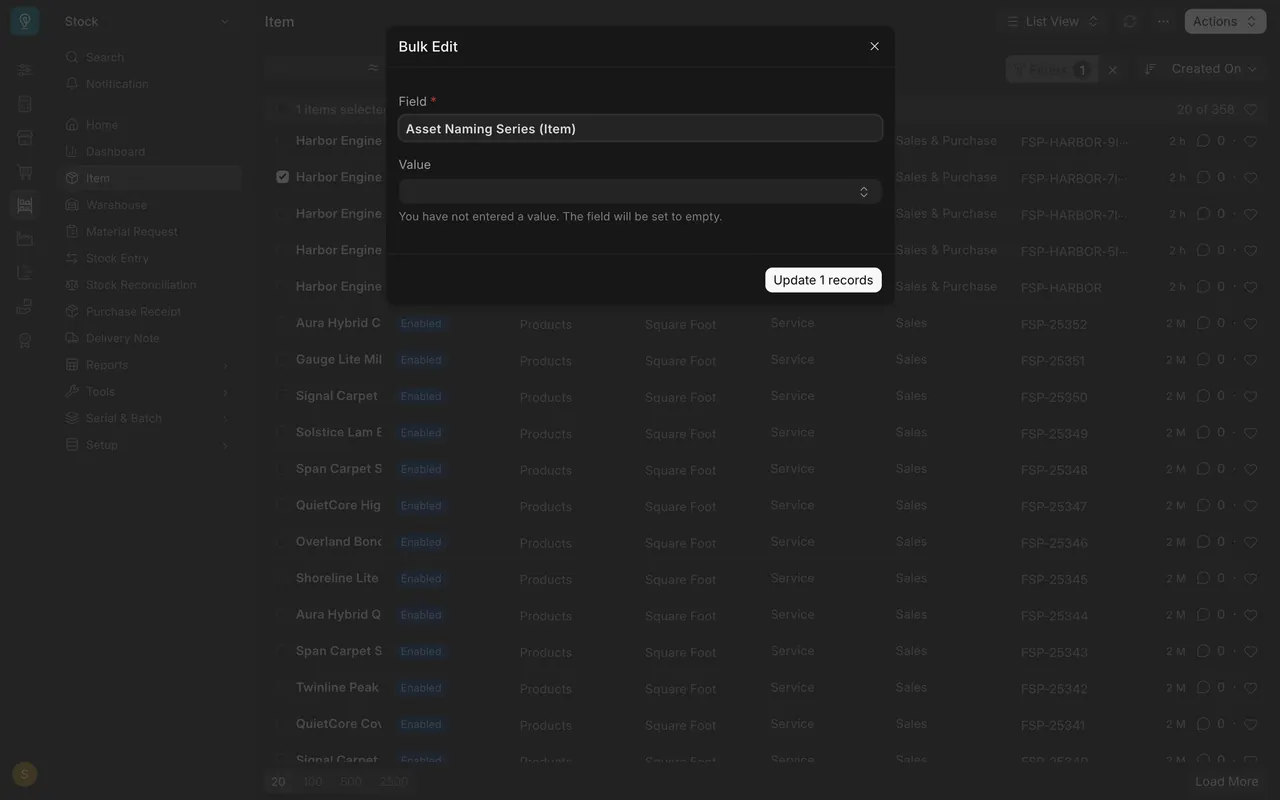
- In the Bulk Edit box, pick a Field, type the new Value and use the button to change every ticked row.
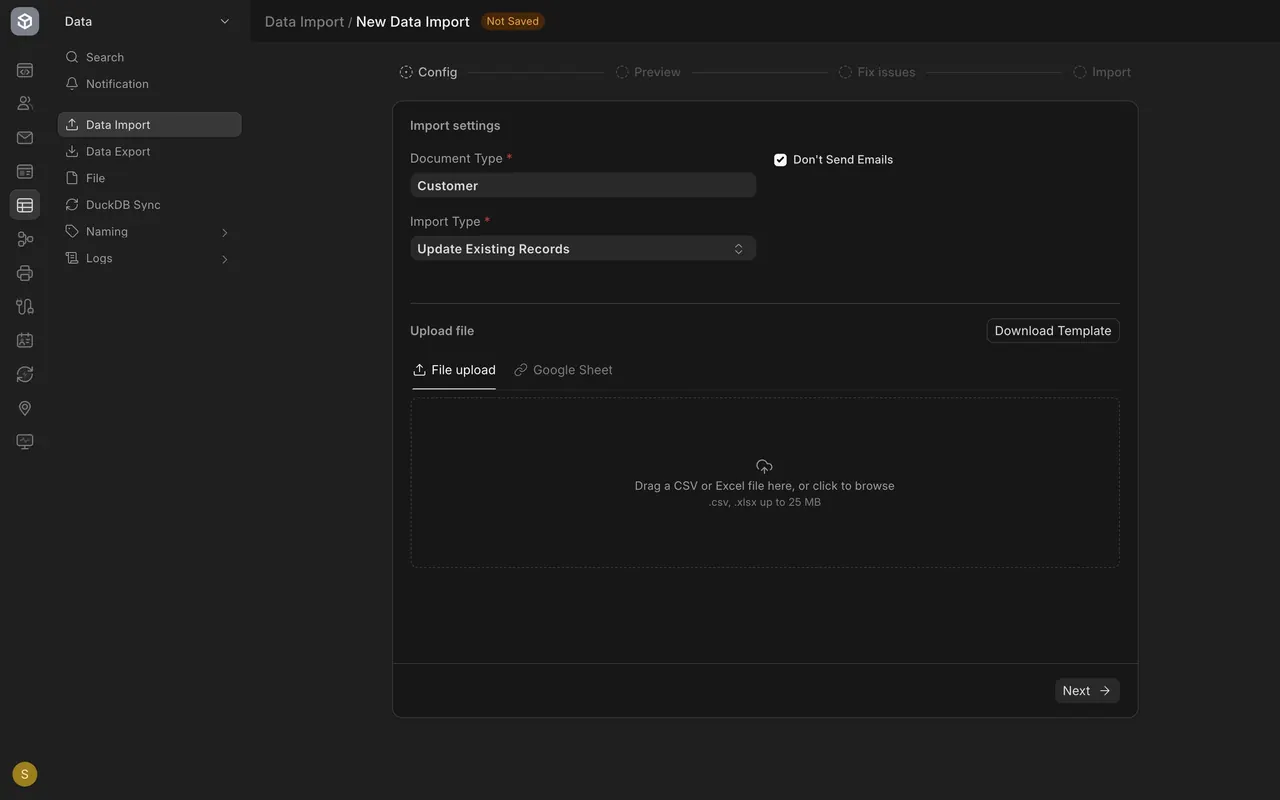
- For a bigger fix, go to Data Import, set Import Type to Update Existing Records and upload the changed file. Matching records change and none are added.
To read reports in more depth, take the Reports and Dashboards course.
What you may see on your own site
- Stock Balance may already hold a generated report, or ask you to generate one.
- The Field list in Bulk Edit depends on the record type and your permissions.
- Your administrator decides who can use bulk edit and Data Import.
Common mistakes
- Trusting a finished import. Always check the reports.
- Ignoring a Debit and Credit difference. Fix the opening entry first.
- Editing many rows without a spot check. Look at a few records first.
- Leaving the Value empty in Bulk Edit. The field is set to empty.
Check yourself
3 quick questions.
1. In Trial Balance, what must be true of the Total row?
2. Stock Balance shows a message instead of rows. What do you do?
3. How do you fix one field in many records at once?